No affiliate links or sponsorship. The rule comes from CISA, and the setup steps from Microsoft and Apple support pages, checked October 27, 2026. We didn’t run hands-on backup or restore tests, and there are no screenshots. Product names are examples, not endorsements.
Quick answer
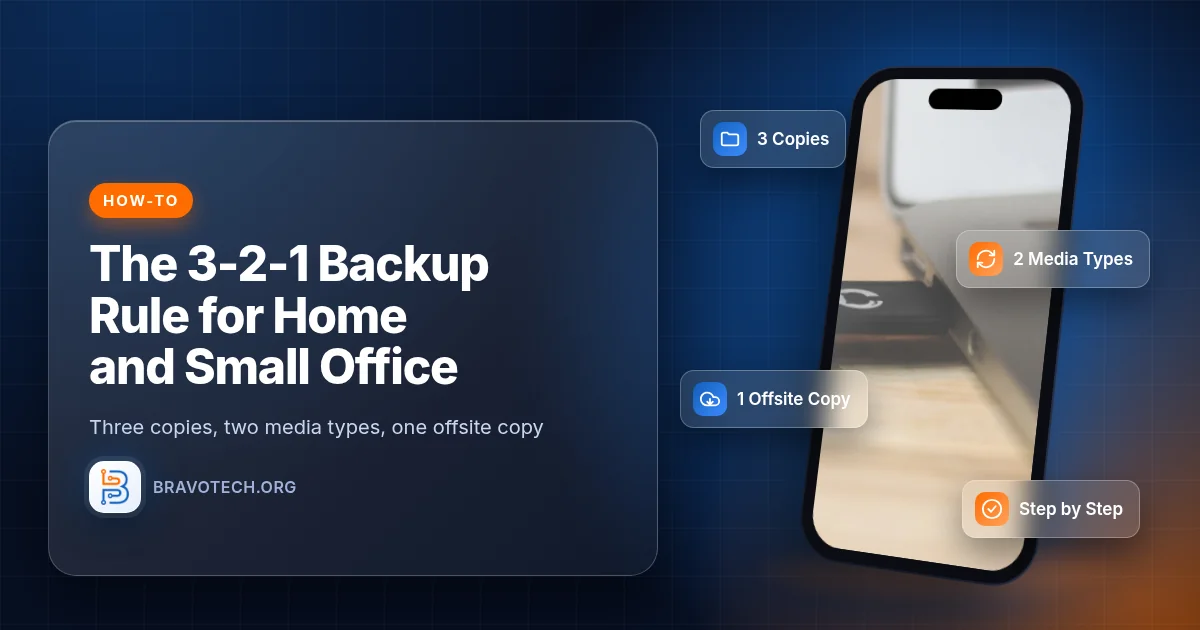
The 3-2-1 backup rule means keeping 3 copies of every important file (the original plus 2 backups), on 2 different types of storage, with 1 copy kept offsite. For a home or small office, that usually looks like this: your files on the computer, a backup on an external drive (File History on Windows or Time Machine on a Mac), and a third copy in a cloud backup service. That’s the setup the US Cybersecurity and Infrastructure Security Agency (CISA) recommends.
Key takeaways
- 3 copies: 1 primary and 2 backups (CISA).
- 2 media types: for example your computer’s internal drive plus an external drive, so one hardware failure can’t take out everything.
- 1 offsite: outside your home or office, usually a cloud backup, so fire, theft, or flood can’t reach it.
- Sync isn’t a backup: OneDrive and Google Drive copy deletions too; their recycle bins keep files for about 30 days.
- Test your restores and keep at least one backup offline or disconnected; CISA warns that ransomware hunts for accessible backups.
How we built this guide
This guide follows CISA’s published guidance and the official Microsoft and Apple backup instructions, all re-checked October 27, 2026 (PKT). We didn’t run backups or restores ourselves, so steps are written as the vendors document them. Menus can change with OS updates.
What the 3-2-1 rule means
CISA puts it this way: keep 3 copies of any important file, 1 primary and 2 backups; keep the files on 2 different media types to protect against different types of hazards; and store 1 copy offsite, for example outside your home or business (CISA).
| Number | Rule | Example |
|---|---|---|
| 3 | Three copies of each important file | Original on your laptop + 2 backups |
| 2 | Two different media types | Laptop drive + external USB drive |
| 1 | One copy offsite | Cloud backup service, or a drive stored at another location |
Why three copies on two media
Each part of the rule covers a different kind of failure. A second copy covers a dead drive or an accidental deletion. A different media type means one fault, like a power surge or a bad batch of drives, is less likely to hit every copy. The offsite copy covers what happens to the building: fire, flood, or theft of everything in it.
CISA notes that remote (cloud) backup can protect data against worst-case scenarios such as natural disasters or failures of local devices due to malware, but that cloud users have little direct control over their data, so it advises choosing a provider that encrypts data with established algorithms such as AES (CISA).
A simple 3-2-1 plan
- Copy 1, the original: the files on your computer. Keeping them in OneDrive or Google Drive is fine, but that’s sync, not a backup.
- Copy 2, local backup: an external drive using File History (Windows) or Time Machine (Mac). It’s quick to restore from.
- Copy 3, offsite backup: a cloud backup service that copies your computer automatically, or a second external drive you rotate to another location.
- Check it monthly: open the backup and restore one file to make sure it works.
Step by step: Windows
File History backs up your files to an external drive or a network location. Microsoft’s steps (Microsoft Support):
- Connect an external drive.
- Open Control Panel › System and Security › Save backup copies of your files with File History.
- Select Turn on. If no drive is selected, choose Select drive, pick the external drive or network location, and select OK.
- File History backs up folders like Documents, Pictures, Videos, and Desktop. To add another folder, right-click it and choose Show more options › Include in library.
- To restore, open File Explorer, right-click the folder that held the file, and select Restore previous versions.
The separate Windows Backup app is different: Microsoft says backing up your folders there syncs them to your OneDrive account (a free Microsoft account includes 5 GB), and it works with personal Microsoft accounts, not work or school accounts (Microsoft Support). That’s useful, but it’s sync, so don’t count it as your only backup. If OneDrive is syncing more than you want, our OneDrive explainer covers the basics.
Step by step: Mac
Time Machine is built into macOS and backs up automatically. Apple’s steps for macOS Ventura 13 or later (Apple Support):
- Connect a storage device with at least twice your Mac’s storage capacity (a 1 TB Mac ideally gets a 2 TB backup disk), and use it only for Time Machine.
- Open Apple menu › System Settings › General › Time Machine.
- Click Add Backup Disk (or the add button), choose the disk, and click Set Up Disk.
- Turn on Encrypt Backup if you want password protection. You’ll need that password to restore.
- Time Machine then keeps hourly backups for the past 24 hours, daily backups for the past month, and weekly backups for all previous months, deleting the oldest when the disk is full.
Time Machine can back up to an external drive, another Mac shared on your network, a network-attached storage (NAS) device, or an AirPort Time Capsule (Apple Support). A NAS in the same building still counts as onsite, though.
Phones and tablets
On iPhone and iPad, iCloud Backup is the easy offsite copy. Open Settings › [your name] › iCloud › iCloud Backup and make sure Back Up This iPhone is on; it then backs up automatically when the device is connected to power and Wi-Fi and is locked, and you can tap Back Up Now any time (Apple Support).
For a second, local copy, back up to a computer. On a Mac, connect the device with a cable, select it in the Finder sidebar, and click Back Up Now. Apple says to select Encrypt local backup if you want to save Health and Activity data, and warns you can’t recover the backup without that password (Apple Support). On Windows, Apple’s user guide uses iTunes for the same job (iPhone User Guide).
Your offsite copy
The easiest offsite copy for most people is a cloud backup service, which copies your computer automatically in the background. As one example, Backblaze lists personal computer backup at $99 a year, covering all user-generated data on a computer and its connected external drives (Backblaze pricing, checked October 27, 2026).
The low-tech alternative is two external drives: keep one at home and one at another location (a family member’s house or a locked drawer at the office), and swap them regularly. It’s cheap, but only as current as your last swap.
Choosing a provider? Our best cloud storage guide and pricing tracker compare sync services.
Is cloud storage enough?
Not on its own. Sync services such as OneDrive and Google Drive mirror your changes, so a deletion or an encrypted file spreads to every device. Recovery depends on their safety windows: Google Drive permanently deletes files in Trash after 30 days (Google Drive Help), and Microsoft’s Restore your OneDrive, which can roll everything back after files are “deleted, overwritten, corrupted, or infected by malware”, covers the last 30 days and needs a Microsoft 365 subscription (Microsoft Support).
Cloud storage can be your working copy, and it does help. It just shouldn’t be the only thing standing between you and a lost file. Our cloud storage guide explains how sync works.
Ransomware and testing
Keep one copy offline
CISA’s #StopRansomware guide says to maintain offline, encrypted backups of critical data and to regularly test the availability and integrity of backups, because “many ransomware variants attempt to find and subsequently delete or encrypt accessible backups” (CISA).
- Disconnect the external drive when a backup finishes, or rotate drives, so ransomware on the PC can’t reach every copy.
- Encrypt backups that leave the building (Time Machine and iPhone local backups both offer encryption), and store the passwords in a password manager.
- Test a restore every month or quarter: pick a file, restore it to a different folder, and open it.
Small office checklist
- List what matters: accounting files, client documents, email archives, shared drives.
- Give every computer a local backup (File History or Time Machine) and an offsite cloud backup.
- Back up shared or cloud-only data too; for cloud-to-cloud backups, CISA suggests considering more than one vendor in case all accounts with the same vendor are affected (CISA).
- Write down who checks the backups, how often, and where the restore instructions live.
- Fold backups into your wider security routine with our small business cybersecurity checklist.
FAQ
What is the 3-2-1 backup rule?
Keep 3 copies of important files (1 primary and 2 backups), on 2 different media types, with 1 copy stored offsite. It’s the rule CISA recommends for home and business data.
Does a cloud backup count as the offsite copy?
Yes. A cloud backup service stores a copy outside your home or office, which is what the offsite part of the rule asks for.
Is OneDrive or Google Drive a backup?
Not by itself. They sync files, so deletions sync too. Deleted files are usually recoverable for about 30 days, but you should keep a separate backup.
How big should my backup drive be?
For Time Machine, Apple suggests at least twice your Mac’s storage capacity. For File History, choose a drive comfortably larger than the files you’re backing up.
How often should I back up?
Let it run automatically. Time Machine makes hourly backups, and iCloud Backup runs automatically when the phone is charging, on Wi-Fi, and locked. Check that the backups work every month.
Is 3-2-1 enough to protect against ransomware?
It helps a lot if at least one copy is offline or disconnected and you test restores. CISA warns that ransomware often tries to delete or encrypt backups it can reach.
Sources
CISA and official Microsoft, Apple, Google, and Backblaze pages only. All checked October 27, 2026 (PKT).
Show all 12 sources
- CISA: Data Backup Options (3-2-1 rule)
- CISA: #StopRansomware Guide
- Microsoft Support: Backup and restore with File History
- Microsoft Support: Back up and restore with Windows Backup
- Apple Support: Back up your Mac with Time Machine
- Apple Support: Backup disks you can use with Time Machine
- Apple Support: How to back up your iPhone or iPad with iCloud
- Apple Support: How to back up your iPhone or iPad with your Mac
- iPhone User Guide: Back up iPhone
- Backblaze: Computer Backup pricing
- Microsoft Support: Restore your OneDrive
- Google Drive Help: Delete files in Google Drive
Changelog
- October 28, 2026: First published. CISA’s 3-2-1 rule and ransomware backup guidance, File History, Windows Backup, Time Machine, iPhone backup steps, Backblaze pricing, and OneDrive/Google Drive recovery windows checked against official pages on October 27, 2026. No hands-on testing or screenshots.
Related reads