The steps here come from Google’s Docs and Drive help pages, which we re-read on November 5, 2026. We didn’t run conversions ourselves for this guide, and Google moves menus between app versions now and then. No affiliate links. Our editorial policy explains how we use AI and check facts.
Quick answer
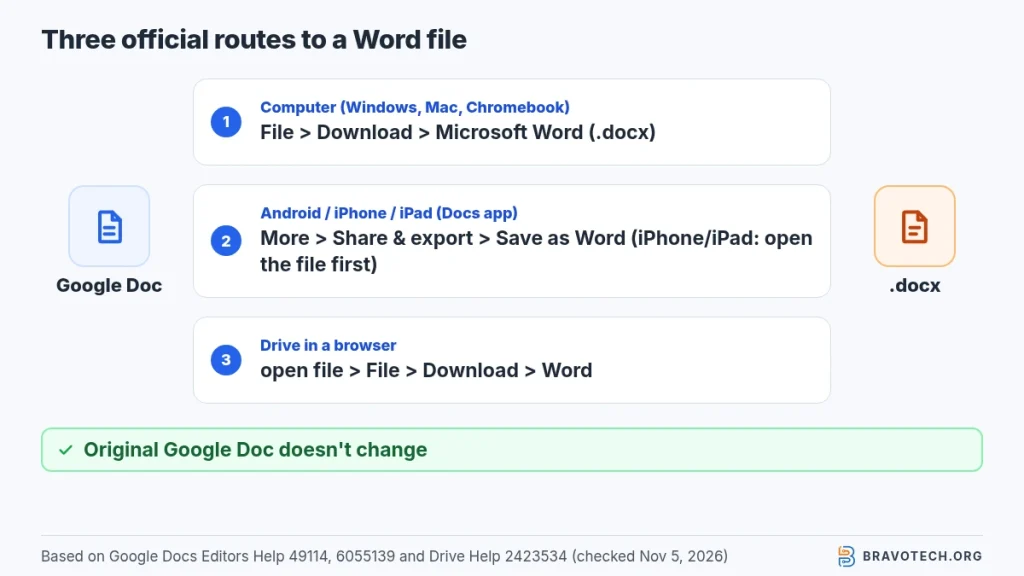
Open the document in Google Docs on a computer, click File > Download, and choose Microsoft Word (.docx). The Word file lands in your Downloads folder and the original Google Doc stays as it is. In the Docs app on Android, iPhone or iPad, tap More next to the file (on iPhone, open the file first), choose Share & export, then Save as Word.
Key takeaways
- On a computer: File > Download > Microsoft Word (.docx).
- On a phone or tablet: More > Share & export > Save as Word, or Send a copy to email it.
- From Drive: open the file and use the same File > Download menu.
- Download keeps you on Google’s own converter. Copy-paste into Word isn’t a method Google documents.
- Can’t see Download? The owner may have turned off downloading for viewers and commenters.
How do you convert a Google Doc to Word on a computer?
Open the document in Google Docs, click File at the top, choose Download, then pick Microsoft Word (.docx). Your browser saves a .docx copy to your computer, and the Google Doc itself doesn’t change. The same menu works on Windows, Mac and Chromebook because it runs in the browser (Docs Editors Help, Work with Office files).
- Open the document in Google Docs in your browser.
- At the top, click File > Download.
- Choose Microsoft Word (.docx).
- Open the downloaded file in Word.
Google lists .docx as the only Word format Docs saves back to, so you won’t get an older .doc file this way (Work with Office files).
How do you convert a Google Doc to Word on a phone or tablet?
In the Google Docs app, tap More next to the file, choose Share & export, then tap Save as Word. On iPhone and iPad, Google’s steps have you open the file first, then tap More. To send the Word file to someone straight away, pick Share & export > Send a copy > Word, then OK (Google Help, Android, Google Help, iPhone & iPad).
- Open the Google Docs app.
- Android: tap More next to the file. iPhone or iPad: open the file, then tap More.
- Tap Share & export.
- Tap Save as Word (or Send a copy > Word > OK to share it).
Can you download a Google Doc as Word from Google Drive?
Yes. Open the file from drive.google.com, then click File > Download and choose Microsoft Word (.docx). Google’s Drive help says downloading lets you save a file in a different format, including Word, PDF and PowerPoint. Right-clicking a file in Drive and choosing Download is the general download route; Google’s format-picking steps go through the open file (Drive Help).
In the Drive app on Android, Google’s steps are More > Download next to the file’s name, and the option is hidden while Data Saver is on (Drive Help, Android). Google’s Drive page doesn’t say which format that phone download uses, so use the Docs app’s Save as Word when you need a .docx.
Every method, side by side
Our summary of Google’s official steps for each device, checked November 5, 2026. Menu names are Google’s.
| Where you are | Steps | What you get | Google source |
|---|---|---|---|
| Google Docs on a computer (Windows, Mac, Chromebook) | File > Download > Microsoft Word (.docx) | .docx in your Downloads folder | Docs Help 49114, 6055139 |
| Drive in a browser | Open the file > File > Download > Microsoft Word (.docx) | .docx download | Drive Help 2423534 |
| Docs app on Android | More next to the file > Share & export > Save as Word | Word copy of the file | Docs Help 6055139 (Android) |
| Docs app on iPhone or iPad | Open the file > More > Share & export > Save as Word | Word copy of the file | Docs Help 6055139 (iOS) |
| Email it from a phone | Share & export > Send a copy > Word > OK | Word file attached to a share | Docs Help 6055139 (Android, iOS) |
How do you convert a Google Doc to Word without losing formatting?
Use File > Download > Microsoft Word (.docx) instead of copying and pasting. Download is Google’s documented way to save a Doc in Word format, and it converts the whole file at once. Google doesn’t publish a list of what changes on the way out to Word, so open the .docx and check headings, tables, images and page breaks before you send it.
Google does document what breaks in the other direction, when Word files are edited in Docs: macros aren’t supported, embedded charts and videos in Word files become images, and SmartArt becomes Google Drawings (Work with Office files). If your Doc started life as a Word file, those items may already have changed before you download it again.
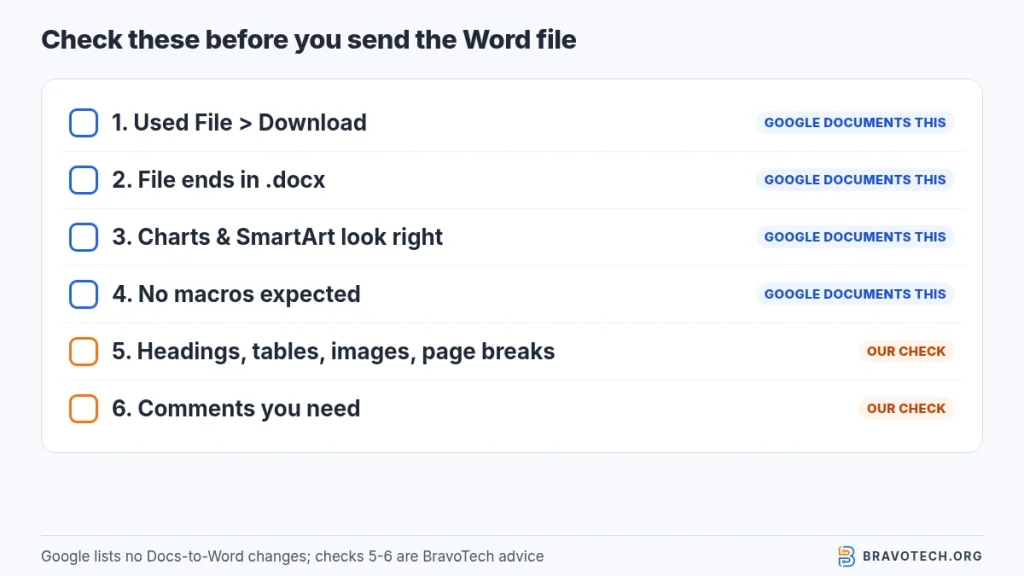
A formatting checklist before you send the Word file
This checklist is ours, built from what Google’s pages do and don’t promise. It isn’t a Google list.
| Check | Why | Based on |
|---|---|---|
| You used File > Download, not copy-paste | Download is the conversion Google documents | Docs Help 49114 |
| The file ends in .docx | Google saves Docs back to Word as .docx only | Docs Help 6055139 |
| Charts and SmartArt look right | If the Doc came from Word, charts may now be images and SmartArt a Google Drawing | Docs Help 6055139 |
| Macros are gone | Docs doesn’t support Word macros, so a round trip loses them | Docs Help 6055139 |
| Headings, tables, images and page breaks | Google doesn’t list Docs-to-Word changes, so check them yourself | BravoTech advice |
| Comments you need | Not covered on Google’s download pages; check they came across | BravoTech advice |
Why can’t I download a Google Doc as Word?
Usually the file’s owner has turned off downloading, or something in your browser is blocking it. Google says owners can disable download, print and copy for people with comment or view access. On the web, blocked third-party cookies for drive.google.com or a browser extension can also stop downloads. If a file is busy, Google suggests making your own copy and downloading that (Drive Help).
- Ask the owner for edit access or a Word copy if Download is greyed out.
- In Chrome, allow third-party cookies for drive.google.com.
- Turn off extensions and try again.
- For “Too many users have viewed or downloaded this file recently”, use File > Make a copy, then download the copy.
How do you open a Word file in Google Docs again?
Double-click the Word file in Google Drive to open it in Google Docs, where you can edit it directly. Docs can also convert .doc, .docx, .dotx, .rtf, .odt and other formats into a Google Doc. On a computer, Office Compatibility Mode lets you edit the file as Word in Chrome with Google’s Office Editing extension (Work with Office files).
Choosing between the two apps for good? Our Google Docs vs Microsoft Word comparison covers that, and Microsoft 365 vs Google Workspace compares the full suites. More tools are in our productivity software guides.
FAQ
Does converting a Google Doc to Word change the original?
No. Downloading saves a separate .docx copy to your device. The Google Doc stays in Drive, and later edits to it won’t appear in the Word file you downloaded.
Can I convert a Google Doc to an older .doc file?
Not from Google Docs. Google lists .docx as the Word format Docs saves back to. If someone needs the older .doc format, that has to happen in Word or another desktop app, not in Docs.
Is converting a Google Doc to Word free?
Yes. Download and Save as Word are built into Google Docs, so you don’t need a converter website. You need Word or another app that opens .docx to edit the result.
Can I convert several Google Docs to Word at once?
Google’s Drive help shows selecting several files and choosing Download, but it describes format choice only for a single open file. To be sure each one is a .docx, download them one at a time.
How this article was made. We drafted this article with the help of AI tools, working from the official pages listed in Sources. Steps were checked against those pages on November 5, 2026. Syed Saud Ahsan is the credited author; the BravoTech team prepared it under our editorial standards. We did not test these products hands-on for this article. Spot an error? Email [email protected].
Sources
7 official Google help pages, each opened on November 5, 2026 (PKT).
Show all 7 sources
- Google Docs Editors Help: Create, view, or download a file (computer)
- Google Docs Editors Help: Create, view, or download a file (Android)
- Google Docs Editors Help: Work with Office files (computer)
- Google Docs Editors Help: Work with Office files (Android)
- Google Docs Editors Help: Work with Office files (iPhone & iPad)
- Google Drive Help: Download a file (computer)
- Google Drive Help: Download a file (Android)
Changelog
- November 7, 2026: First published. Computer, phone and Drive steps plus a formatting checklist, checked against Google’s help pages on November 5, 2026.
Related reads