This guide only uses merge methods that Apple, Adobe and Microsoft describe on their own help and product pages, which we re-read on November 7, 2026. We did not merge sample files ourselves, so treat menu names as the vendors’ wording; they can shift slightly between app versions. We don’t recommend third-party merge sites, and nothing here is an affiliate link. How we use AI and check facts: editorial policy.
Quick answer
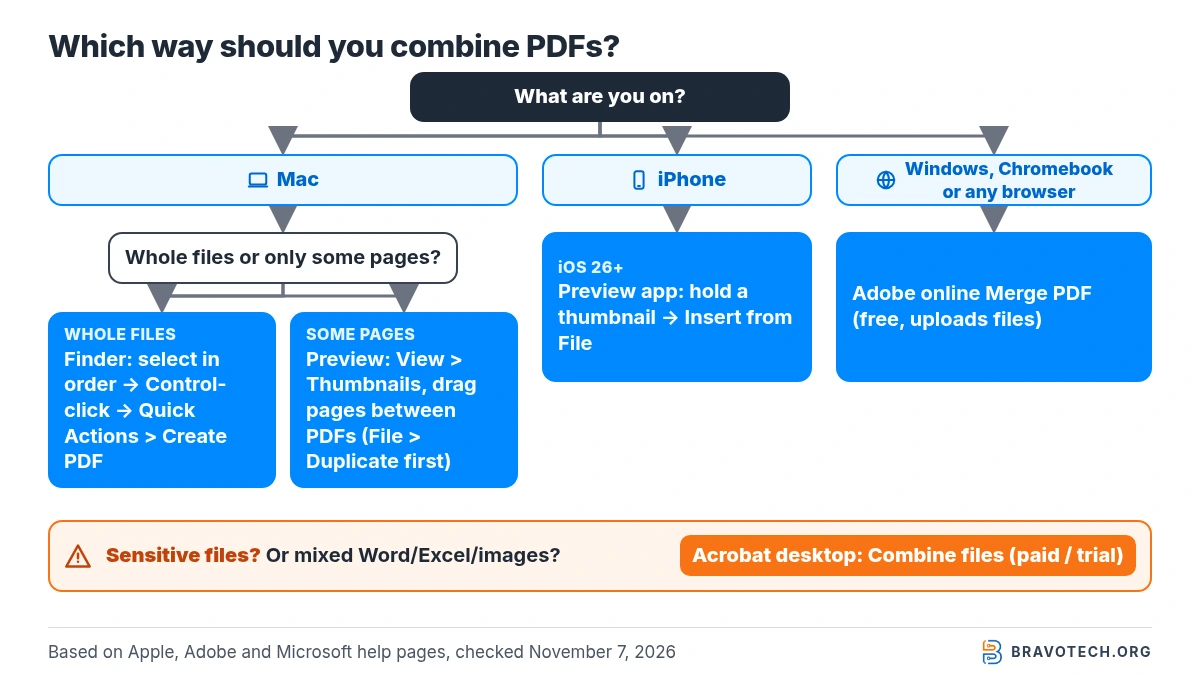
On a Mac, select the PDFs in Finder in the order you want, Control-click, and choose Quick Actions > Create PDF. On iPhone (iOS 26 or later), open the first PDF in the Preview app, touch and hold a page thumbnail, and tap Insert from File. On Windows, which has no merge tool of its own in Microsoft’s documentation, use Adobe’s free online Merge PDF tool in any browser, or Acrobat’s Combine files if you pay for Acrobat.
Key takeaways
- Mac needs nothing extra: Finder’s Create PDF merges in the order you click the files; Preview lets you drag pages between PDFs.
- Preview saves automatically. Apple tells you to use File > Duplicate first if you want to keep the original PDFs.
- Adobe’s free online tool merges up to 100 files (500 pages each) into one PDF of up to 1,500 pages, with no watermark, per Adobe’s FAQ.
- Mixing Word, Excel or images with PDFs online needs Acrobat Pro (Adobe offers a 7-day trial); free users convert each file to PDF first.
- Private or sensitive files? Prefer an on-device method (Finder, Preview, Acrobat desktop) over uploading to any website.
How do I combine PDF files into one?
Use the tool your device already has, and upload files only when you have to. Macs merge PDFs in Finder or Preview, iPhones on iOS 26 or later can insert one PDF into another in Preview, and any computer, Windows included, can use Adobe’s free browser tool. Acrobat’s desktop Combine files adds page previews and other file types for subscribers.
| Your device / need | Best documented method | Cost | Uploads your files? | Page-level control |
|---|---|---|---|---|
| Mac, whole files in a set order | Finder: select files → Quick Actions → Create PDF | Free (built in) | No | No: files join in the order you selected them |
| Mac, only some pages or custom order | Preview: drag thumbnails between open PDFs | Free (built in) | No | Yes: drag, reorder, Command-click pages |
| iPhone (iOS 26 or later) | Preview app: thumbnail → Insert from File | Free (built in) | No | Yes: move or delete pages after inserting |
| Windows, Chromebook, Linux or any browser | Adobe Acrobat online Merge PDF | Free, no subscription | Yes, to Adobe’s servers | File order free; page edits need sign-in |
| Any desktop, mixed file types, many files | Acrobat desktop: Combine files | Paid Acrobat subscription or trial | No (desktop app) | Yes: expand files, remove pages, options |
How do you combine PDF files on a Mac?
Select the PDFs in Finder, Control-click, and choose Quick Actions > Create PDF. Apple says the files appear in the new PDF in the same order you selected them, and the file is created automatically with a name similar to the first file. Nothing is uploaded: the merge happens on your Mac and makes a new file (Apple Support).
Method 1: Finder Quick Actions (whole files)
- Open a Finder window (or use files on your desktop).
- Click the first PDF, then Command-click the others in the order you want them to appear.
- Control-click any selected file and choose Quick Actions > Create PDF.
- Look for the new PDF: Apple says it gets a name similar to the first file you selected. Rename it if you like.
Apple also documents a Create PDF button at the bottom of Finder’s Preview pane for the same selection. If the pane is hidden, choose View > Show Preview (Combine files into a PDF on Mac).
Method 2: Preview (pick pages, custom order)
Before you start
Preview saves your changes automatically. Apple’s advice: if you want to keep the original PDFs as well as the combined one, choose File > Duplicate on each PDF before you start (Apple Support).
- Open the PDFs you want to combine in Preview.
- In each window, choose View > Thumbnails so the page thumbnails show in the sidebar.
- Drag the thumbnails you want from one PDF’s sidebar into the other PDF’s sidebar. Command-click to select pages that aren’t next to each other.
- Drop pages at the end or between existing pages, then drag thumbnails to reorder.
- To add a whole PDF, drag its icon from Finder onto the sidebar of the open document (Apple’s tip).
Can Windows 11 combine PDF files without extra software?
Not as a dedicated feature: the Microsoft Support pages we checked describe creating PDFs, not merging existing ones. The two Windows routes the vendors document are Adobe’s free browser tool and Acrobat’s paid desktop Combine files. If your pages start life as Word documents, combine them in Word first, then save one PDF (Microsoft Support).
| Windows situation | What to do | Source |
|---|---|---|
| You already have separate PDFs and want it free | Use Adobe’s online Merge PDF in Edge or Chrome (steps below) | Adobe |
| Files are confidential, or you merge often | Acrobat desktop: Menu > Combine files (subscription or trial) | Adobe HelpX |
| Sources are Word documents, not PDFs yet | Put the content in one Word document, then File > Save As and choose PDF (*.pdf) | Microsoft Support |
Plenty of third-party Windows apps and websites also merge PDFs. We haven’t reviewed them, so we aren’t recommending any here. If you try one, read its privacy terms before you upload anything personal.
How do you combine PDF files on an iPhone?
Open the first PDF in Apple’s Preview app, show the thumbnails, touch and hold one, and tap Insert from File. Pick the second PDF (or an image) and its pages are added to the open document; repeat for more files. Apple’s iPhone guide covers Preview for iOS 26 and iOS 27, so update first if you don’t see the app (Apple Support).
- Open the Preview app and open the PDF that should come first.
- Tap the thumbnails button to show page thumbnails (if it isn’t visible, tap the PDF once).
- Touch and hold a thumbnail, then tap Insert from File and choose the next PDF or image.
- To move a page, touch and hold its thumbnail until the menu appears, then drag it up or down. Use Delete Page to drop extras.
- Want to keep the original? Before inserting, tap the button next to the filename and choose Duplicate (Apple Support).
How do you combine PDF files for free online?
Adobe’s Acrobat online Merge PDF tool is free, needs no install or subscription, and adds no watermark, according to Adobe. Add the files, drag them into order (the top file comes first), then select Merge files and download the result. It runs in any modern browser on Windows, Mac, Linux, Chromebook or a phone (Adobe).
- Go to Adobe’s Merge PDF page and click Select files (or drag files onto the drop zone).
- Add every PDF you want to join.
- Drag the files into order. Adobe says the top file in the list appears first.
- Click Merge files.
- Download the merged PDF. Signing in is optional for downloading but needed to share a link or rearrange individual pages afterwards.
Password-protected PDFs can be merged, but Adobe says you must enter each file’s password first; files without the right password are left out.
How do you combine PDF files in Adobe Acrobat?
In Acrobat on the desktop, choose Menu > Combine files on Windows or File > Combine files on macOS, add files or a folder, arrange them, and select Combine. Acrobat can mix PDFs with Word, Excel, PowerPoint, audio, video and web files, and lets you expand a file to remove single pages first (Adobe HelpX).
- Open Acrobat and choose Menu > Combine files (Windows) or File > Combine files (macOS).
- Select Add Files or Add Folders, or drag files into the window. Files already open in Acrobat can be included with Add open files.
- Drag thumbnails to reorder; hover over a file and expand it to see and remove individual pages.
- Optional: open Options to pick a file size, add bookmarks, skip files that fail to convert, or save as a PDF Portfolio.
- Select Combine, then rename and save the merged PDF.
Check this option
Adobe lists an option called Always delete source files after combining, and the options you pick are remembered for next time. Leave it off unless you have backups, so a later merge doesn’t quietly remove your originals.
Only have the free Acrobat Reader? Adobe’s merge page offers a 7-day Acrobat Pro trial for desktop-style combining. Otherwise, the free online tool above handles PDF-only merges.
Merge limits and gotchas, side by side
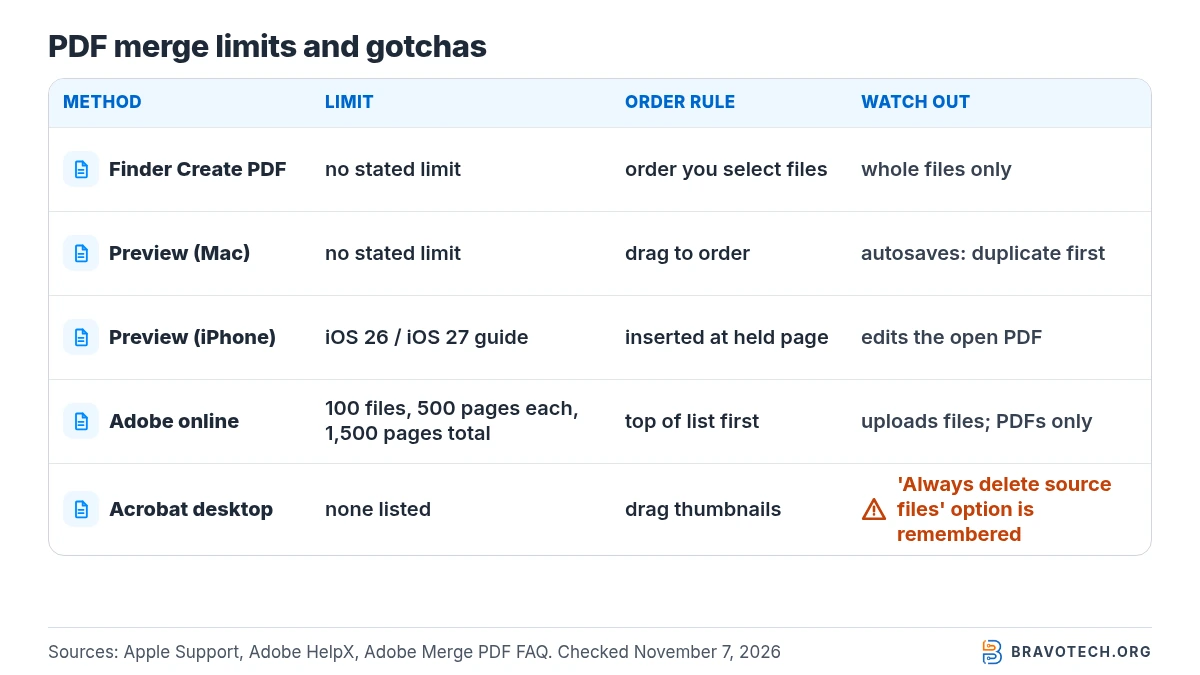
Each method has its own limits and quirks. This table puts the documented ones together:
| Method | Documented limits | File order | Watch out for |
|---|---|---|---|
| Finder Create PDF (Mac) | None stated by Apple | Order you select files | Whole files only; no page picking |
| Preview (Mac) | None stated by Apple | Drag to order | Autosaves into the open PDF; duplicate first |
| Preview (iPhone) | Guide covers iOS 26 and iOS 27 | Inserted at the page you hold; drag to move | Edits the open PDF; duplicate first |
| Adobe online Merge PDF | Up to 100 files, 500 pages per file, 1,500 pages total | Top of the list comes first | Uploads files; PDFs only unless you use Acrobat Pro |
| Acrobat desktop Combine files | No limits listed on the help page | Drag thumbnails | “Delete source files” option is remembered |
How do I change the page order or combine only certain pages?
For page-level control, use Preview on a Mac, Preview on iPhone, or Acrobat desktop. In Preview you drag thumbnails or Command-click non-adjacent pages, and delete pages you don’t want. Acrobat lets you expand each file before combining and remove pages. Adobe’s free online tool orders whole files; rearranging single pages there requires signing in (Apple Support, Adobe).
Need to edit the text or images on the merged pages too? Our guide on how to edit PDF files covers that next step.
Can you combine images or Word files with PDFs?
Yes, but the free routes handle it differently. On a Mac, Finder’s Create PDF works on the files you select, and iPhone Preview’s Insert from File accepts a PDF or an image. Adobe’s free online tool merges PDFs only; Adobe says mixing Word, Excel, PowerPoint or images needs Acrobat Pro, otherwise convert each file to PDF first (Adobe).
Working with Google Docs? Download each document as a PDF before merging, or combine the text in one document first. For the Word side of that workflow, see our Google Docs vs Microsoft Word comparison.
Is it safe to merge PDFs on a website?
For everyday documents it is usually fine, but on-device methods keep your files off other people’s servers. Adobe says files you merge online are handled securely and deleted permanently unless you sign in and save them. For tax returns, IDs, medical or client records, use Finder, Preview or Acrobat desktop instead (Adobe).
FAQ
Can you combine PDF files without Adobe?
Yes. On a Mac, Finder’s Quick Actions > Create PDF and the Preview app both merge PDFs for free. On iPhone, Apple’s Preview app can insert one PDF into another. Windows has no Microsoft-documented merge tool, so on a PC the usual free route is Adobe’s own online tool.
Can you combine PDF files in Google Drive?
Google Drive stores and previews PDFs, but we didn’t find a merge option in Google’s Drive help. Download the PDFs, merge them with one of the methods above, and upload the combined file back to Drive.
Can you combine PDF files with Adobe Acrobat Reader?
Combine files is an Acrobat feature. Adobe’s merge page offers an Acrobat Pro 7-day trial for desktop combining and points free users to its online Merge PDF tool, which works without a subscription.
Does merging PDFs reduce quality?
Adobe says its online tool does not compress or lower the quality of text, images or formatting. In Acrobat desktop you can choose a smaller file size under Options, which may reduce image quality by design.
How do I merge PDFs offline on Windows?
With Microsoft’s tools alone, you can’t merge existing PDFs. Acrobat desktop’s Combine files works offline once installed but needs a subscription or trial. If the content is still in Word, combine it there and save as PDF.
How this article was made. We drafted this article with the help of AI tools, working from the official pages listed in Sources. Facts and steps were checked against those pages on November 7, 2026. Syed Saud Ahsan is the credited author; the BravoTech team prepared it under our editorial standards. We did not test these products hands-on for this article. Spot an error? Email [email protected].
Sources
8 official Apple, Adobe and Microsoft pages, each opened on November 7, 2026 (PKT). Adobe pages read via WebFetch (direct automated fetches returned 403).
Show all 8 sources
- Apple Support (macOS User Guide): Combine files into a PDF on Mac
- Apple Support (Preview User Guide): Combine PDFs in Preview on Mac
- Apple Support (Preview User Guide): Add, delete, or move PDF pages in Preview on Mac
- Apple Support (iPhone User Guide): Add, delete, rotate, move, or crop PDF pages in Preview on iPhone
- Apple Support (iPhone User Guide): Save, rename, or move PDFs and images in Preview on iPhone
- Adobe HelpX: Combine files into one PDF in Acrobat
- Adobe Acrobat online: Merge PDF files (tool page and FAQ)
- Microsoft Support: Save or convert to PDF or XPS in Office desktop apps
Changelog
- November 9, 2026: First published. Mac (Finder and Preview), iPhone Preview, Adobe online and Acrobat desktop merge steps, plus Adobe’s online merge limits, checked against vendor pages on November 7, 2026.
Related reads