Every transfer and recovery step below comes from Google’s Authenticator and 2-Step Verification help pages, re-read on November 6, 2026. We have not tested these steps on our own phones, and menu labels can differ slightly between Android and iPhone builds. No affiliate links. See our editorial policy for how we use AI and check facts.
Quick answer
If your Authenticator codes are saved to a Google Account, install Google Authenticator on the new phone and sign in — Google says the codes sync automatically. If you use Authenticator without a Google Account, keep the old phone: Export codes (or Export accounts on iPhone), show the QR code, then Import and scan on the new phone. Without the old phone and without Account sync, you cannot QR-transfer; sign in another way (backup codes or other 2SV methods), then set Authenticator up again on each site.
Key takeaways
- Two official move paths: Google Account sync on sign-in, or a QR Export/Import that needs the old phone.
- Sync needs a recent app: Google’s tip lists Version 6.0+ on Android and Version 4.0+ on iOS.
- No old phone + local-only codes means re-adding each site — Google does not offer a remote QR pull.
- Lost phone first moves: erase or sign the device out, change your password, then use a backup sign-in method.
- Keep backup codes (10 eight-digit codes) before you rely on any authenticator app.
In this guide
- Which path fits you
- Move codes with Google Account sync
- QR export from the old phone
- Android vs iPhone menu labels
- Without the old phone
- Lost or stolen phone
- How Account sync works
- With or without a Google Account
- Without a QR code
- New iPhone
- Android to iPhone
- Codes not working
- After you transfer
- FAQ
- Sources
Which path should you use to transfer Google Authenticator?
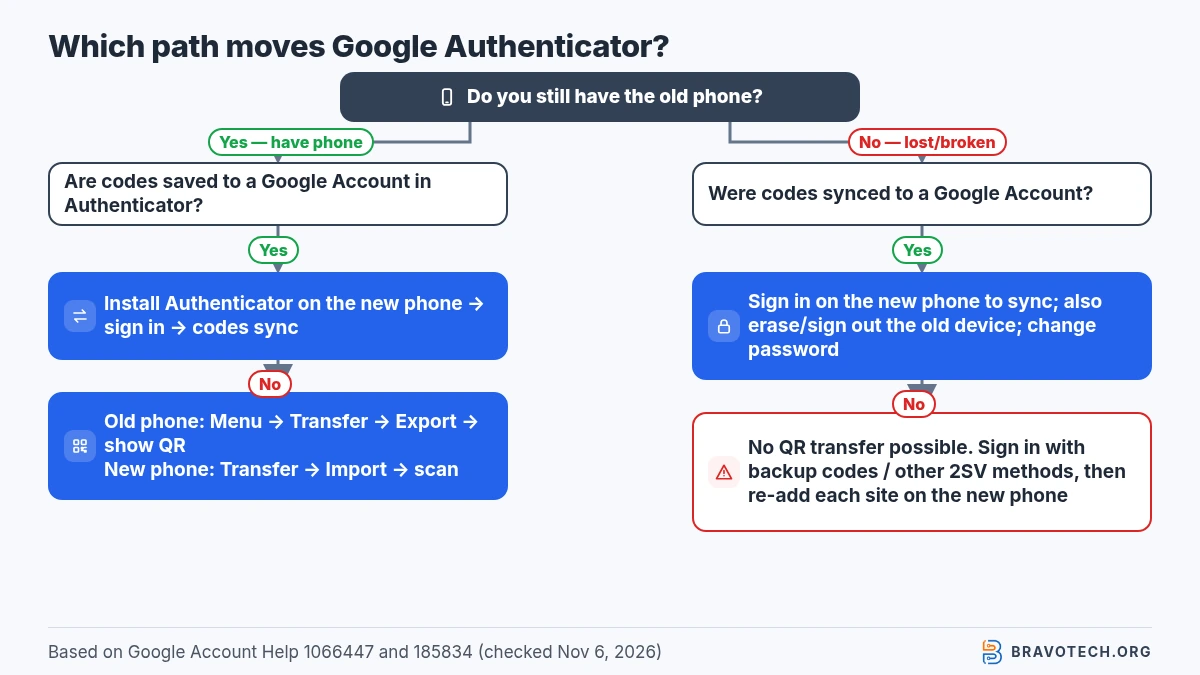
Start from whether you still have the old phone and whether codes are saved to a Google Account. Google documents automatic sync when you sign in on a new device, and a separate manual QR transfer when you use Authenticator without a Google Account. Those are different tools for different setups — pick the row that matches yours (Authenticator Help).
Our summary of Google’s instructions:
| Your situation | Official path | You still need | Watch-outs |
|---|---|---|---|
| Old phone works; codes saved to a Google Account | Install Authenticator on the new phone and sign in — codes sync | Google Account password / unlock | Use app Version 6.0+ (Android) or 4.0+ (iOS) per Google’s tip |
| Old phone works; local-only (no Google Account in the app) | Export QR on the old phone → Import / scan on the new phone | Both phones; latest Authenticator on the old phone | Several accounts may mean several QR codes |
| Old phone gone; codes were Account-synced | Sign in on the new phone to sync; erase or sign out the old device | Account access + another 2SV method if prompted | Change your password; remove the lost device |
| Old phone gone; codes were local-only | No QR transfer — re-link Authenticator on each site after you sign in another way | Backup codes, another phone, number, security key, or passkey | Visit every site that used the old authenticator |
How do I move Google Authenticator codes to my new phone?
When codes are saved to your Google Account, Google says signing in to Authenticator on the new device syncs them automatically. Install the app, open it, and sign in with the same Google Account that held the codes. You can still generate codes without mobile data once they are on the phone (Authenticator Help).
- On the new phone, install the Google Authenticator app from your app store.
- Open the app and follow Get Started (wording can vary by version).
- Sign in to the Google Account where your Authenticator codes are saved.
- Wait for the accounts/codes to appear, then confirm you can open a site that needs a code before you wipe the old phone.
Version check
Tip from Google: Account sync in Authenticator needs Version 6.0 or above on Android and Version 4.0 or above on iOS. Google also states that Authenticator codes are encrypted in transit and at rest across its products (Authenticator Help).
How do you export Google Authenticator codes for a QR transfer?
If you use Authenticator without a Google Account, Google’s manual transfer uses an Export QR code on the old phone and Import on the new one. You need the old device (with its codes), the latest Authenticator app on that old device, and the new device. After a successful scan, Google says you get confirmation that the codes transferred (Authenticator Help).
- On the new phone, install Google Authenticator, tap Get Started, and sign in if the app asks (Google’s manual-transfer steps still start on the new device).
- On the old phone, open Authenticator → Menu → Transfer codes (Android) or Transfer accounts (iPhone) → Export.
- Unlock the old phone when asked, select the accounts to move, then tap Next.
- If you selected several accounts, the old phone may show more than one QR code — keep going until each is shown.
- On the new phone, open Menu → Transfer → Import, then scan each QR code from the old phone.
Google’s Export flow is for moving codes between Google Authenticator installations. This guide does not cover third-party “export to another authenticator” tools that search suggestions mention; those are outside Google’s Authenticator help page.
Do Android and iPhone use the same transfer menu names?
Same idea, different labels. Google’s Android help uses Transfer codes, Export codes and Import codes. The iPhone and iPad help uses Transfer accounts, Export accounts and Import accounts (Android Help, iPhone & iPad Help). If a label does not match, look for Transfer / Export / Import under the app menu rather than forcing a platform-specific name.
Can you transfer Google Authenticator without the old phone?
Only if those codes were already saved to a Google Account inside Authenticator — then sign in on the new phone and let them sync. Google’s QR Export/Import path explicitly needs the old device. If codes lived only on the lost phone, there is nothing to scan; you must sign in another way and set Authenticator up again on each site (Authenticator Help, Fix 2-Step Verification).
A cracked screen that still unlocks and can show a QR code counts as “old phone available.” A phone you cannot unlock or power on is the lost-phone path below.
What if your phone with Google Authenticator is lost or stolen?
Secure the lost phone first, change your Google password, then use a backup sign-in method before you rebuild Authenticator. Google’s Authenticator help says to remote-erase the device when you can; if codes were Account-synced, remove the device from your Google Account; if they were not synced, you must clear Authenticator on every site and relink the new phone (Authenticator Help).
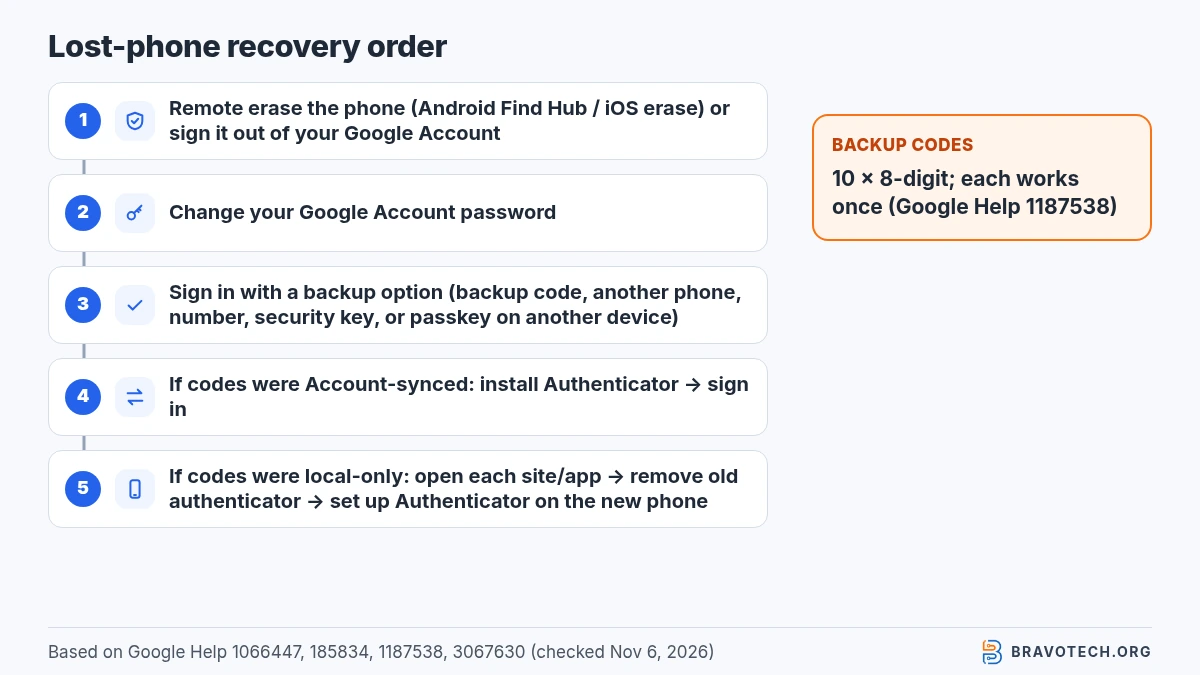
Recovery order we assembled from Google’s lost-phone and Authenticator pages:
- Erase or sign the lost phone out. On Android, use Google’s find/secure/erase tools (Android Help). For iPhone, Google’s Authenticator help points to Apple’s erase-a-device guide (Apple Support). Or open devices with account access and choose Sign out for that device.
- Change your Google Account password (Google lists this right after a lost or stolen phone in Fix 2-Step Verification).
- Sign in with a backup option: another phone already signed into the account, another 2SV phone number, a backup code you saved, a hardware security key on the account, or a passkey created on another device (Fix 2-Step Verification).
- If codes were Account-synced: install Authenticator on the new phone and sign in so they sync.
- If codes were local-only: on each website or app that used the old authenticator, remove the old method and set up Google Authenticator on the new phone (Authenticator Help).
Do this while you still have the phone
Backup codes before you need them. Google lets you create a set of 10 eight-digit backup codes while 2-Step Verification is on. Each code works once; creating a new set turns the old set off. At sign-in, choose Try another way, then enter a backup code. Do not share them; Google says it only asks for a backup code at sign-in. Advanced Protection Program accounts cannot download backup codes (Backup codes Help).
Does Google Authenticator sync codes across devices?
Yes — when you use Authenticator signed into a Google Account, Google says verification codes stay synchronized across your devices. Signing in on a new device is what pulls them over. Choosing Use Authenticator without an account keeps codes on that device only and removes them from your Google Accounts and other devices (Authenticator Help).
Should you sign Google Authenticator into a Google Account?
Google presents Account sync as the way to avoid lockouts when you change devices; using the app without an account skips those backup protections. Synced codes stay encrypted in Google’s systems per its help text. Local-only mode can make sense if you deliberately want codes off Google’s servers, but then a QR export (or rebuilding every site) is on you when the phone dies (Authenticator Help).
Google also recommends turning on Privacy Screen (PIN, pattern or biometrics on Android; Face ID or Touch ID on iPhone) and enrolling extra 2-Step Verification methods, including passkeys (Authenticator Help, Passkeys Help). For a wider look at authenticator apps — not just Google’s — see our best 2FA apps guide once it is live. Password vaults that sit beside authenticator apps are covered in password managers for small teams.
Can you transfer Google Authenticator without a QR code?
Yes, if the codes are saved to a Google Account — sign in on the new phone and skip Export entirely. Google’s manual path for local-only codes is the QR Export/Import flow; Help does not document another official cable or file export. No old phone and no Account sync still means re-adding each site after you sign in another way (Authenticator Help).
How do you move Google Authenticator to a new iPhone?
Use the same two paths, with iPhone menu names: Transfer accounts → Export accounts on the old phone, Import accounts on the new one — or just sign in if codes are Account-synced. Google’s iPhone help mirrors the Android steps and links the same lost-device erase advice. Moving photos and apps with a phone-to-phone copy does not replace this Authenticator step (Authenticator Help, iPhone).
If you are cloning an iPhone’s content, follow how to transfer data from iPhone to iPhone, then finish Authenticator with sync or QR so 2FA codes are not left behind on the old handset.
How do you transfer Google Authenticator from Android to iPhone?
Account sync works across Android and iPhone when both use the same Google Account in Authenticator; otherwise Export on Android and Import on iPhone with the QR codes. Watch the menu labels (codes vs accounts) and scan every QR if Google shows more than one. Update Authenticator on the Android phone before Export so you meet Google’s “latest version on the old device” requirement (Android, iPhone).
Why don’t codes work after you transfer?
Google’s checklist for a bad code is: expired digit string, wrong site, wrong Google Account in the app, or a device clock that is wrong. From Authenticator version 7.0, Google removed the in-app time-correction control and uses the phone’s system time instead — set Date & Time to automatic. Also confirm the account you signed into on the new phone is the one that held the codes (Authenticator Help).
What should you do after the codes appear on the new phone?
- Test one important login (email or bank) with a fresh code before you factory-reset the old phone.
- Turn on Privacy Screen in Authenticator → Menu → Settings so opening the app needs your device lock (Authenticator Help).
- Save or refresh backup codes for your Google Account (Backup codes Help).
- Add another 2SV method such as Google prompts, a spare number, a security key or a passkey so one lost phone cannot lock you out (2-Step Verification, Passkeys).
- For work devices, fold authenticator changes into your small-business cybersecurity checklist.
FAQ
Do Google Authenticator codes need internet?
No. Google says the app can still generate codes without an internet connection or mobile service once accounts are set up on the phone.
Will deleting a synced code remove it everywhere?
Yes for Account-synced codes: Google says deleting a code also deletes it on every device where that Google Account’s codes sync. Confirm before you swipe to delete.
Can a phone backup alone move Authenticator?
Google’s transfer instructions are Account sync or QR Export/Import inside Authenticator — not “restore from iCloud/Google One backup and hope.” Treat backup restore as unproven for this app and use the official paths.
Are passkeys a replacement for Authenticator?
For Google Account sign-in, Google describes passkeys as a password alternative that can bypass the second 2SV step because they prove you have the device. You may still keep Authenticator for other sites that only offer app codes.
How this article was made. We drafted this article with the help of AI tools, working from the official pages listed in Sources. Steps were checked against those pages on November 6, 2026. Syed Saud Ahsan is the credited author; the BravoTech team prepared it under our editorial standards. We did not test these products hands-on for this article. Spot an error? Email [email protected].
Sources
9 official help pages, each opened on November 6, 2026 (PKT).
Show all 9 sources
- Google Account Help: Get verification codes with Google Authenticator (Android)
- Google Account Help: Get verification codes with Google Authenticator (iPhone & iPad)
- Google Account Help: Turn on 2-Step Verification
- Google Account Help: Fix common issues with 2-Step Verification
- Google Account Help: Sign in with backup codes
- Google Account Help: See devices with account access
- Google Account Help: Sign in with a passkey instead of a password
- Android Help: Find, secure, or erase a lost Android device
- Apple Support: Erase a device in Find Devices on iCloud.com
Changelog
- November 8, 2026: First published. Google Account sync vs QR export/import, Android/iPhone menu labels, and lost-phone recovery order, checked against Google’s help pages on November 6, 2026.
Related reads