This guide sticks to Apple’s own transfer methods, as documented on eight Apple Support pages re-read on November 3, 2026. Third-party transfer apps aren’t covered here, and nothing on this page is sponsored.
Quick answer
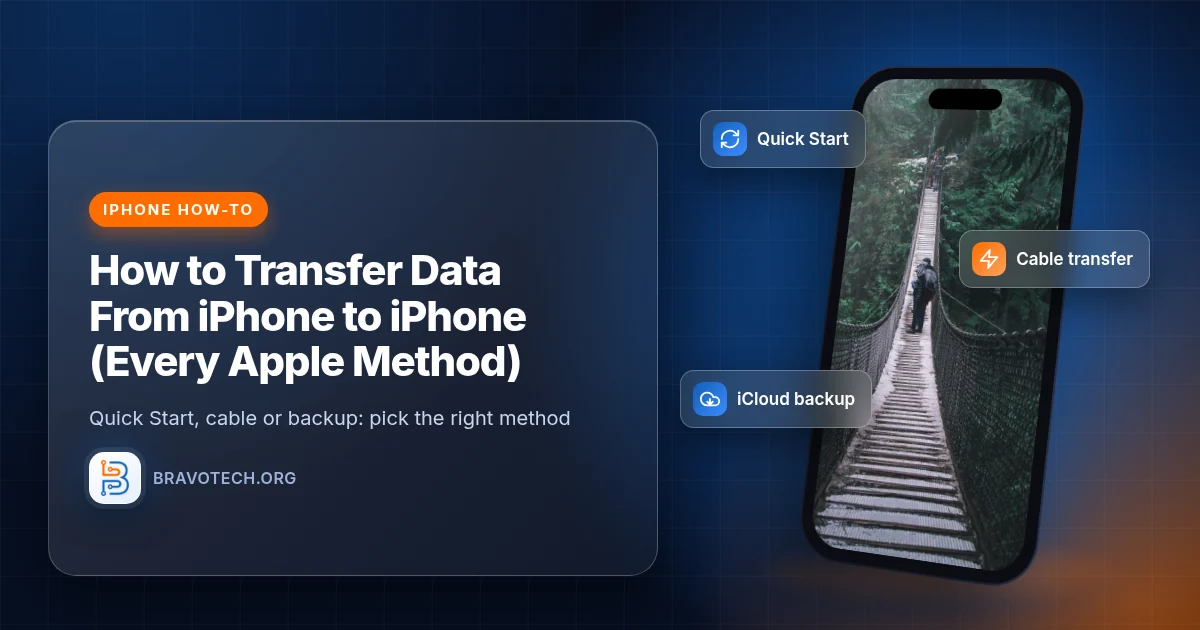
The fastest way to move everything to a new iPhone is Quick Start. Turn on the new iPhone and put it next to your old one, with the old one unlocked and on Wi-Fi and Bluetooth. Follow the prompts, then choose Transfer from iPhone (both phones busy until it’s done) or Download from iCloud (use the new phone straight away). A cable, an iCloud backup or a Mac or PC backup also work.
Key takeaways
- Quick Start happens during setup. If you’ve already set up the new iPhone, Apple says to erase it first and start again.
- Keep both phones close and plugged in until the transfer finishes.
- Not enough iCloud space? Apple gives temporary iCloud storage for a new iPhone, free, for 21 days.
- Computer backups need encryption to bring over Health, Activity and Keychain data.
- Some things never transfer: Face ID or Touch ID, Apple Pay cards and offline maps need setting up again.
- Don’t erase the old iPhone until you’ve checked the new one has everything.
What is the fastest way to move everything to a new iPhone?
Quick Start is the fastest Apple method, because it copies data straight from your old iPhone during setup. Your current iPhone needs iOS 11 or later. Bring the two phones together, follow the prompts, and pick how to transfer. Quick Start ties up both devices, so Apple suggests choosing a time when you won’t need the old phone for several minutes, and updating it first (Apple Support).
What should you do before you transfer?
- Update the old iPhone to the latest iOS it supports. Apple asks for this before Quick Start and before creating a temporary iCloud backup.
- Have your Apple Account password ready. Restoring from iCloud asks you to sign in with it.
- Make a fresh backup, to iCloud or a computer, as a safety net. See the 3-2-1 backup rule if you want a belt-and-braces approach.
- Charge both phones and keep chargers handy. Apple says to keep them plugged in until migration completes.
- Turn on Wi-Fi and Bluetooth on the old iPhone.
- Work or school phone? Apple says a new device enrolled in Apple School Manager or Apple Business can’t use Quick Start.
Which transfer method should you use?
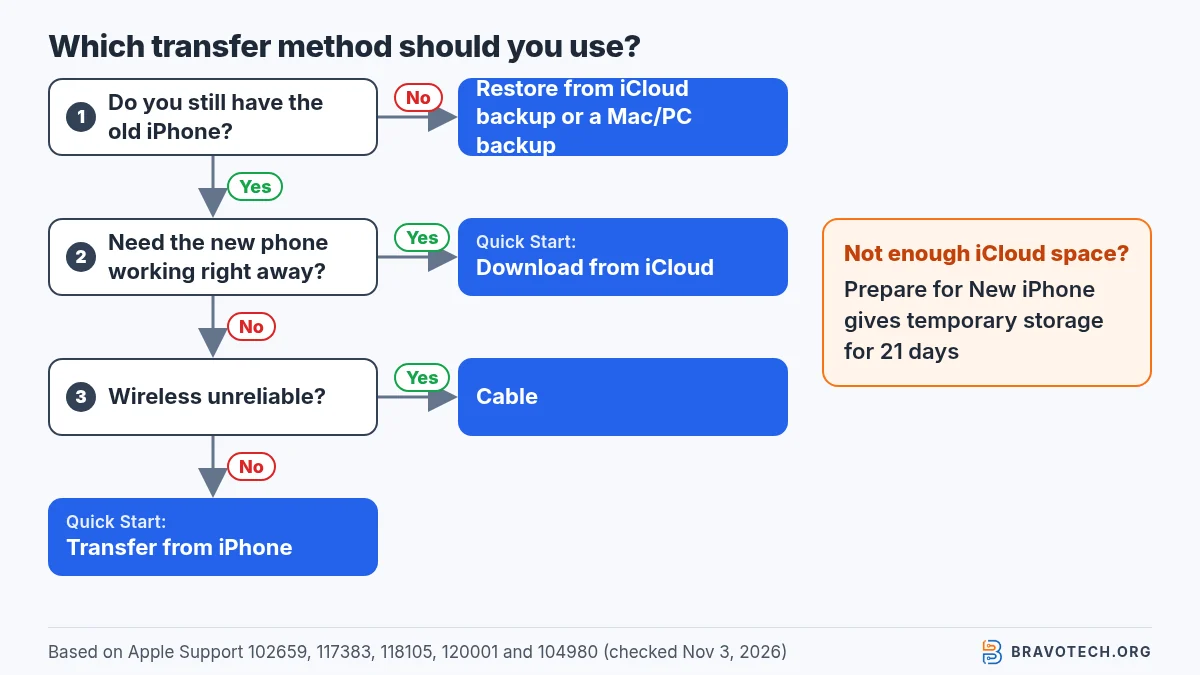
Apple documents five Apple-only routes. We put them side by side using what each Apple page says about requirements and waiting:
| Method | You need | Can you use the new iPhone right away? | Uses iCloud storage? | Best when |
|---|---|---|---|---|
| Quick Start: Transfer from iPhone | Old iPhone with iOS 11+, Wi-Fi, Bluetooth | No, wait for both phones to finish | No | You have both phones and time to wait |
| Quick Start: Download from iCloud | As above, plus an iCloud backup | Yes, apps and data download in the background | Yes | You want the phone working immediately |
| Wired (cable) | The right cable or adapter for your two phones | No, wait for both to finish | No | Wireless is unreliable where you are |
| Restore from iCloud backup | A recent iCloud backup; Wi-Fi | Partly, content keeps downloading after setup | Yes (or temporary storage) | The old phone is lost, broken or already gone |
| Restore from a Mac or PC backup | A computer backup (Finder, Apple Devices or iTunes) | After the restore finishes | No | Not enough iCloud space, or you prefer a local copy |
How do you transfer data with Quick Start?
Start the new iPhone next to the unlocked old one, then follow the on-screen prompts. The old iPhone should be on Wi-Fi with Bluetooth on and showing its Home Screen. If the setup prompt disappears from the old phone, Apple says to restart both devices. Keep the two phones near each other and plugged in until migration finishes. Apple says transfer times vary with network conditions and the amount of data (Apple Support).
- On the old iPhone: connect to Wi-Fi, turn on Bluetooth, unlock it and go to the Home Screen.
- Turn on the new iPhone and place it near the old one. Follow the instructions that appear.
- Connect the new iPhone to Wi-Fi or cellular. You might be asked to activate cellular service.
- Set up Face ID or Touch ID.
- Choose how to transfer: from iPhone, or download from iCloud.
- Keep both phones close together and on power until it’s done.
Should you transfer from iPhone or download from iCloud?
Choose Transfer from iPhone if you can wait; choose Download from iCloud if you need the new phone now. Apple says downloading from iCloud lets you use the new iPhone right away while apps and data arrive in the background. Transferring from iPhone means waiting until both devices finish. It doesn’t need an up-to-date iCloud backup, which helps if your iCloud plan is full (Apple Support).
How do you transfer data from iPhone to iPhone with a cable?
Connect the two iPhones’ charging ports with the right cable, turn both on and follow the prompts. Which cable depends on the ports. Two iPhone 15 or later models use a USB-C Charge Cable. An iPhone 14 or earlier moving to an iPhone 15 or later uses a USB-C to Lightning Cable. Two Lightning iPhones need Apple’s camera adapter setup in the table (Apple Support).
| Old iPhone | New iPhone | What to connect them with |
|---|---|---|
| iPhone 15 or later | iPhone 15 or later | USB-C Charge Cable between the two charging ports |
| iPhone 14 or earlier | iPhone 15 or later | USB-C to Lightning Cable |
| iPhone 14 or earlier | iPhone 14 or earlier | Lightning to USB 3 Camera Adapter on the old iPhone, powered by a 12W or higher adapter, plus a Lightning to USB Cable to the new iPhone |
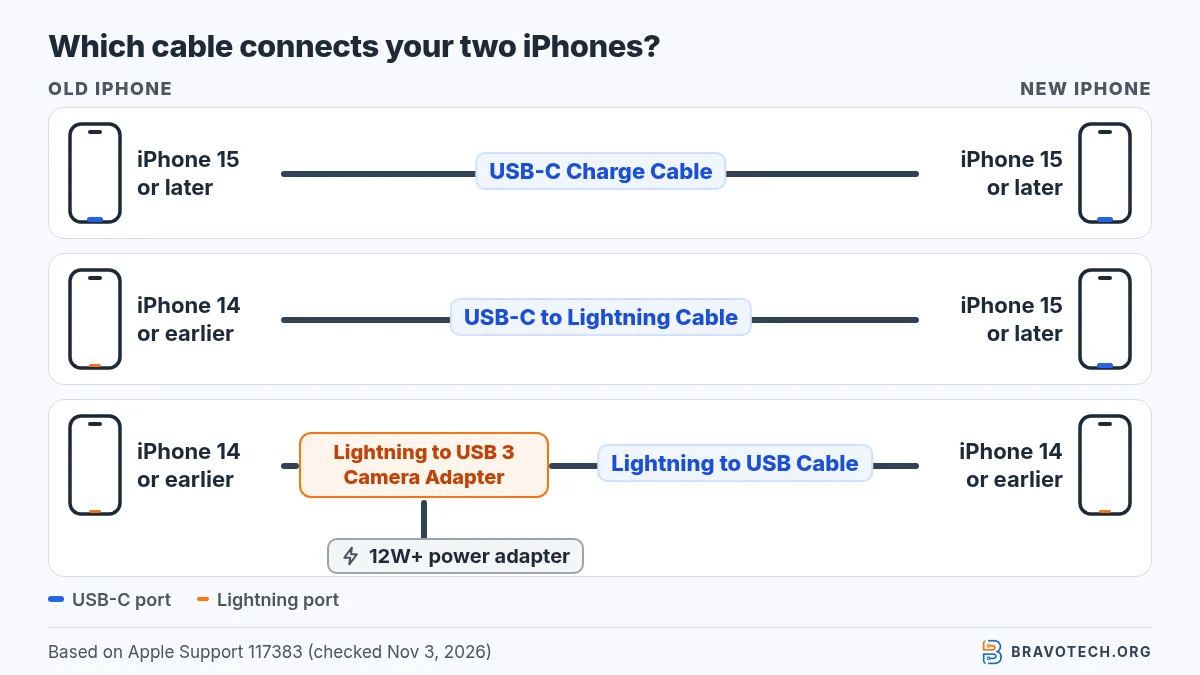
With a cable you still connect the new iPhone to Wi-Fi or cellular during setup, and you wait for both phones to finish before using them.
How do you transfer to a new iPhone from an iCloud backup?
On the new iPhone’s Apps & Data or Transfer Your Apps & Data screen, choose From iCloud Backup and sign in. Pick the right backup by its date and size, and stay on Wi-Fi. Apple says that after setup, content like apps, photos and music keeps downloading in the background, so leave the phone on Wi-Fi and power for a while. This method suits a lost or broken old phone (Apple Support).
What if you don’t have enough iCloud storage?
Use Prepare for New iPhone, which gives you temporary iCloud storage free when you buy a new iPhone. On the old phone, go to Settings > General > Transfer or Reset iPhone and tap Get Started under Prepare for New iPhone. You then have 21 days to restore that backup to the new phone, and Apple lets you add 21 more days with Keep My Backup Longer (Apple Support).
After the restore, Apple keeps the temporary backup for 7 days, then deletes it permanently, and it warns not to erase the old iPhone before you’ve restored. If your iCloud is full for other reasons too, our iCloud storage full guide covers what to clear.
How do you transfer from a Mac or PC without iCloud?
Back up the old iPhone to your computer, then on the new iPhone choose Restore from Mac or PC. Connect it to the same computer, open the Finder (Mac) or the Apple Devices app or iTunes (Windows), select the iPhone and click Restore Backup. Choose the backup by date and size, enter the password if it’s encrypted, and wait for the restore to finish (Apple Support).
Don’t lose your Health data
Encrypt the computer backup. Apple says computer backups aren’t encrypted by default, and without encryption your Activity, Health and Keychain data won’t transfer (Apple Support). Turn on encryption before you back up, and keep the password somewhere safe.
Can you transfer data after setting up the new iPhone?
Yes, but you have to erase the new iPhone first and run setup again. Apple’s restore instructions say that if the device is already set up, you erase it with Settings > General > Transfer or Reset iPhone > Erase All Content and Settings. It restarts at the Hello screen, where you can choose Quick Start or a backup. Erasing removes everything already on it (Apple Support, Apple Support).
Copy off anything new you created on the fresh phone before you erase it. For the erase itself, see our guide to resetting an iPhone.
How long does it take to transfer data to a new iPhone?
Apple doesn’t give a fixed time, because it depends on how much data you have and your network. Its Quick Start and cable pages both say transfer times vary with network conditions and the amount of data. Apple does say to set aside a time when you won’t need the old phone for several minutes. With Download from iCloud, you can use the new phone while it finishes (Apple Support, Apple Support).
How do you move your phone number and eSIM to the new iPhone?
If your carrier supports eSIM Quick Transfer, the setup screens offer to move your number for you. Both iPhones need iOS 18.4 or later, the same Apple Account, Bluetooth on and the old phone unlocked. With iOS 26 or later you can move more than one number. Once the plan activates on the new iPhone, the old SIM stops working (Apple Support).
Missed it during setup? Open Settings > Cellular > Set Up Cellular or Add eSIM on the new iPhone, choose the plan from your other iPhone (or Transfer From Nearby iPhone), and confirm on the old phone. If a banner says Finish Setting Up Your Carrier’s Cellular Plan, it hands you to the carrier’s website; contact the carrier if that fails.
What doesn’t transfer to a new iPhone?
Backups skip a few things by design, so plan to set them up again on the new phone. Apple lists Face ID or Touch ID settings, Apple Pay information and settings, Apple Mail data and offline maps as excluded from both iCloud and computer backups. Data kept in other services, such as Gmail, comes from those services, not the backup (Apple Support).
| After the transfer, check | Why |
|---|---|
| Face ID or Touch ID | Not in backups; you set it up during setup |
| Apple Pay cards in Wallet | Apple Pay information isn’t backed up |
| Offline maps | Not backed up; download them again |
| Mail accounts | Apple Mail data isn’t backed up; mail comes back from each account’s server |
| Health and Activity (computer backups) | Only transfer from an encrypted computer backup |
| Authenticator and banking apps | Many keep sign-in codes tied to the device; check each app’s own move instructions before erasing the old phone |
Why is Quick Start not working?
Restart both iPhones and try again, then switch to a cable or a backup if it still fails. Apple’s specific fix is a restart of both devices when the setup prompt disappears from the old phone. Also check that the old iPhone has iOS 11 or later, Wi-Fi and Bluetooth on, and is unlocked on the Home Screen. Managed school and business phones can’t use Quick Start at all (Apple Support).
If you need to skip Quick Start entirely, Apple’s setup guide has a Set Up Without Another Device option, after which you can restore from an iCloud or computer backup on the Transfer Apps & Data screen (Apple Support). Third-party desktop tools are another route; we compare two of them in iMazing vs 3uTools, but this guide sticks to Apple’s methods.
FAQ
Does Quick Start transfer my apps?
Yes, as part of your data. With Download from iCloud, Apple says apps and data download in the background after setup; with Transfer from iPhone, they come across before you can use the phone.
Can I use an iPad backup to set up an iPhone?
Yes, with exceptions. Apple says photos (unless you use iCloud Photos), Messages (unless synced with iCloud), Voice Memos and apps that aren’t compatible with iPhone won’t transfer from an iPad backup.
Do my text messages transfer?
Yes. If you use Messages in iCloud they sync from iCloud rather than from the backup, and Apple’s backup page lists them as already stored in iCloud. Otherwise they’re in the backup or Quick Start transfer.
Is an iCloud backup encrypted?
Yes. Apple says iCloud always encrypts backups. Computer backups are the ones you have to encrypt yourself, and encryption is off by default.
What should I do with my old iPhone afterwards?
Check the new phone first, then erase the old one before you sell or give it away. Our iPhone reset guide covers the steps.
How this article was made. We drafted this article with the help of AI tools, working from the official pages listed in Sources. Steps were checked against those pages on November 3, 2026. Fawad Malik is the credited author; the BravoTech team prepared it under our editorial standards. We did not test these products hands-on for this article. Spot an error? Email [email protected].
Sources
Eight Apple Support pages, each opened on November 3, 2026 (PKT); Apple’s published dates are shown with each link.
Show all 8 sources
- Apple Support: Use Quick Start to transfer data to a new iPhone or iPad (published September 14, 2026)
- Apple Support: Use a wired connection to transfer data to a new iPhone or iPad (published November 6, 2025)
- Apple Support: Backup methods for iPhone or iPad (published October 20, 2026)
- Apple Support: Restore your iPhone, iPad, or iPod touch from a backup (published October 12, 2026)
- Apple Support: Use the Finder, Apple Devices, or iTunes to transfer data to your new iPhone (published April 9, 2026)
- Apple Support: Get temporary iCloud storage when you buy a new iPhone or iPad (published September 23, 2026)
- Apple Support: Set up eSIM on iPhone (published October 22, 2026)
- Apple Support: Set up your iPhone or iPad (published September 14, 2026)
Changelog
- November 4, 2026: First published. Quick Start, cable combinations, iCloud and computer restores, temporary iCloud storage, eSIM Quick Transfer and backup exclusions checked against Apple Support on November 3, 2026.
Related reads