Every step below comes from Google’s own Gmail, Drive, Google One and Workspace Studio help pages, re-read on November 5, 2026. We haven’t tested these steps hands-on, and Google’s buttons can move between app versions. No affiliate links. See our editorial policy for how we use AI and check facts.
Quick answer
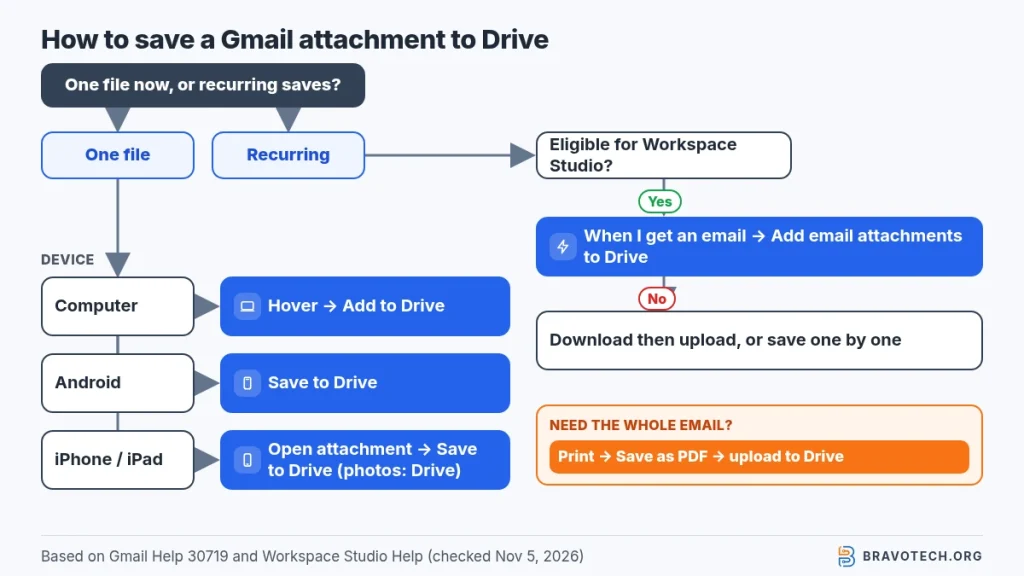
On a computer, open the email in Gmail, hover over the attachment and click Add to Drive. In the Gmail app on Android, open the email and tap Save to Drive. On iPhone or iPad, tap the attachment, then tap Save to Drive in the top right. To save attachments automatically, Google’s Workspace Studio can file them into a Drive folder, but only on eligible Workspace accounts or with Workspace Experiments.
Key takeaways
- One click per file on a computer: hover over the attachment, then Add to Drive.
- Phones use Save to Drive in the Gmail app on both Android and iPhone.
- Photos pasted inside an email aren’t attachments. Download them, then upload them to Drive.
- Automatic saving needs a Workspace Studio flow, which personal accounts get only through Workspace Experiments.
- Saving doesn’t move the file. The email keeps its attachment, and both count toward the same storage.
How do you save a Gmail attachment to Google Drive on a computer?
Open the message in Gmail in your browser, hover over the attachment at the bottom, and click the Add to Drive icon. Gmail saves the file to your Google Drive and leaves the original in the email. Google warns that some attachments can’t be added to Drive, and lists the file types Drive accepts on a separate help page (Gmail Help, Drive Help).
- Open Gmail in your browser on a computer and open the message.
- Scroll to the attachments at the bottom of the message.
- Hover over the attachment you want.
- Click Add to Drive.
Got a Word, Excel or PowerPoint file? Clicking Edit with Google Docs (or Sheets or Slides) also stores a copy in Drive, converted so you can edit it there (Gmail Help).
How do you save Gmail attachments to Google Drive on Android?
In the Gmail app on your Android phone or tablet, open the email and tap Save to Drive on the attachment. That’s the whole process; there’s nothing to download first. If the picture is part of the message body rather than an attachment, Gmail treats it differently: touch and hold it, or tap it, to get save options (Gmail Help, Android).
- Open the Gmail app.
- Open the email.
- Tap Save to Drive on the attachment.
How do you save Gmail attachments to Google Drive on iPhone or iPad?
In the Gmail app on iPhone or iPad, open the email, tap the attachment to open it, then tap Save to Drive in the top right. A “Saved to Drive” message confirms it. Photo attachments show buttons at the bottom of the screen instead: tap Drive for Google Drive, Photos for Google Photos, or Download for the device (Gmail Help, iPhone & iPad).
- Open the Gmail app and the email.
- Tap the attachment to open it.
- Tap Save to Drive in the top right (for a photo, tap Drive at the bottom).
- Look for the “Saved to Drive” confirmation.
Every method, side by side
Our summary of Google’s instructions, so you can find your situation in one glance:
| Where you are | What to tap or click | Good for | Limits |
|---|---|---|---|
| Gmail on a computer | Hover over the attachment → Add to Drive | One file at a time | Some file types can’t be added |
| Gmail app, Android | Open the email → Save to Drive | Quick saves on the go | One file at a time |
| Gmail app, iPhone/iPad | Open the attachment → Save to Drive (top right); photos: Drive | PDFs and photos | One file at a time |
| Office files on a computer | Edit with Google Docs, Sheets or Slides | Files you want to edit | Creates a converted copy in Drive |
| Workspace Studio flow | When I get an email → Add email attachments to Drive | Recurring attachments, filed into one folder | Eligible accounts only; set up on a computer |
| Whole email | Print → Save as PDF, then upload | Keeping the message text too | Two steps |
Can you save Gmail attachments to Google Drive automatically?
Yes, with a Google Workspace Studio flow: start with “When I get an email”, then add the step “Add email attachments to Drive”. The flow saves attachments from matching emails into the Drive folder you pick. Workspace Studio is for eligible work and school editions where an admin has enabled Gemini; personal accounts need Google Workspace Experiments (Workspace Studio Help, Starters & Steps).
- On a computer, go to studio.workspace.google.com (flows are created on a computer, then run on any device).
- Choose the starter When I get an email and add a condition such as Has attachment, or a specific sender (Workspace Studio Help).
- Add the step Add email attachments to Drive, choose the Drive folder, and pick Full list – Email attachments as the attachments.
- Run a test, then turn the flow on.
Good to know
Drive links aren’t attachments. Google says links to Drive files in an email aren’t treated as attachments and won’t be moved by this step (Workspace Studio Help). This guide sticks to Google’s own Add to Drive buttons and Workspace Studio; it doesn’t cover third-party automation tools.
How do you save multiple Gmail attachments to Drive at once?
Google’s Gmail help documents saving attachments one at a time, so for many files you have two practical routes. For a recurring stream, a Workspace Studio flow saves the full list of attachments from each matching email. For a one-off batch, download the attachments to your computer, then drag them into Drive or use New → File upload or Folder upload (Workspace Studio Help, Drive Help).
Uploading a whole folder keeps the files together, which makes them easier to find later. If you use Google Drive for desktop, you can drag files into its Drive folder instead.
Where do saved Gmail attachments go in Google Drive?
Google’s Gmail help doesn’t name a destination folder for Add to Drive, so the quickest way to find a saved file is to search Drive for its name. Once you find it, you can move it into any folder you like. If you want attachments to land in a set folder every time, a Workspace Studio flow lets you choose the location (Gmail Help, Workspace Studio Help).
Planning to share the files with a team? Put them in one folder first, then follow our guide to sharing a Google Drive folder.
Why don’t you see the Add to Drive button?
Usually because the file can’t go to Drive, the sender locked it, or it isn’t really an attachment. Google says some attachments can’t be added to Drive, and confidential-mode emails block downloading attachments at all. Photos placed inside the message body have to be downloaded and uploaded instead. If your storage is full, Google says you can’t upload new files to Drive (Gmail Help, Google One Help).
- Confidential mode: the sender has blocked copying and downloading.
- Unsupported or blocked file: check Google’s list of files you can store in Drive.
- Inline photo: right-click and save it (computer), then upload.
- Full storage: free up space first; see what to do when Google Drive storage is full.
- Drive link, not a file: Gmail turns large attachments into Drive links (Gmail Help). Open the link and use Drive’s own options.
How do you save an entire email to Google Drive?
Print the email to a PDF, then upload the PDF to Drive. In Gmail on a computer, open the email, click More at the top right and choose Print, or Print all for a whole conversation. In Chrome’s print window, choose Save as PDF, then upload the file at drive.google.com with New → File upload. Chrome also offers Save to Google Drive with Google’s extension (Gmail Help, Chrome Help).
Does Gmail storage count toward Google Drive storage?
Yes. Gmail and Google Drive draw from the same Google storage, which also covers Google Photos. Each Google Account includes up to 15 GB of storage shared across those services. Gmail messages and attachments count, including Spam and Trash, as do Drive files (Google One Help).
On Google One’s US plans page checked for this update, paid tiers include Basic (100 GB), Google AI Plus (2 TB) and Google AI Pro (5 TB); names and sizes can vary by country, so check Google One’s plans page for yours. Before you pay, our Google One storage plans guide and full-storage fixes are worth a read.
Does saving an attachment to Drive use your storage twice?
Yes, as long as you keep the email, plan for two copies. Gmail calls this action “Download to Google Drive”: the email keeps its attachment and Drive gets its own file. Google counts both Gmail attachments and Drive files toward one quota. Delete the email after saving if you only want the Drive copy (Gmail Help, Google One Help).
Our worked examples show how fast that adds up. We use 1 GB = 1,000 MB to keep the maths simple:
| What you save | In Gmail | Copy in Drive | Total used | Share of 15 GB |
|---|---|---|---|---|
| 50 PDFs × 1 MB | 50 MB | 50 MB | 100 MB | 0.7% |
| 100 receipts × 2 MB | 200 MB | 200 MB | 400 MB | 2.7% |
| 40 files × 25 MB (Gmail’s personal sending limit) | 1,000 MB | 1,000 MB | 2,000 MB | 13.3% |
| 200 photos × 10 MB | 2,000 MB | 2,000 MB | 4,000 MB | 26.7% |
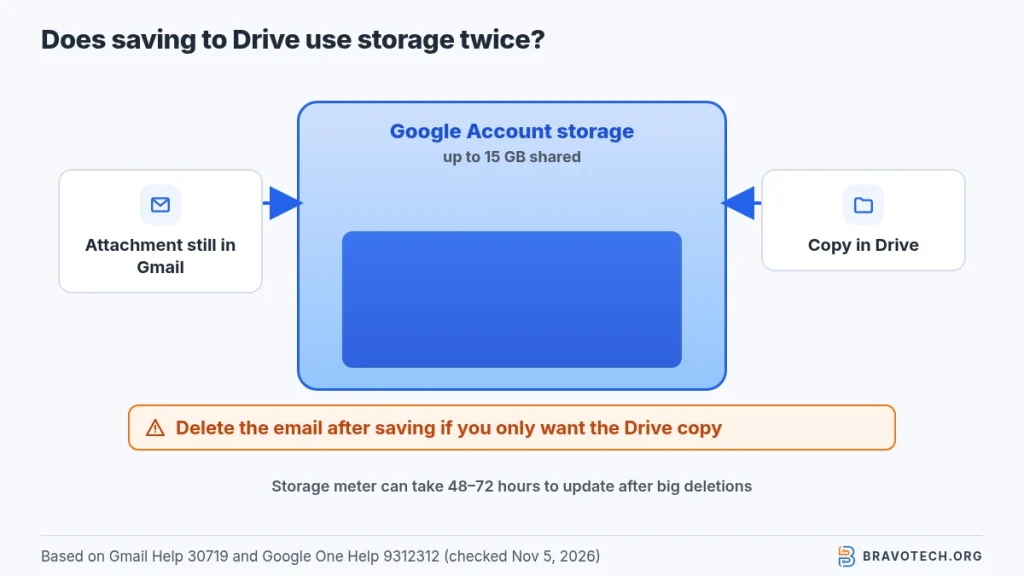
Google says storage figures can take 48 to 72 hours to update after a big clean-up, so don’t panic if the meter doesn’t drop straight away (Google One Help). Want to clear old messages in bulk? See how to delete all emails on Gmail.
FAQ
Is there a size limit for saving attachments to Drive?
Google Drive accepts most files up to 5 TB, so the practical limit is your storage. Personal Gmail accounts can send attachments up to 25 MB; bigger files arrive as Drive links.
Does this work with a work or school Gmail account?
Usually, yes. Your Google Workspace administrator sets attachment limits for work and school accounts, and must enable Gemini before you can use Workspace Studio flows.
If someone shares a Drive link instead, does it use my storage?
No. Google says shared files count against the owner’s storage. If you make your own copy, that copy uses your storage.
Should I save attachments Gmail marks as suspicious?
Be careful. Gmail warns that some attachments can’t be scanned or may run unverified scripts. If you don’t trust the sender, don’t open or save the file.
How this article was made. We drafted this article with the help of AI tools, working from the official pages listed in Sources. Plan limits and steps were checked against those pages on November 5, 2026. Syed Saud Ahsan is the credited author; the BravoTech team prepared it under our editorial standards. We did not test these products hands-on for this article. Spot an error? Email [email protected].
Sources
13 official Google pages, each opened on November 5, 2026 (PKT).
Show all 13 sources
- Gmail Help: Open & download attachments in Gmail (computer)
- Gmail Help: Open & download attachments in Gmail (Android phone & tablet)
- Gmail Help: Open & download attachments in Gmail (iPhone & iPad)
- Gmail Help: Send attachments with your Gmail message
- Google One Help: How your Google storage works
- Google One: Plans & pricing
- Google Drive Help: Files you can store in Google Drive
- Google Drive Help: Upload files & folders to Google Drive
- Google Chrome Help: Print from Chrome
- Gmail Help: Print Gmail messages (computer)
- Workspace Studio Help: Get started with Google Workspace Studio
- Workspace Studio Help: When I get an email
- Workspace Studio Help: Guide to Starters & Steps
Changelog
- November 6, 2026: First published. Steps for computer, Android, iPhone and Workspace Studio, plus storage rules, checked against Google’s help pages on November 5, 2026.
Related reads