We compared six authenticator apps from what their makers publish: help centers, product pages and App Store listings, all re-read on November 5, 2026. None of the apps was tested hands-on for this guide, we earn nothing from any of them, and there are no sponsored placements. Our editorial policy explains how we use AI and check facts.
Quick answer
The best 2FA app is the one you can still get into after you lose your phone. If you use only Apple devices, the built-in Passwords app is enough. Google Authenticator suits Google-centred users on Android or iPhone, and Microsoft Authenticator suits Microsoft and work accounts. Want codes on a Windows, Mac or Linux computer too? Proton Authenticator has desktop apps. Already on Bitwarden? Its free authenticator fits in. Whichever you choose, switch on its backup or sync before you need it.
Key takeaways
- Recovery matters more than features. An authenticator without a backup ties every code to one phone.
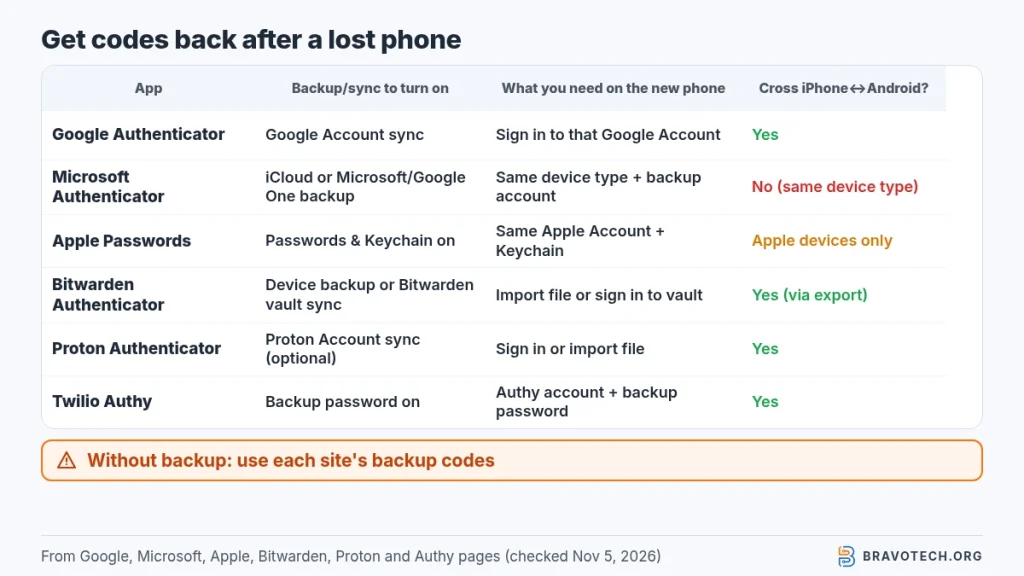
- Microsoft Authenticator backups don’t cross platforms: Microsoft says an iPhone backup can’t be restored on Android, or the reverse.
- Google Authenticator can sync codes to your Google Account, so they follow you to any phone you sign in on.
- iPhone, iPad and Mac already have an authenticator in the Passwords app (iOS 18, macOS Sequoia or later).
- Authy is mobile-only on its download page; Proton Authenticator lists Windows, Mac and Linux apps.
- An app beats text-message codes, but passkeys beat both against phishing, according to CISA.
In this guide
- How we chose
- Which app fits you
- Six apps compared
- The apps, one by one
- What an authenticator app is
- App vs text message
- iPhone’s built-in authenticator
- Is Google Authenticator safe?
- Google vs Microsoft
- Authy vs Google
- If you lose your phone
- Do they work offline?
- Codes on a computer
- Switching apps
- Authenticator app vs passkey
- How to set one up
- FAQ
- Sources
How we chose these 2FA apps
Every app here generates the standard six-digit, 30-second codes that most sites accept. That part is the same everywhere, so we judged the apps on what differs, using each maker’s own documentation:
- Recovery: can your codes come back if the phone is lost, and what do you need to restore them?
- Changing phones: does a backup made on iPhone restore on Android, and the other way round?
- Where it runs: phone only, or also tablet, watch and desktop computer?
- Getting out: can you export or import codes, so you’re not stuck with one app?
- Cost and lock: is it free, and can you put the app behind Face ID, a fingerprint or a PIN?
We left out apps whose makers don’t publish enough about backup and recovery to check, and we didn’t rank by star ratings or popularity.
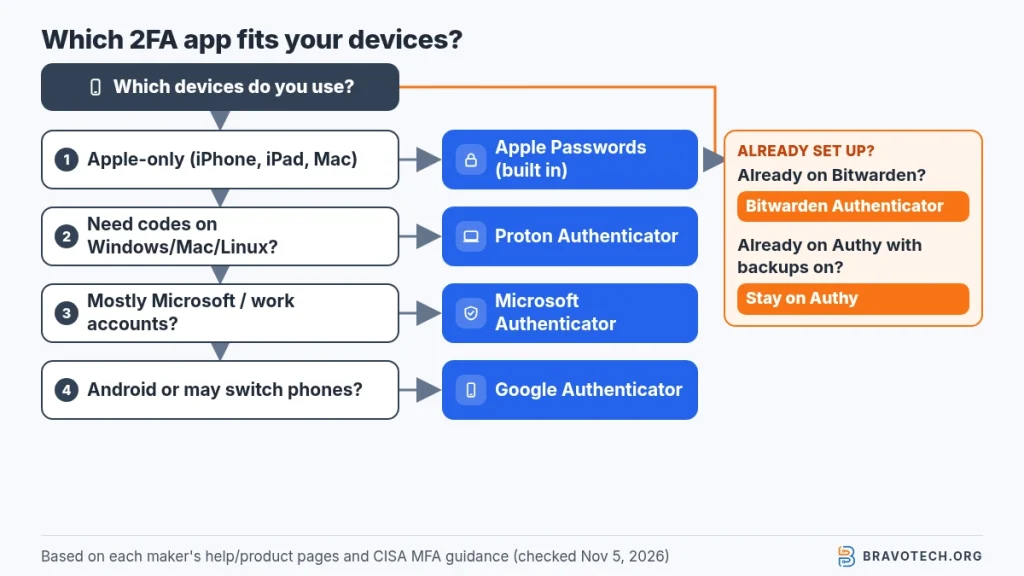
Which 2FA app is best for you?
Start from the devices you own and the accounts you protect most. This decision table is ours, built from the facts in the comparison below:
| If this is you | Start with | Why |
|---|---|---|
| Only Apple devices (iPhone, iPad, Mac) | Apple Passwords app | Built in; codes sync to devices signed in to the same Apple Account with Passwords & Keychain on |
| Android, or you might switch between Android and iPhone | Google Authenticator | Codes sync through your Google Account on any device you sign in on |
| Mostly Microsoft personal or work/school accounts | Microsoft Authenticator | Supports tap-to-approve sign-in for Microsoft accounts as well as codes |
| You want codes on a Windows, Mac or Linux computer | Proton Authenticator | Desktop and mobile apps; account optional; end-to-end encrypted sync |
| You already use Bitwarden Password Manager | Bitwarden Authenticator | Free; can sync codes with your Bitwarden vault or keep them local |
| You already have Authy set up on several phones or tablets | Stay on Authy, with Backups on | Multi-device sync with an encrypted backup only your password unlocks |
Six authenticator apps compared
One table, six makers’ own claims. Where a vendor page doesn’t say something, the cell says so rather than guessing:
| App | Runs on | Backup or sync | Moving to a different phone type | Export / import | Cost |
|---|---|---|---|---|---|
| Google Authenticator | Android (6.0+) and iPhone | Optional sync to your Google Account, encrypted in transit and at rest | Yes, by signing in to the same Google Account | Export and import by QR code (Transfer codes) | Free (App Store) |
| Microsoft Authenticator | iPhone and Android | iCloud on iPhone; Microsoft personal account on Android (Google One backup from January 2027) | No: Microsoft says backups restore only on the same device type | Not described on Microsoft’s backup pages | Free |
| Apple Passwords | iPhone, iPad, Mac, Apple Vision Pro (iOS 18 / macOS Sequoia or later) | iCloud, with Passwords & Keychain turned on | Apple devices only; Windows gets iCloud passwords via iCloud for Windows | Not covered on the pages we checked | Built in |
| Bitwarden Authenticator | iPhone (iOS 15+) and Android (9+) | Your phone’s own cloud backup (iCloud or Google One); optional sync with a Bitwarden vault | Yes, by exporting a file and importing it on the new phone | Export and import files | Free (App Store) |
| Proton Authenticator | iPhone, iPad, Apple Watch, Android, Mac, Windows, Linux | Optional end-to-end encrypted sync and backups with a Proton Account | Yes, via Proton sync or export | Imports from Google Authenticator, 2FAS, Aegis, Bitwarden Authenticator, Ente Auth and LastPass Authenticator; exports | Free, no ads |
| Twilio Authy | Phone, tablet and Apple Watch; download page links only to the App Store and Google Play | Encrypted cloud backup unlocked by a password only you know | Yes, by adding the new device to your Authy account | Not described on Authy’s own pages | Free |
The apps, one by one
Google Authenticator
The default choice for a reason: it’s simple, and since you can sync codes to a Google Account, a lost phone no longer means lost codes. You can also refuse sync and keep codes on the device only, then move them by QR code yourself. Privacy Screen asks for a PIN, pattern or biometric check before the app opens (Google).
Watch out: if you use it without an account, a broken phone takes your codes with it.
Microsoft Authenticator
Microsoft describes it as a free app for codes and for passwordless sign-in, where you approve a sign-in with a tap (Microsoft). It’s the natural pick if your employer uses Microsoft accounts. Its backup covers codes for personal Microsoft accounts and other services, but work or school accounts restore as a name only and must be signed in again (Microsoft).
Watch out: switching between iPhone and Android means re-adding accounts by hand, because backups don’t cross platforms.
Apple Passwords (built in)
Since iOS 18, iPadOS 18 and macOS Sequoia, the Passwords app stores verification codes next to passwords and passkeys (Apple). On iPhone, the current code appears above the keyboard when a site asks for it (Apple). It costs nothing and needs no extra app.
Watch out: it’s an Apple-only answer. If you might move to Android, pick a cross-platform app instead.
Bitwarden Authenticator
A standalone code app that works with or without a Bitwarden account. Codes can stay local or sync with the Bitwarden Password Manager, and you can export them to a file (Bitwarden). Bitwarden itself warns against syncing the code that protects your Bitwarden login into that same vault, since that could lock you out.
Proton Authenticator
The widest platform list here, including Windows, Mac and Linux desktop apps. Proton says it’s open source, free with no ads, and works without a Proton Account; sign in only if you want end-to-end encrypted sync. It can import codes from several other authenticators (Proton).
Twilio Authy
Authy’s strengths are multi-device use, including tablets and Apple Watch, and backups encrypted with a password Twilio doesn’t store (Authy). Its download page now links only to the App Store and Google Play (Authy).
Watch out: forget the backup password and lose your devices, and the backup can’t be decrypted.
What is a 2FA authenticator app, and how does it work?
An authenticator app is a phone app that makes the one-time codes you type after your password. When you turn on two-factor authentication on a site, it shows a QR code or setup key. The app saves that secret and generates a fresh code from it every 30 seconds or so. Apple notes these codes are commonly the second factor, which helps keep people out even if they know your password (Apple).
Is an authenticator app safer than text-message codes?
Yes, an app is generally the stronger choice, but any second factor beats none. CISA lists text-message and voice codes as one form of multifactor authentication and says some forms protect better than others. It also suggests number-matching approvals to block SMS-based attacks and push bombardment. Codes generated on your own device don’t travel over the phone network at all (CISA).
Does iPhone have a built-in authenticator?
Yes. The Passwords app on iOS 18 and later can generate verification codes, so you don’t need a separate app. Scan the site’s QR code with the iPhone camera, or open Passwords, tap All, choose the account, tap Edit, then Set Up Code and paste the setup key. When you sign in later, the code appears above the keyboard (Apple).
Codes sync to your other Apple devices when they’re signed in to the same Apple Account with Passwords & Keychain turned on in iCloud settings (Apple).
Is Google Authenticator safe?
Google Authenticator is a mainstream, well-supported choice, and Google says synced codes stay encrypted in transit and at rest. You decide whether to sync codes to your Google Account or keep them only on the phone. Google’s own best practices are to sync, turn on Privacy Screen, add a second 2-Step Verification method and consider a passkey, so one lost phone doesn’t lock you out (Google).
Google Authenticator vs Microsoft Authenticator: which is better?
Choose Microsoft Authenticator for Microsoft and work accounts, and Google Authenticator if you may switch phone platforms. Microsoft adds tap-to-approve sign-in for its accounts, but its backups restore only on the same device type and don’t carry work credentials. Google’s sync follows your Google Account to any phone (Microsoft, Google). Many people use both.
| Google Authenticator | Microsoft Authenticator | |
|---|---|---|
| Backup | Google Account sync (optional) | iCloud (iPhone) or Microsoft personal account (Android) |
| iPhone ↔ Android restore | Yes, via Google Account | No |
| Work or school accounts after restore | Codes restore like any other | Name only; sign in and register again |
| Tap-to-approve sign-in | Not described for third-party sites | Yes, for Microsoft accounts |
| Manual transfer | QR code export/import | Not described |
Authy vs Google Authenticator: what’s the difference?
Authy is built around several devices sharing one account; Google Authenticator is built around your Google Account. Authy adds new devices by SMS, voice call or approval from an existing device, and encrypts backups with a password Twilio doesn’t keep. Google syncs codes when you sign in, and also allows QR-code transfers. Google Authenticator documents a QR export; Authy’s own pages don’t describe one (Authy, Google).
What happens if you lose your phone with your authenticator app?
If you turned on backup or sync, you restore the codes on a new phone; if you didn’t, you recover each account separately. Google restores synced codes when you sign in. Microsoft restores from iCloud or your backup account on the same phone type. Authy decrypts with your backup password. Without a backup, use each site’s backup codes or account recovery (Google, Microsoft).
Five-minute check
Do this today, not after you lose the phone: open your authenticator, confirm backup or sync is on, and add a second sign-in method to the accounts that matter most. Google’s own advice is to enrol more than one form of 2-Step Verification so you can’t lock yourself out (Google).
Do authenticator apps work offline?
Yes. Code-generating apps work without Wi-Fi or mobile data, because each code is calculated on the device. Google says you can still generate codes with no internet connection or mobile service, and Proton says the same for its apps on every platform. You only need a connection to sync, back up or add a new device (Google, Proton).
Which authenticator apps work on a Windows PC or Mac?
Proton Authenticator has desktop apps for Windows, Mac and Linux, and Apple Passwords runs on Macs with macOS Sequoia or later. Google Authenticator, Microsoft Authenticator and Bitwarden Authenticator are phone apps. Authy’s download page now links only to mobile app stores. Keeping codes on a computer is convenient, so protect that computer with a strong sign-in (Proton, Apple).
Can you move your codes from one authenticator app to another?
Sometimes in bulk, otherwise one account at a time. Proton Authenticator imports from Google Authenticator, 2FAS, Aegis, Bitwarden Authenticator, Ente Auth and LastPass Authenticator. Bitwarden imports and exports files, and Google exports by QR code. Where no export exists, turn 2FA off and on again at each site and scan the new QR code into the new app (Proton, Bitwarden).
Keep the old app working until every account signs in with the new one.
Authenticator app vs passkey: which should you use?
Use a passkey wherever a site offers one, and an authenticator app everywhere else. CISA calls FIDO/WebAuthn, the standard passkeys use, the only widely available phishing-resistant authentication, because it refuses to sign in on a fake site. A six-digit code can still be typed into a convincing fake page. Google also recommends adding a passkey to your Google Account (CISA, Google).
How do you set up an authenticator app?
Turn on two-factor authentication in the site’s security settings, choose the authenticator-app option, then scan the QR code. If you can’t scan, copy the setup key into the app instead. The app shows a code; type it back into the site to confirm. Apple and Google both describe this same flow, whichever app you use (Apple, Google).
- Install your chosen app and switch on its backup or sync first.
- On the site, open the security or sign-in settings and turn on two-factor or 2-step verification.
- Choose the authenticator-app option (not text message).
- Scan the QR code with the app, or paste the setup key.
- Type the code the app shows to finish, and save any backup codes the site offers.
Running a small team? Our small business cybersecurity checklist puts 2FA alongside the other basics, and our password manager guide covers shared vaults. Changing iPhones soon? Move your authenticator before you erase the old one; our iPhone-to-iPhone transfer guide covers the rest.
FAQ
Are authenticator apps free?
All six here are free to use. Microsoft calls its app free, Proton says its app is completely free with no ads, Authy calls its app free, and the App Store lists Google Authenticator and Bitwarden Authenticator as free. Apple Passwords is built in.
Can I use more than one authenticator app?
Yes. Each code belongs to the app where you scanned it, so you can keep work accounts in Microsoft Authenticator and the rest elsewhere. Just remember which app holds which account.
Should I keep 2FA codes in my password manager?
It’s convenient, but it puts both factors in one place. Bitwarden specifically warns not to store the code that protects your Bitwarden account inside that same vault.
Is Authy still available?
Yes. On November 5, 2026, Authy’s download page linked to its iPhone and Android apps. It didn’t list desktop apps.
What if a code is rejected?
Check that you typed it before it expired, for the right account, and that your phone’s time is synced and correct for your time zone. Google lists these same checks.
How this article was made. We drafted this article with the help of AI tools, working from the official pages listed in Sources. Steps were checked against those pages on November 5, 2026. Syed Saud Ahsan is the credited author; the BravoTech team prepared it under our editorial standards. We did not test these products hands-on for this article. Spot an error? Email [email protected].
Sources
12 official pages from the app makers and CISA, each opened on November 5, 2026 (PKT). App Store listings were also checked for price.
Show all 12 sources
- Google Account Help: Get verification codes with Google Authenticator
- Microsoft Support: About Microsoft Authenticator
- Microsoft Support: Back up one-time password codes in Microsoft Authenticator
- Microsoft Learn: Transfer Microsoft Authenticator to a new phone
- Apple Support (iPhone User Guide): Automatically fill in one-time verification codes on iPhone
- Apple Support: Use the Passwords app to create, manage, and share passwords and passkeys across Apple devices
- Apple Support (Personal Safety User Guide): Secure your device, app, and website passwords
- Bitwarden Help Center: Bitwarden Authenticator
- Proton: Proton Authenticator product page and FAQ
- Twilio Authy: App features
- Twilio Authy: Download page
- CISA: More than a Password (multifactor authentication guidance)
Changelog
- November 6, 2026: First published. Platforms, backup and transfer rules, export options and prices checked against each maker’s own pages on November 5, 2026.
Related reads