
No affiliate links or sponsorship. Steps come from Apple’s own support pages and the iOS 27 iPhone User Guide, checked November 2, 2026. We didn’t test this on a device for this guide, so there are no screenshots.
Quick answer
If your iPhone storage is full, open Settings > General > iPhone Storage first. Turn on any recommendations Apple shows there, then go after the biggest items: photos and videos (and the Recently Deleted album), large apps you can offload, message attachments, and videos downloaded for offline viewing. Buying more iCloud storage doesn’t add space to the iPhone itself.
Key takeaways
- Check which storage is full. “iPhone Storage” is the phone’s own space; iCloud storage is separate, and paying for more iCloud doesn’t fix a full phone.
- Deleted photos and messages linger. Both sit in Recently Deleted for 30 days unless you remove them there.
- Offloading keeps your data. It removes the app but keeps its documents and data; deleting removes both.
- System storage can’t be cleaned by hand. Apple says the iPhone removes cached and temporary files itself when it needs space.
- Stuck on an update? If iOS asks to temporarily remove apps, Apple says they’re reinstalled automatically afterwards.
In this guide
iPhone storage full? Do these first
When iPhone storage is full, start with the fixes that free the most space and lose the least. Apple’s own advice for a “Storage Almost Full” alert is to check the storage recommendations or remove content such as videos and apps. The order below runs from safest to most permanent, and every step comes from Apple’s documentation (Apple Support, iPhone User Guide).
- Open Settings > General > iPhone Storage, tap Show All under recommendations, and tap Enable on anything useful (or tap a recommendation to review what it would delete).
- Remove videos you’ve already watched that you downloaded for offline viewing in the TV app or other streaming apps. You can download them again.
- Offload apps you rarely use. Tap an app in iPhone Storage, then Offload App. Its documents and data stay on the phone.
- Clear big message attachments. In a conversation, tap the contact or group icon, choose a category such as Photos, then Edit > Select and delete.
- Merge duplicate photos in Photos > Collections > Utilities > Duplicates.
- Turn on Optimize iPhone Storage for iCloud Photos, if you have the iCloud space for it (steps below).
- Empty Recently Deleted in Photos and Messages last. Items removed there can’t be recovered.
Working through the list in that order means anything you can re-download or that’s already backed up goes first. Permanent deletion comes at the very end. Where each step lives in Settings is explained in the sections below.
Is it your iPhone storage or your iCloud storage that’s full?
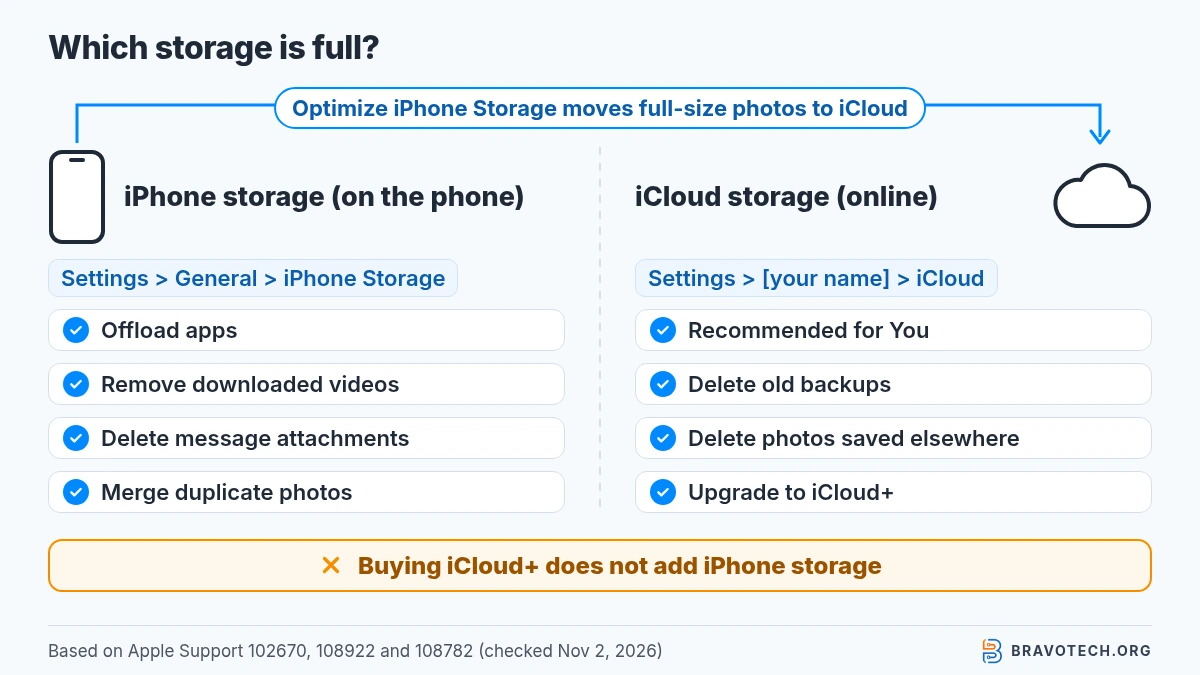
They’re two different things. Apple says device storage is the fixed capacity built into your iPhone, while iCloud storage is space in the cloud that keeps your photos, files and backups in sync. Each has its own “full” alert and its own fix. Check iPhone Storage under Settings > General, and iCloud under Settings > [your name] > iCloud (Apple Support).
| iPhone (device) storage full | iCloud storage full | |
|---|---|---|
| Where you check it | Settings > General > iPhone Storage | Settings > [your name] > iCloud, then Storage or Manage Account Storage |
| What stops working (per Apple) | Apple’s pages don’t give a full list. They say to use the recommendations or remove content such as videos and apps. | iCloud Backup stops, new photos don’t upload to iCloud Photos, iCloud Drive stops syncing, and iCloud Mail can’t send or receive |
| Does buying iCloud+ fix it? | No. iCloud+ adds cloud space, not space on the phone. | Yes, or remove content from iCloud |
| Fastest fix | Recommendations, offload apps, remove downloaded videos and attachments | iCloud > Recommended for You (iOS 17 or later), delete old backups, delete photos you’ve saved elsewhere |
| Read next | This guide | Apple’s iCloud storage guide (in Sources) |
If Google, not Apple, is warning you that your storage is full, that’s a third pool of space. Our Google Drive storage full guide covers it. To pick between the two clouds for an iPhone, see iCloud vs Google Drive for iPhone users.
How do you check what’s using space on your iPhone?
Go to Settings, tap General, then tap iPhone Storage. Apple says the screen shows how much space is available at the top, recommendations, and a list of apps with the space each one uses. Tap an app for details and the Offload App or Delete App options. Apple notes that cached and temporary data might not count toward an app’s usage (Apple Support).
You can also see storage from a computer: connect the iPhone to a Mac (Finder) or a Windows PC (the Apple Devices app, or iTunes), select the phone, and hover over the storage bar. The computer groups things differently. Apple says it shows cached music, videos and photos as “Other”, so totals may not match what the iPhone shows (Apple Support).
What does each iPhone storage category mean, and can you clear it?
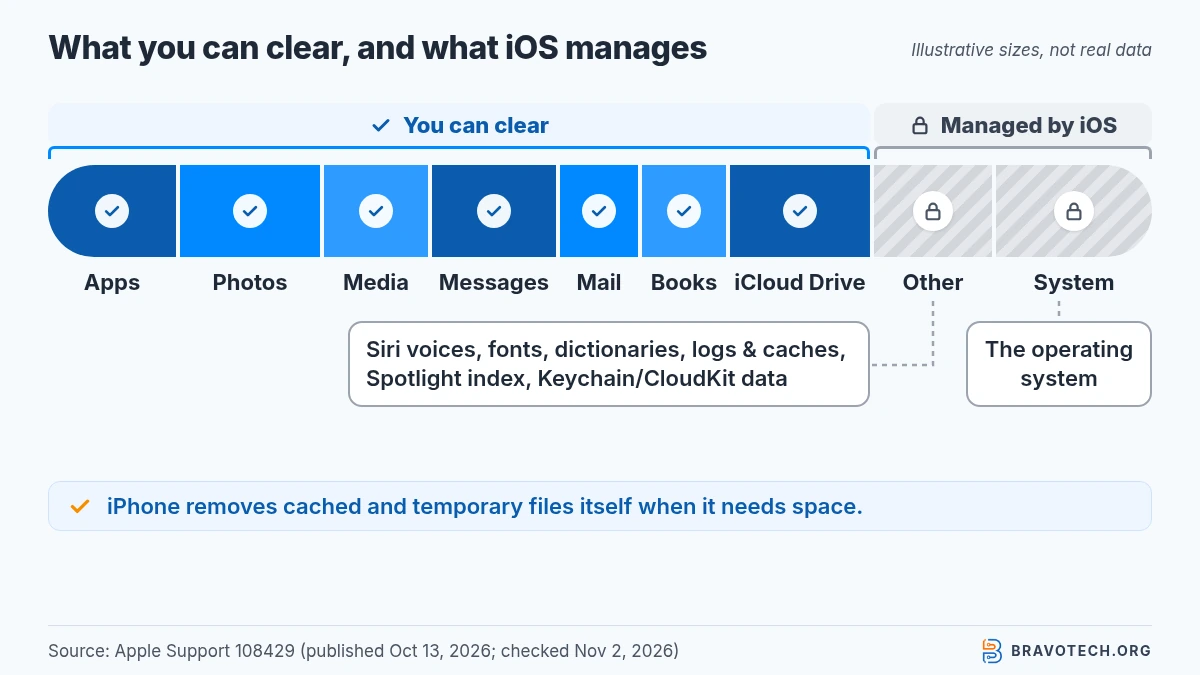
Most categories are content you control, but two are not: Other and System. Apple’s storage article describes Other as non-removable items such as Siri voices, fonts, dictionaries, logs, caches, the Spotlight index and system data, and System as the operating system itself. The table shows what lives in each category and the quickest move for it (Apple Support).
| Category | What Apple says is in it | Can you clear it? | Quickest move |
|---|---|---|---|
| Apps | Installed apps and their content, files in On My iPhone in the Files app, and Safari downloads | Yes | Offload or delete big apps; delete old files in Files > On My iPhone |
| Photos | Photos and videos in the Photos app | Yes | Merge duplicates, turn on Optimize iPhone Storage, delete after backing up |
| Media | Music, videos, podcasts, ringtones, artwork and voice memos | Yes | Remove downloaded episodes, songs and offline videos |
| Emails and their attachments | Yes | Delete messages with large attachments, then empty Trash | |
| Apple Books | Books and PDFs in the Books app | Yes | Remove downloads you’ve finished |
| Messages | Messages and their attachments | Yes | Delete attachments; set Keep Messages to 30 days or 1 year |
| iCloud Drive | iCloud Drive files downloaded to the iPhone | Partly | Delete files you no longer need. Deleting in iCloud Drive removes them from all your devices |
| Other | Non-removable assets: Siri voices, fonts, dictionaries, non-removable logs and caches, Spotlight index, Keychain and CloudKit data | No (managed by iOS) | Free space elsewhere; the iPhone removes cached and temporary files when it needs space |
| System | The operating system; size varies by device and model | No | Nothing to do here; focus on the categories above |
How do you free up space taken by photos and videos?
Use iCloud Photos with Optimize iPhone Storage, merge duplicates, and delete what you’ve backed up elsewhere. Apple says Optimize Storage keeps space-saving versions on the iPhone while the full-resolution originals stay in iCloud. It optimizes the photos you look at least first. It does use your iCloud storage, so check you have room there before you rely on it (Apple Support).
Turn on Optimize iPhone Storage (iOS 27):
- Open Settings, tap your name, then tap iCloud.
- Under Saved to iCloud, tap Photos.
- Tap iPhone Storage, then choose Optimize Storage. On iOS 26 or earlier, just choose Optimize Storage.
Merge duplicates: open Photos, tap Collections, then Utilities > Duplicates. Tap Merge on a set, or Select > Select All > Merge. Apple says Photos keeps the highest-quality version with the relevant data and moves the other copies to Recently Deleted. No Duplicates album? Apple says the iPhone has to index your library first, while it’s locked and connected to power. That can take up to a few days, and the album doesn’t appear if there are no duplicates (Apple Support, Apple Support).
Before you delete
Before you delete photos, back up anything you want to keep. With iCloud Photos on, a photo you delete on one device is deleted on all your devices. Apple also warns that if you’re over your iCloud storage limit, photos you delete are removed immediately and won’t be in Recently Deleted (Apple Support, Apple Support).
If the trash button is grey on some photos, Apple says those photos were synced from a computer. You can’t delete them in Photos on the iPhone; stop syncing them from the computer instead (Apple Support). For a backup plan that doesn’t rely on one service, our 3-2-1 backup rule guide walks through it step by step.
Should you offload or delete apps?
Offload an app you’ll want back later; delete one you’re done with. Apple says offloading frees the storage the app uses but keeps its documents and data, while deleting removes the app and its related data. Data the app saved to iCloud isn’t deleted either way. Both options are on the app’s page in iPhone Storage (Apple Support, iPhone User Guide).
To have the iPhone do this for you, go to Settings > Apps > App Store and turn on Offload Unused Apps. Apple says the icon stays on your Home Screen with a cloud symbol, and tapping it reinstalls the app (iPhone User Guide). We cover the difference between offloading and clearing an app’s cache in more depth in how to clear cache on iPhone. Clearing Safari or app cache rarely frees as much space as photos or apps do.
How do you free up space used by Messages?
Delete large attachments, and set old messages to delete themselves. In a conversation, tap the contact or group icon, pick a category such as Photos, then tap Edit, Select, choose items and delete. To stop the build-up, go to Settings > Apps > Messages > Keep Messages and choose 30 days or 1 year instead of Forever (iPhone User Guide).
Apple warns that any Keep Messages option other than Forever removes conversations, attachments included, once they pass that age. With Messages in iCloud on, deleting on the iPhone deletes on all your devices. Deleted messages also wait in Recently Deleted for 30 days unless you remove them there (iPhone User Guide).
Videos, downloads and files
Apple’s storage guide also points to two easy-to-miss sources of used space: videos downloaded for offline viewing in the TV app and other streaming apps, and documents in the Files app. Delete the ones you no longer need. If there are files you always want on the phone, Apple’s guide has a Keep selected files downloaded option so they aren’t removed (iPhone User Guide).
What is System Data on iPhone, and can you clear it?
You can’t clear it directly. What many people call System Data is, in Apple’s current storage article, split between Other and System. Other holds non-removable items such as Siri voices, fonts, logs, caches and the Spotlight index; System is the operating system. Apple says the iPhone removes cached and temporary files on its own when it needs more space, so you don’t have to (Apple Support).
So the practical answer to “iPhone storage full of system data” is to free space in the categories you control. Apple’s pages don’t offer a button, setting or app that empties this category. Be wary of anything that claims to, including the cleaner apps and pop-ups covered below.
Why is my iPhone storage still full after deleting things?
Usually because the items are still in Recently Deleted, or the storage figure hasn’t caught up yet. Apple says deleted photos and videos stay in Recently Deleted for 30 days, and so do deleted messages. For apps, Apple says available storage can take a moment to update after you delete one. Synced content from a computer can only be removed from that computer (Apple Support, iPhone User Guide, Apple Support).
To empty Recently Deleted in Photos: Photos > Collections > Utilities > Recently Deleted > View Album (Face ID or Touch ID) > Select > More > Delete All. Apple says items deleted here can’t be recovered (Apple Support). For synced content: open Finder, the Apple Devices app or iTunes on the computer, deselect the content and click Sync (Apple Support).
Why is my iPhone storage full when I have iCloud?
Because an iCloud plan adds space in the cloud, not on the phone. Apple describes device storage as the set amount your iPhone comes with. iCloud only saves space on the phone when you use a feature that offloads content, such as iCloud Photos with Optimize Storage turned on. Apple says photos in iCloud Photos use both your iCloud storage and your device storage until you turn on Optimize Storage (Apple Support, Apple Support).
Not enough space to update iOS? What to do
Let the iPhone remove apps temporarily, or free space by hand. Apple says that if a message asks to temporarily remove apps because the update needs more space, tapping Continue lets the system remove them, and they’re reinstalled automatically after installation. Tap Cancel instead and you can delete content yourself, then try again from Settings > General > Software Update (Apple Support).
Is an “iPhone storage full” pop-up a scam?
If it appears on a web page or in an ad, treat it as one. Apple warns about misleading pop-ups that claim your device has a problem, and says not to call the number or follow the links. Close the tab instead. Then check real usage in Settings > General > iPhone Storage, which is where Apple’s storage article says to look (Apple Support, Apple Support).
Apple’s guidance on these pop-ups is general: it covers warnings about security problems or viruses, not storage by name. Applying it to storage-full pop-ups is our reading. Apple also warns against downloads that ask to install configuration profiles, which can then control your device (Apple Support).
What should you delete first when your iPhone storage is full?
Delete what you can get back first, and what you can’t get back last. Downloaded videos, offloaded apps and duplicate photos cost you nothing to remove. Message attachments and photos you’ve backed up come next. Emptying Recently Deleted is permanent, so it goes last. The table ranks each move by how much you risk losing, based on what Apple says each action does.
| Order | What to remove | What you lose | Where |
|---|---|---|---|
| 1 | Videos downloaded for offline viewing | Nothing; download again | TV app or the streaming app |
| 2 | Apps you rarely use (offload) | Nothing; data kept, tap the icon to reinstall | iPhone Storage > app > Offload App, or Settings > Apps > App Store |
| 3 | Duplicate photos (merge) | Lower-quality copies only | Photos > Collections > Utilities > Duplicates |
| 4 | Photo space via Optimize Storage | Full-size originals move to iCloud (needs iCloud space) | Settings > [your name] > iCloud > Photos |
| 5 | Large message attachments; Keep Messages 1 year | Those attachments or older chats | Messages, then Settings > Apps > Messages |
| 6 | Apps you no longer use (delete) | The app and its on-phone data | Touch and hold > Remove App > Delete App |
| 7 | Photos and videos already backed up elsewhere | Copies on this iPhone (and in iCloud Photos, if on) | Photos > Select > Delete |
| 8 | Recently Deleted (Photos and Messages) | Everything in it, for good | Photos and Messages > Recently Deleted |
If none of this is enough and you plan to wipe the phone and start fresh, read our guide to resetting an iPhone first, and back up before you erase anything.
FAQ
Does buying more iCloud storage give my iPhone more space?
No. Apple treats device storage and iCloud storage as separate. More iCloud space helps only when a feature moves content off the phone, mainly iCloud Photos with Optimize Storage. If you want to compare iCloud with Google’s plans, see our Google One storage plans explainer.
Will offloading an app delete my data?
No. Apple says offloading frees the space used by the app but keeps its documents and data. When you reinstall it from the Home Screen icon, your data is still there. Deleting the app is what removes its data.
Why can’t I delete some photos on my iPhone?
If the trash button is grey, Apple says the photos were probably added by syncing from a computer. Remove them by changing the sync settings on that computer.
Does iPhone delete things on its own when storage is low?
Yes, some. Apple says that when storage is low the iPhone removes items you can download again or don’t need, like unused apps and temporary files. Offload Unused Apps also removes apps you haven’t used, but only if you turn it on.
Where is the iPhone Storage screen in iOS 27?
Settings > General > iPhone Storage. That’s the path in Apple’s iOS 27 iPhone User Guide. The App Store and Messages settings mentioned in this guide sit under Settings > Apps.
How this article was made. We drafted this article with the help of AI tools, working from the official pages listed in Sources. Prices, plan limits and steps were checked against those pages on November 2, 2026. Fawad Malik is the credited author; the BravoTech team prepared it under our editorial standards. We did not test these products hands-on for this article. Spot an error? Email [email protected].
Sources
Official Apple pages only. All checked November 2, 2026 (PKT).
Show all 11 sources
- Apple Support: How to check the storage on your iPhone and iPad (published October 13, 2026)
- Apple Support: Manage your iCloud storage on your Apple device (published September 14, 2026)
- iPhone User Guide (iOS 27): Manage storage on iPhone
- Apple Support: What’s the difference between iCloud storage and device storage? (published October 30, 2026)
- Apple Support: Delete photos on your iPhone or iPad (published March 31, 2026)
- Apple Support: Set up and use iCloud Photos (published September 14, 2026)
- Apple Support: If you can’t find the Duplicates album on iPhone
- iPhone User Guide (iOS 27): Delete messages and attachments in Messages
- iPhone User Guide (iOS 27): Remove or delete apps from iPhone
- Apple Support: Update your iPhone or iPad (published September 15, 2026)
- Apple Support: Recognize and avoid social engineering schemes (published June 15, 2026)
Changelog
- November 3, 2026: First published. Storage categories, iCloud vs device storage, photo, app, message and update steps checked against Apple Support and the iOS 27 iPhone User Guide on November 2, 2026. No hands-on testing or screenshots.
Related reads