Everything below comes from what the FIDO Alliance, Google, Apple and Microsoft publish about passkeys; we re-read each page on November 8, 2026. Setup screens differ by app and browser, and the vendors say so themselves, so expect small wording changes. There are no affiliate links on this page. Our standards for sourcing and AI use: editorial policy.
Quick answer
A passkey is a sign-in credential that replaces a password. Instead of typing a secret, you approve the sign-in the same way you unlock your phone or computer: face, fingerprint, PIN or pattern. Your device keeps a private key and the website stores only a matching public key, which is why Google, Apple, Microsoft and the FIDO Alliance describe passkeys as resistant to phishing.
Key takeaways
- Nothing to remember or type. A passkey is unlocked with your device’s screen lock or biometrics, and your fingerprint or face data stays on the device.
- Tied to one website. A passkey made for one site won’t be offered to a look-alike site, which is the main reason it resists phishing.
- Synced or device-bound. iCloud Keychain and Google Password Manager sync passkeys; a passkey saved only to Windows Hello or a security key does not.
- Losing a phone is usually recoverable if your passkeys are synced. Passkeys kept only on one device or security key can’t be recovered, according to Google and Microsoft.
- Create passkeys only on devices you own. Google warns that anyone who can unlock the device can then get into your account.
What is a passkey?
A passkey is a FIDO-standard credential stored on your phone, computer or a hardware security key that lets you sign in without a password. The FIDO Alliance, the industry group behind the standard, says you approve each sign-in with the same method you use to unlock the device, such as biometrics, a PIN or a pattern. “Passkey” is a general term, not one company’s feature (FIDO Alliance).
You will see passkey prompts from Google, Apple, Microsoft and many other sites and apps. They all build on the same open standards, known as FIDO2 (WebAuthn and CTAP), so a passkey created on an iPhone can still help you sign in on a Windows PC, as covered below.
How does a passkey work?
When you create a passkey, your device makes a matched pair of cryptographic keys for that one account. The public key goes to the website; the private key stays with you. To sign in, the site sends a challenge, you unlock the private key with your face, fingerprint or PIN, and your device signs the challenge. The site checks that signature with the public key (Microsoft).
- You create the passkey. The site or app offers it during sign-up or in account settings, and your device generates a unique key pair for that account (Apple).
- The website stores only the public key. Apple notes the public key is not a secret, and the server never learns the private key.
- You sign in later. The site sends a challenge; your device asks for your face, fingerprint, PIN or pattern.
- Your device signs the challenge with the private key, and the site verifies it with the public key. No password crosses the internet.
Your biometric data isn’t part of the passkey that the website sees. FIDO says fingerprint or face checks stay on your device and the server only receives an assurance that the check passed; Google and Microsoft both say biometric data is never shared with them.
Is a passkey safer than a password?
Yes, by design. The FIDO Alliance, Apple and Microsoft all describe passkeys as phishing-resistant, and FIDO and Apple add that they are always strong, with no shared secret stored on the website. A passkey is bound to the site it was created for, so your device won’t present it to a fake look-alike site. If a company’s database leaks, there is no password in it to steal (FIDO Alliance).
Microsoft’s example: a passkey made for netflix.com can only be used on netflix.com, even if you are tricked into visiting a similar-looking page (Microsoft Support). Google adds that, unlike passwords, passkeys can’t be shared, copied, written down or accidentally handed to someone (Google Account Help).
The catch
A passkey is only as private as your screen lock. Google tells people to create passkeys only on devices they personally own and use, because anyone who can unlock that device can get into the Google Account, even after you sign out. Skip passkeys on shared or family computers, and use a screen lock others don’t know.
Passkey vs password vs authenticator code
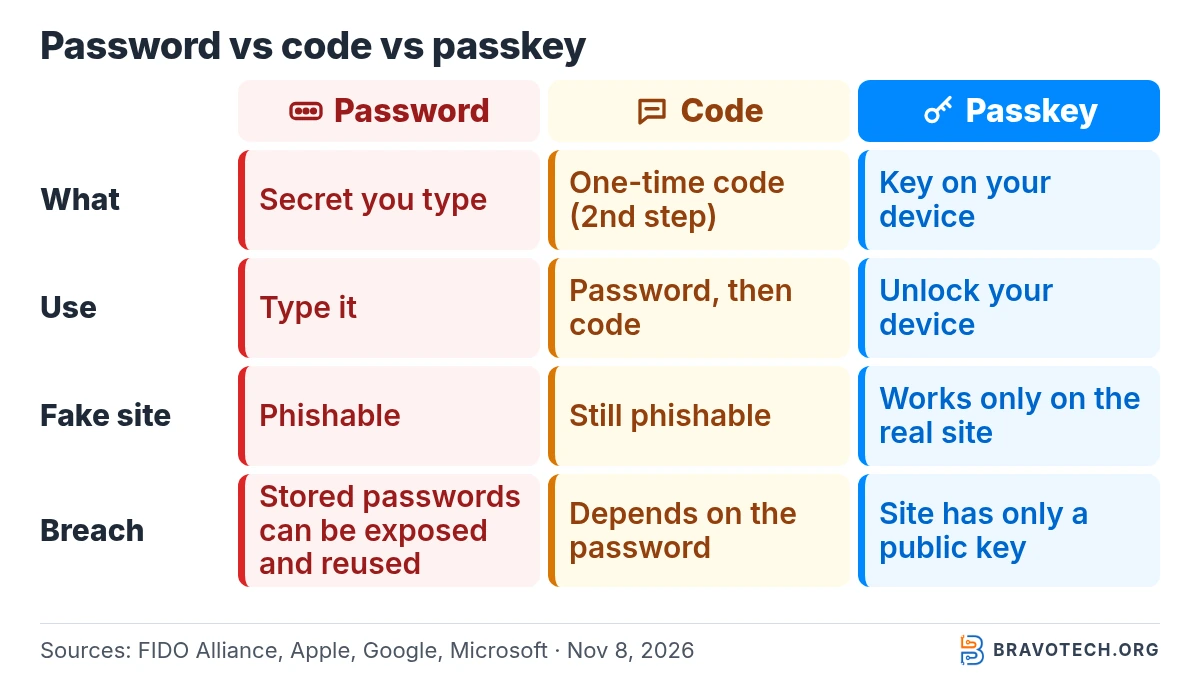
A password is something you know, an authenticator code is a short-lived number you copy from an app, and a passkey is a key your device uses for you. FIDO’s view is that one-time codes and phone approvals add protection but are still phishable, while a passkey on its own is more secure than a password plus either of them. Microsoft counts a passkey as multi-factor authentication (FIDO Alliance).
| Password | Authenticator code (2FA) | Passkey | |
|---|---|---|---|
| What it is | A secret you remember and type | A one-time code from an app or text, used as a second step | A private key on your device, unlocked by face, fingerprint, PIN or pattern |
| What you do | Type it on every sign-in | Type a password, then the code | Pick the account and unlock your device |
| Can a fake site capture it? | Yes: phishing is the classic attack | Yes: FIDO calls codes and phone approvals “still phishable” | Designed not to: the passkey only works on the site it was made for |
| If the website is breached | Stored passwords can be exposed and reused | Depends on the password it is paired with | The site holds only a public key, which isn’t secret |
| Counts as | One factor (something you know) | The second factor in 2-Step Verification | Multi-factor on its own, per Microsoft (something you have plus something you are or know) |
Authenticator apps still matter: many sites don’t offer passkeys yet, and Google says passkeys can also act as a second step if you keep your password. If you need an app for those accounts, our best 2FA apps guide covers the options.
Where are passkeys stored?
In a passkey provider: the password manager built into your phone or browser, a third-party password manager, or a hardware security key. FIDO calls passkeys that sync between your devices through a cloud service “synced passkeys”, and ones that never leave a single device or security key “device-bound passkeys”. FIDO says passkey syncing is end-to-end encrypted (FIDO Alliance).
FIDO names iCloud Keychain and Google Password Manager as built-in providers, and 1Password and Dashlane as examples of third-party ones; Android also lets you pick Samsung Pass, Keeper or 1Password as the place passkeys are saved (Android Help). If your team already shares a password manager, compare passkey support in our password managers for small teams roundup or the LastPass vs 1Password comparison.
How passkeys work on iPhone, Android, Windows and Google
Each platform saves passkeys in a different place, and that decides whether they follow you to a new device. This table puts the official details side by side:
| Platform | Where the passkey is saved | Syncs to | Unlock with | You need |
|---|---|---|---|---|
| iPhone, iPad, Mac (Apple) | iCloud Keychain; shown in the Passwords app | Your devices signed in to the same Apple Account | Face ID, Touch ID or device passcode | iCloud Keychain and two-factor authentication turned on |
| Android | Google Password Manager by default, or another password manager you choose | Your Android devices, and Chrome where you’re signed in with the same Google Account | Screen lock PIN, pattern or password, or biometrics | Android 9 or later with a screen lock |
| Windows | Windows Hello on that PC, or a synced manager such as Microsoft Password Manager | Windows Hello passkeys: that PC only. Synced managers: your other devices | Windows Hello PIN, fingerprint or face | Windows 10 or later; Microsoft says the latest passkey features need Windows 11 |
| Chrome on any computer | Google Password Manager (Google Account) | Devices signed in to Chrome or Android with the same Google Account | Google Password Manager PIN or your computer’s own sign-in | Windows 10+, Mac, Linux or ChromeOS 129+ |
On iPhone, iPad and Mac
Apple stores passkeys in iCloud Keychain, encrypted so that not even Apple can see them, and they work on every device signed in to your Apple Account. To create one, sign in to a site or app that supports passkeys (or set up a new account), and when you see the option to save a passkey, tap Continue. Next time, tap the account name on the sign-in screen and confirm with Face ID, Touch ID or your passcode (Apple Support). If you never see a passkey option, Apple says the site or app doesn’t support passkeys yet.
On Android
Sign in to the app, then tap Create a passkey when it’s offered (or look in the app’s settings), check the details and confirm with your screen unlock (Android Help). Google Password Manager backs up and syncs these passkeys across your Android devices. To change where passkeys are saved, go to Settings > Passwords, passkeys and accounts.
On Windows
Windows asks you to confirm with Windows Hello. When you save a passkey, Microsoft lists four places it can go: a password manager such as Microsoft Password Manager, Google Password Manager or iCloud Keychain; an iPhone, iPad or Android device (via a QR code); a security key; or Windows device / Windows Hello, which keeps it on that PC only (Microsoft Support). You can view and delete passkeys saved to the PC in Settings > Accounts > Passkeys (Microsoft Support).
For your Google Account
Go to myaccount.google.com/signinoptions/passkeys, tap Create a passkey and unlock your device; repeat on each device you use. Google says a new passkey can take up to 7 days to become available at sign-in, and that adding one doesn’t change or remove your existing recovery options. If your account comes from work or school, your admin decides whether you can sign in with a passkey alone (Google Account Help).
Can I use a passkey to sign in on a computer that isn’t mine?
Yes, if you have your phone with you. On the other computer, choose an option like “Use a passkey from another device” or “Passkey from nearby device”, then scan the QR code with your phone and unlock it. Bluetooth needs to be on, because the system checks that your phone is physically nearby; Microsoft says this stops a remote attacker from using the passkey from far away (Microsoft).
The passkey itself stays on your phone; Google’s Chrome help says passkeys used this way remain on the other device (Google Chrome Help). Apple and Google both document this QR-code flow for iPhone, iPad and Android (Apple, Google).
What happens to my passkeys if I lose my phone?
It depends on where the passkeys were saved. First, use the platform’s lost-device tools to lock or mark the device as lost. Synced passkeys in iCloud Keychain or Google Password Manager may still be available on another synced device, or recoverable on a replacement after you verify your identity. Passkeys stored only in Windows Hello or on a hardware security key cannot be recovered through sync; use another registered sign-in method or the account’s recovery process. Review each account’s passkeys and recovery options before removing a credential: revoking a synced passkey at the website also prevents its copies on your other devices from signing in. For a lost device-bound credential, establish replacement access, then remove the lost credential from the account’s security settings.
| Where your passkey lived | If that device is lost | What to do (vendor guidance) |
|---|---|---|
| iCloud Keychain (iPhone, iPad, Mac) | Recoverable, even if you lose all your devices | Recover through iCloud Keychain escrow: sign in with your Apple Account and password, respond to a text sent to your registered phone number, then enter your device passcode. After 10 failed attempts the escrow record is destroyed. |
| Google Password Manager on Android | Recoverable on a new Android device | Sign in to your Google Account and enter the screen lock PIN, pattern or password of the lost device. |
| Google Password Manager on a computer | Recoverable on a new device | Use your Google Password Manager PIN (or an Android screen lock) to unlock synced passkeys. |
| Windows Hello only | Not recoverable if the PC is lost or Windows is reinstalled | Use your account’s other sign-in or recovery methods; Microsoft suggests creating passkeys on your other devices as a spare. |
| Hardware security key | Not backed up: lost or reset means the passkeys are gone | Sign in another way; Microsoft’s general advice is to register a spare passkey on another device as a backup. |
| Google Account passkeys | Removal steps depend on how the passkey was registered | Google advises removing passkeys associated with a lost device. For automatically registered Android passkeys, open Google Account → Security & sign-in → Your devices → Manage all devices, select the lost device and sign out of all its sessions. For other passkeys, review the account’s passkey settings and secure another sign-in method before removal. |
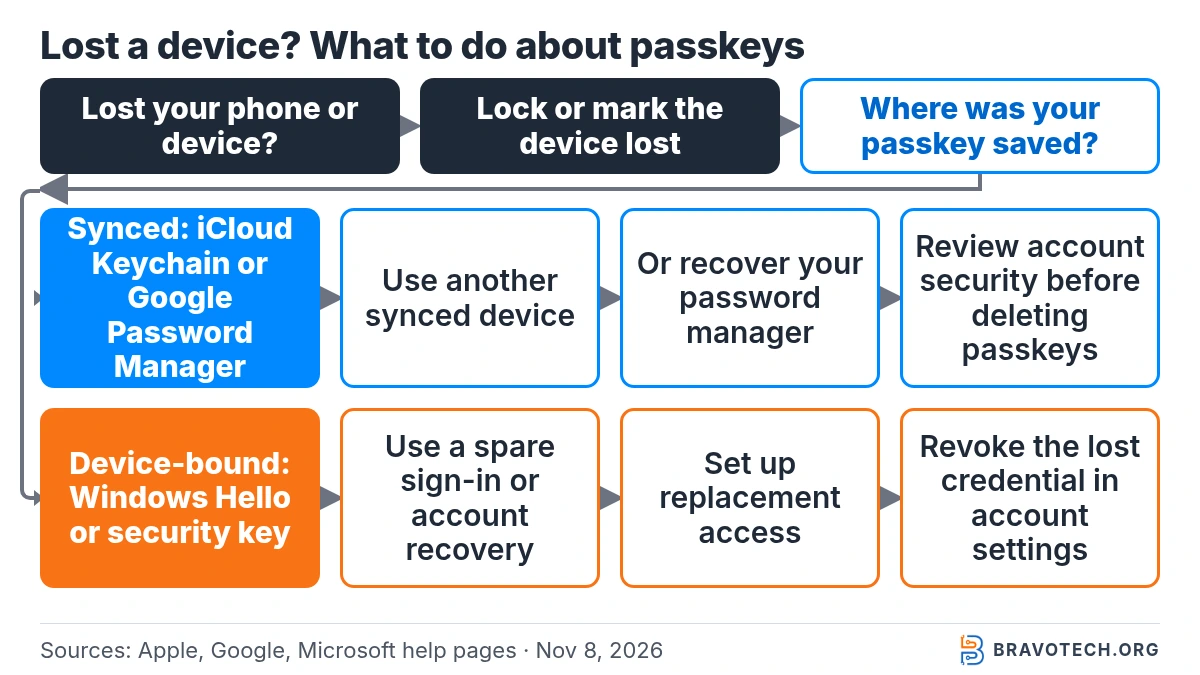
Apple also lets you set up an account recovery contact in case you forget your Apple Account password or device passcode (Apple Support). For a business, write passkey and recovery steps into your offboarding and lost-device process; our small business cybersecurity checklist is a good place to slot them in.
Do I still need my password after creating a passkey?
Usually you keep it, at least for now. Google says adding a passkey doesn’t remove your password or recovery options, and you can still choose to sign in with your password. Apple lets you keep a passkey and a password for the same site, both listed under one account in the Passwords app. Whether a site lets you remove the password is up to that site.
On a Google Account, creating a passkey switches you to a passkey-first sign-in. If you’d rather be asked for your password first, turn off Skip password when possible under Security & sign-in; with 2-Step Verification on, your passkey can then serve as the second step (Google Account Help).
FAQ
Can a passkey be hacked or stolen?
The vendors describe passkeys as phishing-resistant, and there is no password on the server to leak. That isn’t the same as unbreakable: Google warns that anyone who can unlock your device can use its passkeys, so a strong screen lock matters. Synced passkeys also lean on your account security; Apple, for example, requires two-factor authentication on any Apple Account that uses iCloud Keychain.
Does the website get my fingerprint or face?
No. FIDO says biometric checks happen on your device and the server only learns that the check succeeded. Google and Microsoft both state that biometric data stays on the device and is never shared with them.
What is a passkey PIN?
It depends on where the passkey lives. On Windows it’s usually your Windows Hello PIN. In Chrome on a computer, Google asks you to create a Google Password Manager PIN with your first passkey. On a hardware security key, it’s the key’s own PIN.
Can I use passkeys with 1Password or another password manager?
Yes, where the app supports them. FIDO lists third-party providers such as 1Password and Dashlane, Android lets you choose your passkey provider in Settings, and Microsoft’s save options include other synced password managers.
Why can’t I use my new Google passkey yet?
Google says you may need to wait 7 days before a newly created passkey is available at sign-in, unless you already have a trusted passkey or security key that can speed it up. Check that your screen lock is on, too.
Is a passkey the same as a security key?
Not exactly. A hardware security key is one place a passkey can live. FIDO calls those device-bound passkeys and says they offer the highest assurance, but Google notes they aren’t backed up if the key is lost.
How this article was made. We drafted this article with the help of AI tools, working from the official pages listed in Sources. Facts and steps were checked against those pages on November 8, 2026. Syed Saud Ahsan is the credited author; the BravoTech team prepared it under our editorial standards. We did not test these products hands-on for this article. Spot an error? Email [email protected].
Sources
10 official pages from the FIDO Alliance, Google, Apple and Microsoft, each opened on November 8, 2026 (PKT).
Show all 10 sources
- FIDO Alliance: Passkeys (overview and FAQ)
- Google Account Help: Sign in with a passkey instead of a password
- Google Chrome Help (computer): Manage passkeys in Chrome
- Google Chrome Help (Android): Manage passkeys in Chrome
- Android Help: Sign in to your apps and websites with passkeys
- Apple Support: About the security of passkeys
- Apple Support (iPhone User Guide): Use passkeys to sign in to websites and apps on iPhone
- Microsoft Support: What are passkeys and why they matter
- Microsoft Support: Create and save a passkey
- Microsoft Support: Manage your saved passkeys
Changelog
- November 10, 2026: First published. Definition, how passkeys work, platform and recovery tables, and the password vs code vs passkey comparison, checked against vendor pages on November 8, 2026.
Related reads