Reviewed by Syed Saud Ahsan, Editor · November 23, 2026
Every step and limit on this page was read from Apple’s own support articles on November 17, 2026 (PKT). We didn’t run a backup on a test iPhone, and there are no screenshots of a signed-in account. There are no affiliate links or tool recommendations. iCloud plan prices belong on the iCloud+ plans page, not here. How we work: editorial policy.
Quick answer
To back up an iPhone to iCloud, connect to Wi-Fi, open Settings, tap your name, then iCloud, then iCloud Backup, and tap Back Up Now. To have iCloud back up automatically, leave Back Up This iPhone turned on and leave the phone locked, on Wi-Fi and connected to power. You do not need to plug the iPhone into a computer. Those steps come from Apple’s how-to, opened on November 17, 2026.
Key takeaways
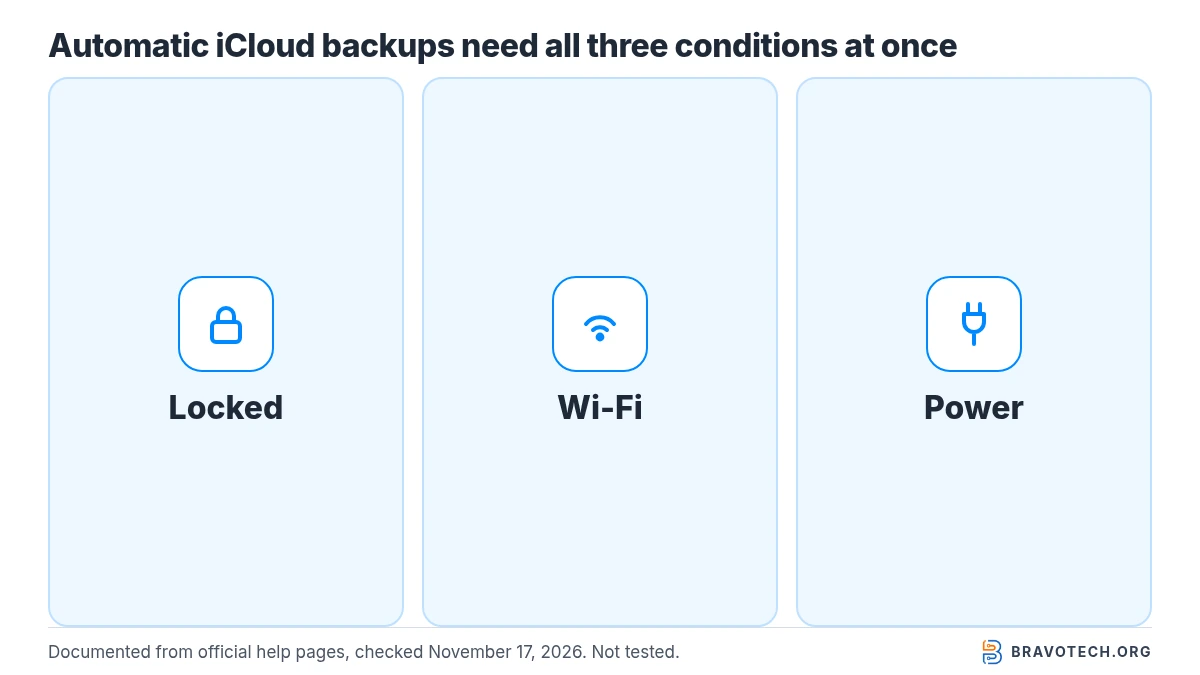
- Automatic backups need three conditions at once: the iPhone is locked, on Wi-Fi, and connected to a power source.
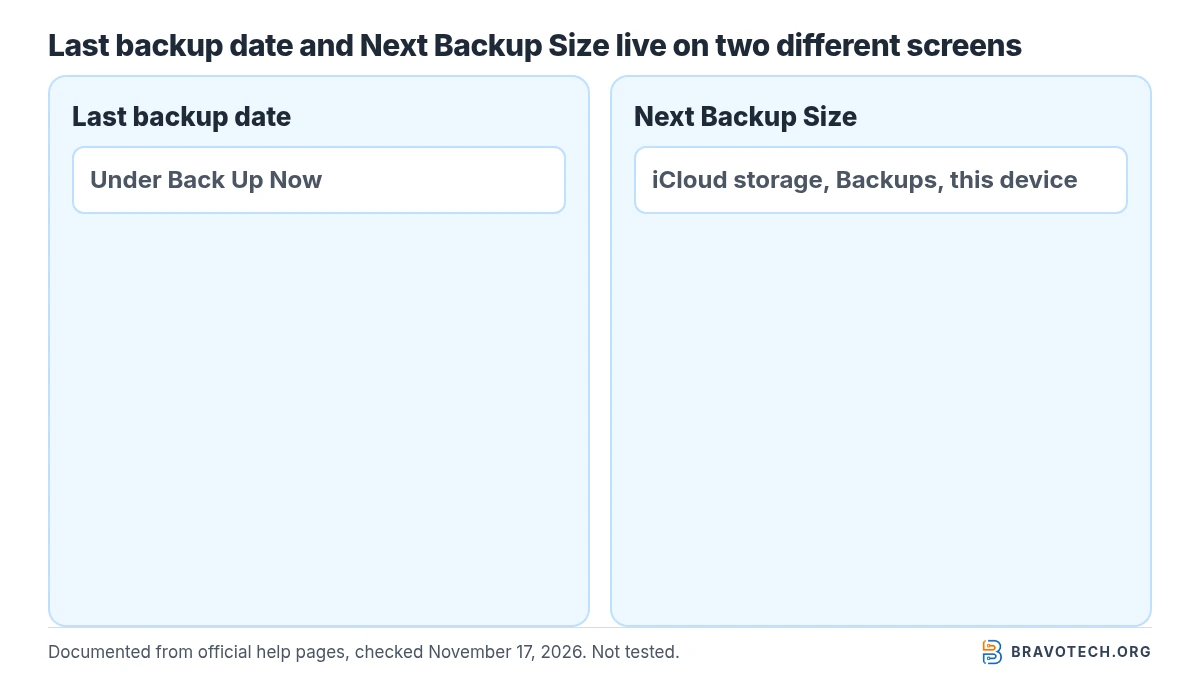
- The last backup date appears under Back Up Now. Next Backup Size is listed under iCloud storage, on this device’s backup.
- Not enough iCloud storage is a documented reason a backup fails. Apple also lists Wi-Fi, software updates and a restore still in progress.
- This page is the iCloud method only. A computer backup uses the Apple Devices app or Finder, which is a different official path.
In this guide
- How do you back up an iPhone to iCloud?
- How do you turn on automatic iCloud Backup?
- How do you check the last backup and its size?
- How do you manage which apps are included?
- What if iCloud Backup fails or is greyed out?
- How is an iCloud backup different from a computer backup?
- What if there is not enough iCloud storage?
- FAQ
- Sources
How do you back up an iPhone to iCloud?
Apple’s how-to, opened on November 17, 2026, is a manual backup on Wi-Fi plus an optional automatic backup. For a backup you start yourself, connect the iPhone to a Wi-Fi network, open Settings, tap your name, tap iCloud, tap iCloud Backup, then tap Back Up Now. Stay on Wi-Fi until it finishes. The date and time of the last backup appear under Back Up Now. You do not need to plug the iPhone into a computer.
- Connect the iPhone to a Wi-Fi network.
- Open the Settings app, tap your name, then tap iCloud.
- Tap iCloud Backup.
- Tap Back Up Now. Stay connected to Wi-Fi until the process ends.
Those steps are from How to back up your iPhone or iPad with iCloud (the page showed a Published Date of September 24, 2026). If an alert says you don’t have enough iCloud storage, Apple tells you to follow the on-screen steps to get more storage, or you can free space instead — see how to free iCloud storage when it is full.
How do you turn on automatic iCloud Backup?
Open Settings, tap your name, tap iCloud, tap iCloud Backup, and make sure Back Up This iPhone is on. Apple then backs the iPhone up automatically when it is connected to a power source, connected to Wi-Fi, and the screen is locked. The same not-enough-storage alert can appear here. This is Apple’s documented automatic path, not a second unofficial method.
On some 5G models, Apple’s iPhone User Guide describes a carrier option called Back Up Over Cellular, under the same iCloud Backup screen. This article only notes that Apple documents the switch; it does not tell you to turn cellular backup on. Source for the three automatic conditions: Apple’s iCloud backup how-to.
How do you check the last iCloud backup and its size?
The last successful backup’s date and time are shown under Back Up Now on the iCloud Backup screen. To see how large the next backup will be, Apple’s troubleshooting article says to go to Settings, tap your name, tap iCloud, then Storage or Manage Account Storage, then Backups, then the device you are using. Next Backup Size should appear there; Apple notes that it might take a few minutes to calculate.
Sources: the backup how-to for the last-backup line, and If you can’t back up to iCloud for Next Backup Size, both opened on November 17, 2026.
How do you manage which apps are included in the backup?
You can stop backing up apps you no longer need, which also removes that app’s existing backup data from iCloud, according to Apple. The path is Settings, your name, iCloud, iCloud Backup, then this iPhone, where you can turn individual apps off. That is a way to shrink a backup. It is not the full list of what a backup contains.
Whether photos, messages and iCloud Drive files are in the daily backup depends on whether those iCloud sync features are on. That decision tree is in the companion article, what an iCloud backup includes — and what it leaves out. Apple also describes this manage-apps path in Manage your iCloud storage and in What does iCloud back up?.
What if iCloud Backup fails or is greyed out?
Apple groups the usual problems into four documented cases: not enough iCloud storage, a backup that couldn’t be completed, a backup that is taking longer than expected, and an iCloud Backup option that is greyed out. For a failed backup, Apple’s checks are: confirm Wi-Fi, install any software update, try another Wi-Fi network, and confirm there is enough iCloud storage. If it is simply slow, Apple says to leave the iPhone on power and Wi-Fi for 24 hours.
If iCloud Backup is greyed out, Apple says to check whether a restore is still in progress — the iCloud Backup screen will say the device is being restored and will back up when that finishes — or whether a management profile restricts backup (Settings, General, VPN & Device Management). All of that is from If you can’t back up to iCloud, opened on November 17, 2026. This article does not list third-party ‘backup fixer’ apps.
How is an iCloud backup different from a computer backup?
Apple describes two official methods, and you can use either or both. An iCloud backup is stored in iCloud, is always encrypted, and can be made from anywhere with Wi-Fi, without a cable. A computer backup is stored on a Mac or PC, uses that computer’s disk space, and offers encryption that is off by default. This page does not treat either method as better than the other.
Those contrasts come from Backup methods for iPhone or iPad (Published Date on the page: October 20, 2026). Apple also says iCloud can store up to 12 TB, or 14 TB with an Apple One Premier plan. BravoTech’s step-by-step computer guide — backing up an iPhone to a Windows PC or Mac with Apple’s official apps — is a separate package and was not live when this draft was written (the planned slug is /back-up-iphone-to-computer/). For the idea of a backup versus files that simply sync, see how cloud storage differs from a backup.
What should you do if there is not enough iCloud storage?
Apple’s own options are to reduce the size of the next backup, or to use a larger iCloud+ plan. A new iCloud account includes 5 GB of free storage, which is shared by backups, iCloud Photos, iCloud Drive and more. Next Backup Size, on the device’s backup screen, tells you how much space the next snapshot needs. Detailed US prices and plan tiers are on the iCloud+ plans page, not repeated as a shopping table here.
Sources: Manage your iCloud storage for the 5 GB free allowance, and If you can’t back up to iCloud for Next Backup Size. Practical clean-up steps — including deleting old device backups — are in what to do when iCloud storage is full. This article is part of BravoTech’s cloud storage and backup guide.
FAQ
Can you back up an iPhone to iCloud without a computer?
Yes. Apple says you can back up with iCloud over Wi-Fi and you don’t need to plug the iPhone into a computer.
Does an iCloud backup include photos and messages?
Only if those items are not already syncing. If iCloud Photos or Messages in iCloud is on, that data is kept in sync and is not in the daily backup. The full matrix is in the companion article on what an iCloud backup includes.
Why is iCloud Backup greyed out?
Apple’s troubleshooting article says to check whether a restore is still running, or whether a device-management profile restricts backup.
What if something is missing after I restore?
Apple has a separate article for missing information after an iCloud Backup restore. Many of those cases come back to what was actually in the backup, which the companion inclusions article explains.
How this article was made. We drafted this article with the help of AI tools, working from the official pages listed in Sources. Plan limits and steps were checked against those pages on November 17, 2026. It was prepared by the BravoTech team and published under our editorial standards. We did not test these products hands-on for this article. Spot an error? Email [email protected].
Sources
6 official Apple pages, each opened on November 17, 2026 (PKT).
Show all 6 sources
- Apple Support: How to back up your iPhone or iPad with iCloud (Published Date on the page: September 24, 2026)
- Apple Support: Backup methods for iPhone or iPad (Published Date: October 20, 2026)
- Apple Support: What does iCloud back up? (Published Date: May 1, 2025)
- Apple Support: Manage your iCloud storage on your Apple device
- Apple Support: If you can’t back up to iCloud
- Apple Support: If you’re missing information after you restore your iPhone or iPad with iCloud Backup (Published Date: December 2, 2025)
Changelog
- November 26, 2026: First published. All steps and limits checked on November 17, 2026.
Related reads