Steps, limits and US prices here come from Apple’s iCloud support pages and apple.com, all re-checked on November 3, 2026. The cost table is our arithmetic on Apple’s list prices. We earn nothing if you upgrade or don’t.
Quick answer
iCloud storage fills up because the free plan is only 5 GB, and backups, photos and messages share it. To fix it without paying, open Settings > [your name] > iCloud and use Recommended for You, then delete backups of old devices, stop backing up apps you don’t need, and clear big message attachments and old iCloud email. If you still need more room, iCloud+ starts at $0.99 a month for 50 GB in the US.
Key takeaways
- Full iCloud stops more than backups. New photos stop uploading, iCloud Drive stops syncing, and iCloud email can’t send or receive.
- Old backups are the easiest win. Backups of phones you no longer use can be deleted in a few taps.
- Recently Deleted photos don’t count toward iCloud storage, so emptying that album won’t free iCloud space.
- iCloud and iPhone storage are separate. Deleting from one doesn’t automatically fix the other.
- Getting a new iPhone? Apple offers temporary free iCloud space for the move, so you don’t need to upgrade for that.
- “Storage full” emails can be scams. Check the real figure in Settings, never through an email link.
Why is my iCloud storage full, and how do I fix it without paying?
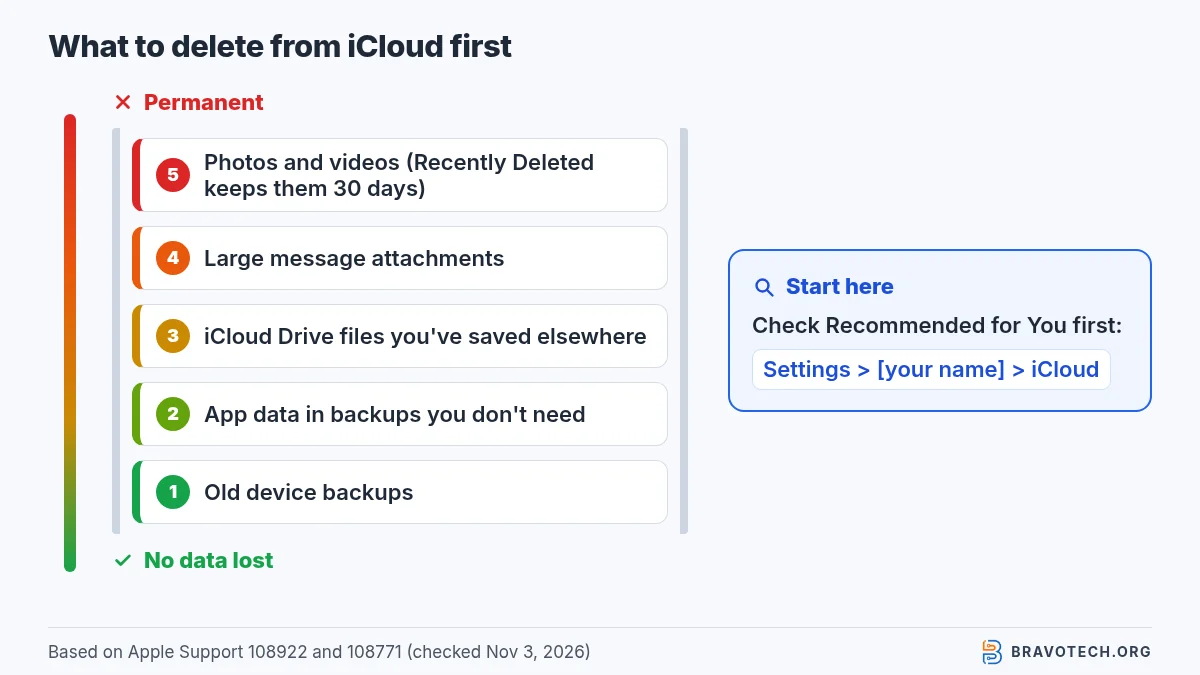
Your iCloud is full because everything synced or backed up shares one 5 GB free allowance. Device backups, iCloud Photos, Messages, iCloud Drive and iCloud Mail all draw from it. You can free space at no cost by removing what you don’t need, starting with old backups. Apple suggests archiving or copying anything important before you delete it. Work through the list below in order (Apple Support).
- Open Recommended for You (iOS 17 or later): Settings > [your name] > iCloud > Recommended for You. Apple surfaces things like old backups, large files and photos you might not need.
- Delete backups of devices you no longer use: Settings > [your name] > iCloud > Storage (or Manage Account Storage) > Backups > the old device > Turn Off and Delete from iCloud.
- Stop backing up apps you don’t need: same Backups screen > this iPhone > switch apps off. Their backed-up data is removed from iCloud.
- Delete big Messages attachments if you use Messages in iCloud: open a conversation, tap the name at the top, then Photos > Edit > Select Photos (iOS 26 or later).
- Clean up iCloud Mail with Mail > More > Cleanup Recommendations > iCloud Mail Cleanup, or delete emails with attachments and empty Trash.
- Clear iCloud Drive files you’ve copied elsewhere in Files > Browse > iCloud Drive.
- Check the smaller categories: Contact Images (iOS 26 or later), Voice Memos, FaceTime and Apple Invites data can each be deleted from the Storage screen.
- Only then decide on photos or an upgrade (see below).
What happens when your iCloud storage is full?
When iCloud storage runs out, syncing and backups stop, but Apple doesn’t describe your existing data being deleted. According to Apple, your device won’t back up to iCloud, new photos and videos won’t upload to iCloud Photos, and iCloud Drive and other iCloud apps won’t stay up to date across devices. You also can’t send or receive email at your iCloud address until you free space (Apple Support).
The email point is the one people miss. If someone says your iCloud address bounced their message, a full iCloud plan can be the cause, so check storage before you troubleshoot Mail.
How do you see what’s using your iCloud storage?
On iPhone, open Settings, tap your name, tap iCloud, then tap Storage or Manage Storage. That screen breaks your usage down by category, such as Backups, Photos and Messages, so you can see which one to tackle first. On a Mac, open System Settings, click your name, click iCloud, then Manage. You can also check from a browser at iCloud.com (Apple Support, Apple Support).
How do you delete old iCloud backups?
Go to Settings, your name, iCloud, Storage, Backups, pick the device, and tap Turn Off and Delete from iCloud. This deletes that device’s backup and turns off iCloud Backup for it. Apple keeps backups for 180 days after you stop using iCloud Backup, so an old phone’s backup can linger for months. A backup that’s being used to restore a device can’t be deleted (Apple Support).
To shrink this iPhone’s own backup instead, open the same Backups screen, tap the current device and switch off apps you don’t need backed up. Apple notes that some apps are always backed up and can’t be switched off.
How do you free up iCloud space taken by photos?
If you use iCloud Photos, deleting a photo frees iCloud space but also deletes it on every device. So save copies elsewhere first, for example on a computer or another cloud service. If you don’t use iCloud Photos, your photo library sits inside your iCloud Backup instead. Apple’s option there is to save the photos to a computer and turn off Photos in that device’s backup settings (Apple Support).
- Shared Library: photos in an iCloud Shared Photo Library count only toward the storage of the person who created it. To delete items that count toward your storage, view your Personal Library.
- Shared albums (version 27 or later): photos added to a shared album count toward the album creator’s storage. Photos deleted from a shared album are gone immediately.
- Recently Deleted: items stay for 30 days and don’t count toward iCloud storage. But if you’re already over your limit, Apple says deleted photos are removed immediately and can’t be recovered.
Before you delete photos
That last point matters. If your iCloud is already over the limit, there’s no 30-day safety net for photos you delete. Make your copies before you start deleting, not after.
Why is my iCloud storage still full after deleting photos?
Photos are often not what’s filling iCloud, so check the Storage screen before deleting more. Backups, Messages, Mail and iCloud Drive can be larger. Emptying Recently Deleted won’t help, because Apple says those items don’t count. And if you’re in someone else’s Shared Library, those photos count toward the creator’s storage, not yours. Old device backups, kept for up to 180 days, are the usual hidden culprit (Apple Support).
Why is iCloud full when my iPhone isn’t, or the other way round?
iCloud storage and iPhone storage are two separate pools, and filling one doesn’t fill the other. iPhone storage is the fixed space inside the phone, checked under Settings > General > iPhone Storage. iCloud storage lives online and is checked under Settings > [your name] > iCloud. Buying more iCloud doesn’t add space to the phone, and deleting apps from the phone rarely frees iCloud (Apple Support).
If it’s the phone that’s out of room, use our separate guide: iPhone storage full? How to free up space. If you’re comparing clouds, see iCloud vs Google Drive and, for the Google side of the same problem, Google Drive storage full.
Is the “iCloud storage full” email a scam?
It can be, so never act on a storage warning through a link in an email or text. Check your real usage in Settings > [your name] > iCloud instead. Apple’s phishing guidance lists warning signs: a sender address that doesn’t match the company, a link whose URL doesn’t match Apple’s website, requests for card numbers or passwords, and unsolicited attachments. Forward suspicious Apple-branded emails to [email protected] (Apple Support).
- Look at the sender and the link. Apple says a link can look right while the URL doesn’t match the company’s site.
- Don’t pay with gift cards. Apple says never to use Apple Gift Cards to make payments to other people.
- Report it. Forward the email to [email protected]. If it arrived in your iCloud inbox, mark it as Junk. For a text, Apple asks for a screenshot of the message sent to the same address.
- Upgrade only from your own device. Apple says you can upgrade to iCloud+ from your iPhone, iPad, Mac or PC, so you never need a link in an email to do it (Apple Support).
Apple’s page is about phishing in general rather than storage emails specifically; applying it to “storage full” messages is our reading. Apple does say iCloud may show an alert when storage is full or almost full (Apple Support), which is why checking in Settings settles the question.
Which iCloud+ plan should you buy if you still need more space?
Buy the smallest plan that fits what’s left after you clean up, because each step up costs more than the last. In the US, iCloud+ costs $0.99 a month for 50 GB, $2.99 for 200 GB, $9.99 for 2 TB, $29.99 for 6 TB and $59.99 for 12 TB. Apple bills monthly, and residents of some US states pay tax on top. Every plan can be shared with up to five other family members (Apple Support).
Apple lists only monthly prices. The table turns them into yearly totals, a cost per gigabyte, the cost of moving up a tier and the cost per person if six people share the plan. It’s our arithmetic on Apple’s US list prices, before tax:
| Plan | Per month | Per year (x12) | Approx. per GB per month | Extra cost to step up to this tier | Per person if 6 share |
|---|---|---|---|---|---|
| 5 GB (free) | $0 | $0 | n/a | n/a | n/a |
| 50 GB | $0.99 | $11.88 | about 2.0¢ | +$0.99/mo from free | about $0.17 |
| 200 GB | $2.99 | $35.88 | about 1.5¢ | +$2.00/mo (+$24/yr) for 150 GB more | about $0.50 |
| 2 TB | $9.99 | $119.88 | about 0.5¢ | +$7.00/mo (+$84/yr) for 1.8 TB more | about $1.67 |
| 6 TB | $29.99 | $359.88 | about 0.5¢ | +$20.00/mo (+$240/yr) for 4 TB more | about $5.00 |
| 12 TB | $59.99 | $719.88 | about 0.5¢ | +$30.00/mo (+$360/yr) for 6 TB more | about $10.00 |
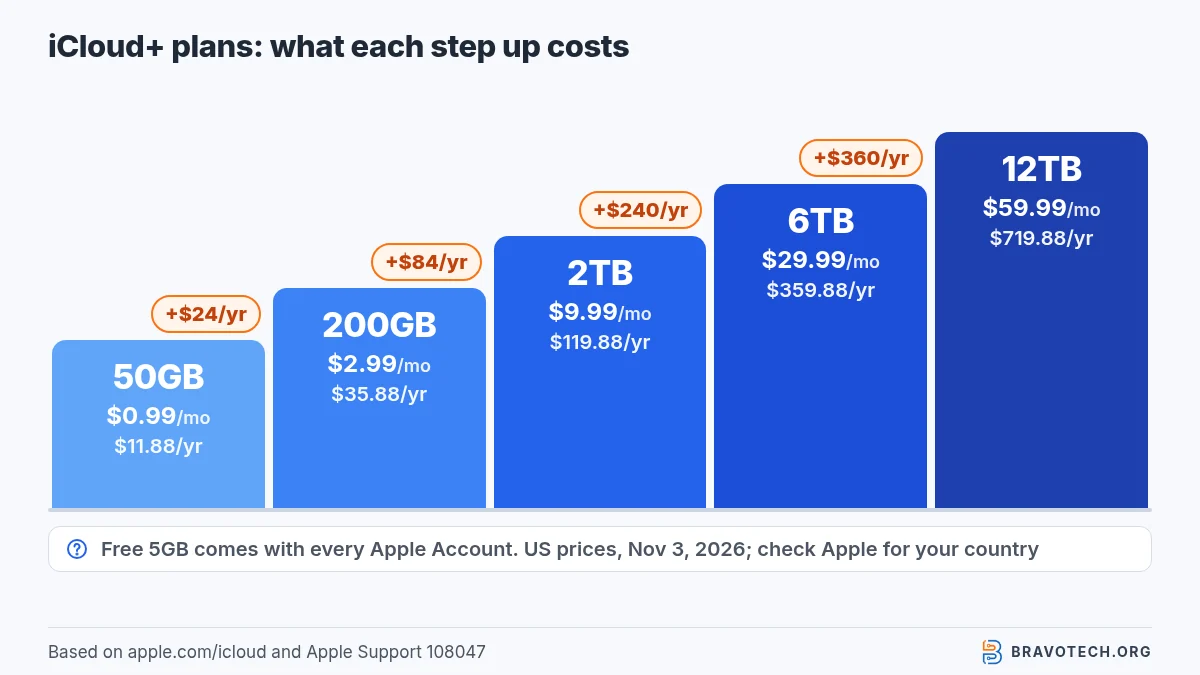
Two things the table makes obvious. Going from 50 GB to 200 GB costs $24 a year more, the cheapest upgrade in the range. And sharing makes the big plans cheap per person: a 2 TB plan split six ways is about $1.67 each a month, assuming the family actually splits the bill. Apple says each person’s files stay private when storage is shared (Apple); setup is covered in our Family Sharing guide. For how iCloud prices compare with Google One and others, see the cloud storage pricing tracker.
Every iCloud+ tier also includes iCloud Private Relay, Hide My Email, Custom Email Domain and Apple Invites. HomeKit Secure Video support scales by tier: one camera on 50 GB, up to five on 200 GB, and unlimited on 2 TB and above (Apple Support).
Do you need more iCloud storage to move to a new iPhone?
No. When you buy a new iPhone, Apple offers temporary iCloud storage for the move if your plan is too small. On the old iPhone, go to Settings > General > Transfer or Reset iPhone and tap Get Started under Prepare for New iPhone. You get 21 days to restore the backup, and Apple says you can ask for 21 more with Keep My Backup Longer (Apple Support).
After you restore, the temporary backup stays for 7 days and is then permanently deleted, so don’t erase the old phone until the new one is set up. Our iPhone-to-iPhone transfer guide covers the other ways to move, including a cable and a Mac or PC backup that use no iCloud space at all (Apple Support).
FAQ
Does deleting an iCloud backup delete my photos?
Not if you use iCloud Photos. Apple says iCloud backups don’t include photos when iCloud Photos is on, because they’re already stored in iCloud. If iCloud Photos is off, the photo library is part of the backup, so save the photos to a computer first.
Do shared iCloud Drive folders count against my storage?
Not if someone else shared the folder with you. Apple says being a participant in another person’s shared folder doesn’t count toward your iCloud storage. It counts toward the owner’s.
Does emptying Recently Deleted free up iCloud space?
No. Apple says items in the Photos Recently Deleted album don’t count toward your iCloud storage. For iCloud Drive, deleted files on iCloud.com sit in Recently Deleted for 30 days.
How much free iCloud storage do you get?
5 GB, set up automatically when you start using iCloud. It covers backups, iCloud Photos, iCloud Drive, Mail and the rest of your iCloud data together.
Can I delete contact photos to save space?
Yes. Starting with iOS 26, contact photos and posters count toward iCloud storage. In Settings > [your name] > iCloud > Storage > Contact Images, tap Delete Data from iCloud. Apple says the contacts themselves aren’t deleted.
How this article was made. We drafted this article with the help of AI tools, working from the official pages listed in Sources. Prices, plan limits and steps were checked against those pages on November 3, 2026. Fawad Malik is the credited author; the BravoTech team prepared it under our editorial standards. We did not test these products hands-on for this article. Spot an error? Email [email protected].
Sources
Apple support pages and Apple’s iCloud+ page, each opened on November 3, 2026 (PKT). Prices are US list prices on that date.
Show all 7 sources
- Apple Support: Manage your iCloud storage on your Apple device (published September 14, 2026)
- Apple Support: iCloud+ plans and pricing (published September 16, 2026)
- Apple Support: What’s the difference between iCloud storage and device storage? (published October 30, 2026)
- Apple Support: Backup methods for iPhone or iPad (published October 20, 2026)
- Apple Support: Get temporary iCloud storage when you buy a new iPhone or iPad (published September 23, 2026)
- Apple Support: Recognize and avoid social engineering schemes (published June 15, 2026)
- Apple: iCloud+ overview and US monthly prices
Changelog
- November 3, 2026: First published. Cleanup steps, iCloud limits, the phishing section and US iCloud+ prices checked against Apple Support and apple.com on November 3, 2026. Cost table calculated from those prices.
Related reads