The button combinations come from Apple’s iOS 27 iPhone User Guide and support article 102616; the model list comes from Apple’s “Identify your iPhone model” page. All were re-read on November 3, 2026. Nothing here is sponsored.
Quick answer
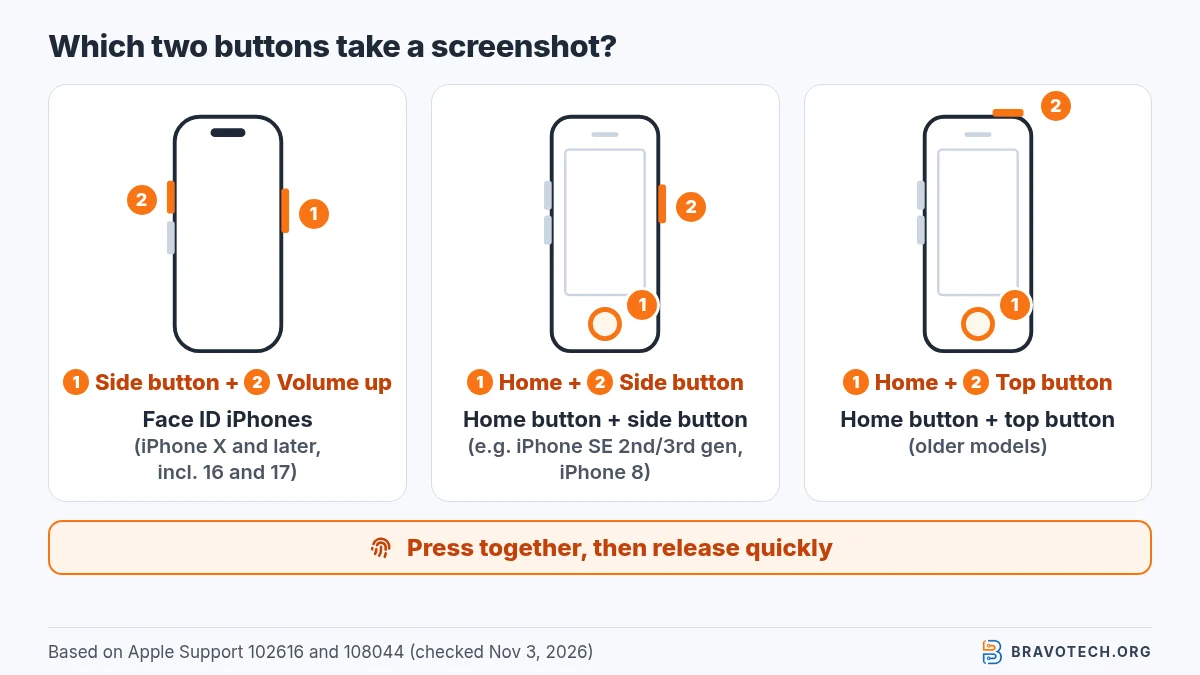
On most iPhones, quickly press and release the side button and the volume up button at the same time. That covers every iPhone without a Home button, including iPhone 17, iPhone 16, iPhone Air and iPhone 16e. On an iPhone with a Home button, such as iPhone SE or iPhone 8, press the Home button and the side (or top) button together. Screenshots are saved in Photos > Collections > Media Types > Screenshots.
Key takeaways
- Press, then let go quickly. Apple’s instructions say to release both buttons right away.
- No Home button = side + volume up. Home button = Home + side (or top) button.
- Full Page captures more than the screen, for example a whole webpage in Safari.
- No buttons needed: Back Tap, AssistiveTouch and Siri can all take screenshots.
- Prefer the old corner thumbnail? Turn off Full-Screen Previews in Settings > General > Screen Capture.
How do I take a screenshot on my iPhone 16 or 17?
Press the side button and the volume up button at the same time, then quickly release both. This is the same on every iPhone 16 and iPhone 17 model, including iPhone 16e, iPhone 17e and iPhone Air, because none of them has a Home button. In iOS 26 and later the screenshot then opens full screen with quick tools to mark it up, crop it, share it or save it (Apple Support, iPhone User Guide).
- Press the side button (right side) and the volume up button (left side) at the same time.
- Release both straight away. Holding them is not needed.
- Use the tools that appear, or save. In iOS 18 and earlier, a thumbnail shows briefly in the lower-left corner instead: tap it to open, or swipe left to dismiss.
Which buttons take a screenshot on each iPhone model?
Apple’s screenshot page groups iPhones by button layout, not by name, which leaves people guessing. This table maps the model names from Apple’s model-identification page onto those button groups:
| Your iPhone | How to recognise it | Press together, then release |
|---|---|---|
| iPhone 18 Pro, 18 Pro Max, 17, 17 Pro, 17 Pro Max, 17e, iPhone Air, 16, 16 Plus, 16 Pro, 16 Pro Max, 16e | No Home button | Side button + volume up |
| iPhone 15, 14, 13, 12 and 11 series, iPhone XS, XS Max, XR, X | No Home button | Side button + volume up |
| iPhone Duo | Foldable; Touch ID is in the side button, no Home button | Side button + volume up |
| iPhone SE (2nd and 3rd generation), iPhone 8, 8 Plus | Home button with Touch ID; side button on the right | Side button + Home button |
| iPhone 7, 7 Plus, 6s, 6s Plus, 6, 6 Plus | Home button; Sleep/Wake button on the right side | Side (Sleep/Wake) button + Home button |
| iPhone SE (1st generation) and other models with the power button on top | Home button; Sleep/Wake button on the top | Top button + Home button |
Not sure which you have? Find your model number, then match it on Apple’s Identify your iPhone model page. iPhone Duo is the one that trips people up: it has Touch ID like older phones, but it’s built into the side button, so it uses side + volume up like Face ID models.
How do you screenshot on an iPhone SE or an iPhone with a Home button?
Press the Home button and the side button together, then let go quickly. That’s the combination for iPhone SE (2nd and 3rd generation) and iPhone 8 and earlier models whose power button is on the right side. If the power button is on the top of the phone, as on the first iPhone SE, press the top button and the Home button instead (Apple Support, Apple Support).
How do you take a full-page screenshot on iPhone?
Take a normal screenshot, open it, and tap Full Page to capture content beyond the edge of the screen. Apple’s example is an entire webpage in Safari. Drag your finger on the preview at the right to move through the page, use the crop handles to keep only part of it, then save. If Full Page doesn’t appear, that screen may have nothing to capture beyond what’s visible (iPhone User Guide).
The last sentence is our reading: Apple’s guide gives Safari as the example but doesn’t list which apps support Full Page.
How do you take a screenshot on iPhone without buttons?
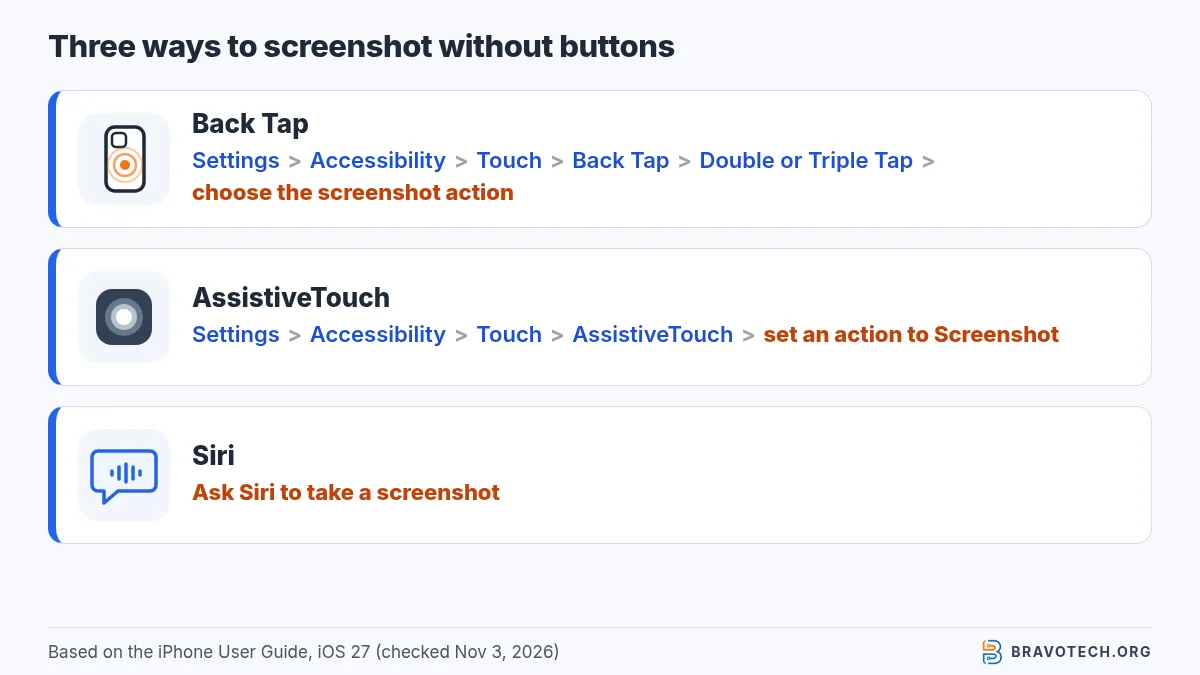
Use Back Tap, AssistiveTouch or Siri instead of the hardware buttons. Apple’s iPhone User Guide lists all three as alternatives. Back Tap takes a screenshot when you double-tap or triple-tap the back of the iPhone. AssistiveTouch adds an on-screen menu button that includes a Take a screenshot action. And Siri can take one when you ask (iPhone User Guide).
| Method | Set it up | Then |
|---|---|---|
| Back Tap | Settings > Accessibility > Touch > Back Tap > Double Tap or Triple Tap > choose the screenshot action | Double- or triple-tap the back of the iPhone |
| AssistiveTouch | Settings > Accessibility > Touch > AssistiveTouch > turn on | Tap the on-screen button, then the screenshot action (add it to the top-level menu if it’s not there) |
| Siri | Siri turned on | Ask Siri to take a screenshot |
To switch Back Tap off later, go to the same screen, choose Double Tap or Triple Tap, and tap None (iPhone User Guide). AssistiveTouch’s top-level menu can hold up to eight icons, so you can pin Take a screenshot there (iPhone User Guide).
Where do screenshots go on iPhone?
Screenshots save to the Photos app, in their own Screenshots album. Open Photos, tap Collections, scroll down to Media Types, then tap Screenshots. With the full-screen preview in iOS 26 and later, you swipe up or tap the save option and choose where it goes; screenshots taken with the thumbnail preview save automatically (iPhone User Guide, Apple Support).
How do you turn off the full-screen screenshot preview?
Go to Settings > General > Screen Capture and turn off Full-Screen Previews. Screenshots then show as a small temporary thumbnail in the lower-left corner, like older versions of iOS, and save on their own. The same Screen Capture screen has a switch for Automatic Visual Look Up, one for CarPlay Screenshots, and the choice between SDR and HDR format (iPhone User Guide).
On format: Apple says SDR screenshots are PNG files and HDR screenshots are HEIF. HDR needs an HDR display to show its full quality, and on standard displays HDR screenshots appear as SDR, so SDR is the safer choice if you send screenshots to other devices.
How do you crop or mark up an iPhone screenshot?
Edit it right after you take it: the preview has crop handles and a Markup button. Drag the handles to crop. Tap the Markup button to draw, add text or highlight. You can also open the screenshot later from the Photos app and use Markup there. Apple’s Markup guide covers the drawing tools in more detail (iPhone User Guide, Apple Support).
Why is my iPhone not taking screenshots?
The most common cause is timing: press both buttons at the same moment and release them quickly. Apple’s instructions specify pressing both together and releasing them quickly, so a slow or staggered press may not register as a screenshot. Make sure you’re using the right pair for your model (see the table above). If a button is broken or awkward to reach, set up Back Tap or AssistiveTouch instead (Apple Support).
Also check the Screenshots album before assuming it failed. In iOS 26 and later the full-screen preview can make it look like nothing saved until you choose a save option.
FAQ
Can I take a screenshot of CarPlay?
Yes, once you turn it on. Go to Settings > General > Screen Capture and turn on CarPlay Screenshots. Apple lists it as a separate switch, so it’s off unless you enable it.
How do I screenshot on iPad?
It’s similar but not identical. Our separate iPad screenshot guide covers the iPad button combinations. On a Mac you use keyboard shortcuts instead; see how to screenshot on a Mac.
How do I record my iPhone screen instead?
Screen recording is a different feature that starts from Control Center. Our guide to screen recording on iPhone walks through it, including sound.
What can Siri AI do with a screenshot?
In iOS 27, Apple says that after you take a screenshot you can tap to ask a question about it, search, or tap an action that appears. That needs Siri AI, which Apple describes in its iPhone User Guide.
Do screenshots use iCloud storage?
They’re saved to your photo library like any other image, so if you use iCloud Photos they sync and count toward iCloud storage. Deleting old screenshots in Photos is one way to free space.
How this article was made. We drafted this article with the help of AI tools, working from the official pages listed in Sources. Prices, plan limits and steps were checked against those pages on November 3, 2026. Fawad Malik is the credited author; the BravoTech team prepared it under our editorial standards. We did not test these products hands-on for this article. Spot an error? Email [email protected].
Sources
Official Apple pages only; every link was opened on November 3, 2026 (PKT) and the iOS 27 User Guide text compared with the support article.
Show all 8 sources
- Apple Support: Take a screenshot on your iPhone (published October 15, 2026)
- iPhone User Guide (iOS 27): Take a screenshot on iPhone
- iPhone User Guide (iOS 27): Change the screen capture settings on iPhone
- iPhone User Guide (iOS 27): Tap the back of iPhone to perform actions
- iPhone User Guide (iOS 27): Use AssistiveTouch on iPhone
- iPhone User Guide (iOS 27): Turn on and activate Siri
- Apple Support: Identify your iPhone model (published October 22, 2026)
- Apple Support: Use Markup on your iPhone, iPad, or iPod touch (published March 25, 2026)
Changelog
- November 4, 2026: First published. Button combinations, the model table, Full Page, Back Tap, AssistiveTouch and Screen Capture settings checked against Apple Support and the iOS 27 iPhone User Guide on November 3, 2026.
Related reads