Reviewed by Syed Saud Ahsan, Editor · November 23, 2026
Every inclusion and exclusion on this page was read from Apple’s own support articles on November 17, 2026 (PKT). We didn’t create or inspect a test backup, and there are no screenshots of a signed-in account. There are no affiliate links, and nothing here ranks one backup method over another. How we work: editorial policy.
Quick answer
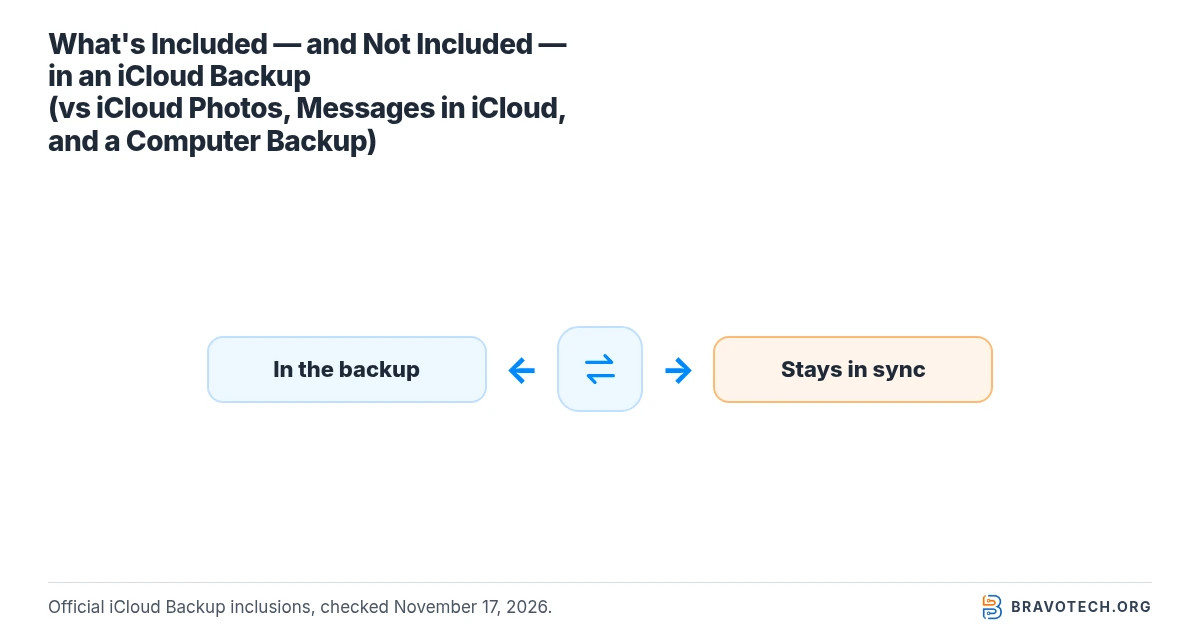
An iCloud Backup is a snapshot of information and settings on the iPhone that do not already sync to iCloud. If iCloud Photos, Messages in iCloud or iCloud Drive is on, that data stays in those services and is not copied into the daily backup. Device settings, Home Screen layout, app organisation, an Apple Watch backup and app data that does not already sync are included. Those rules come from Apple articles opened on November 17, 2026.
Key takeaways
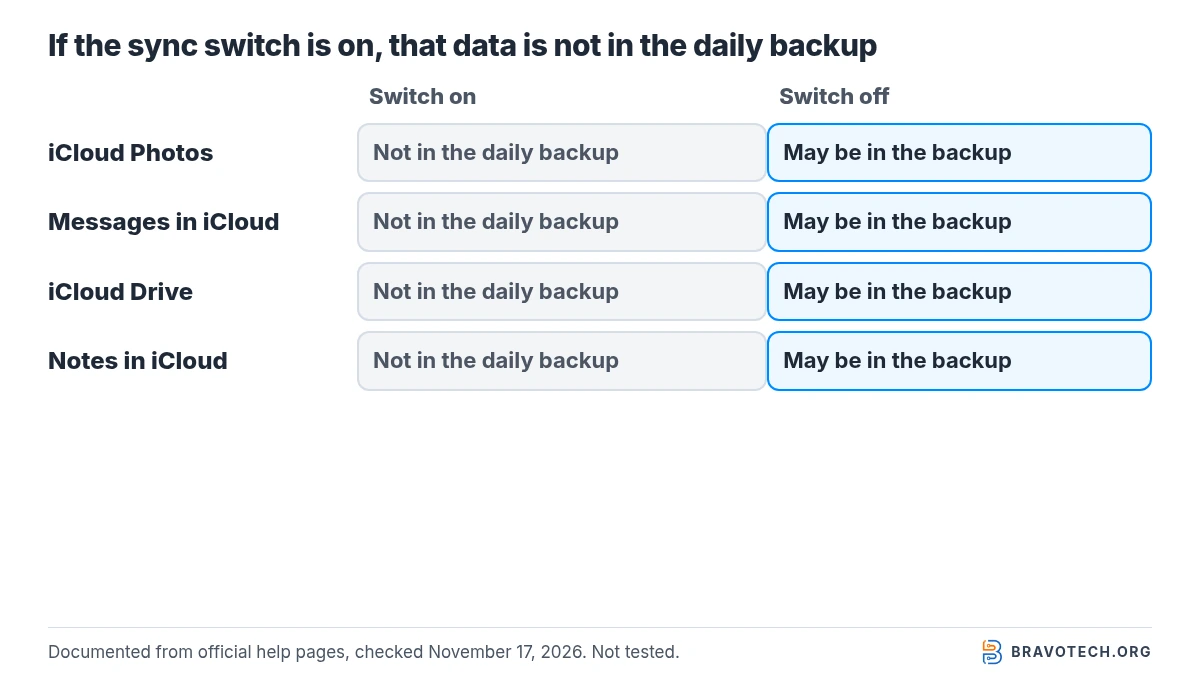
- Sync and backup are two different jobs. A switch that is on usually means the data is not in the daily iCloud Backup.
- Photos and messages follow that rule. They are in the backup only when iCloud Photos or Messages in iCloud is off.
- A computer backup has a different exclusions list, and Health, Keychain and Activity data need an encrypted computer backup, according to Apple.
- Purchased apps and media are not stored as files in the backup. After a restore, Apple says they download again from Apple services, where still available.
In this guide
- What is included in an iCloud Backup?
- What is not included in an iCloud Backup?
- If iCloud Photos is on, are photos in the backup?
- If Messages in iCloud is on, are texts in the backup?
- Are iCloud Drive files, Mail and Notes in the backup?
- How does this compare with a computer backup?
- What about purchases, apps and third-party app data?
- FAQ
- Sources
What is included in an iCloud Backup?
Apple says an iCloud Backup copies information and settings stored on the iPhone that don’t already sync to iCloud. That includes device settings, Home Screen layout and app organisation, purchased ringtones, and the Visual Voicemail password (which needs the SIM or eSIM in use at backup time). An Apple Watch backup sits inside the iPhone backup. App data is included for apps that don’t already sync with iCloud.
Those points are from What does iCloud back up?, which showed a Published Date of May 1, 2025 and was re-opened on November 17, 2026. The steps for turning backup on and checking the last snapshot are in the companion how-to, how to back up an iPhone to iCloud with Apple’s official steps.
What is not included in an iCloud Backup?
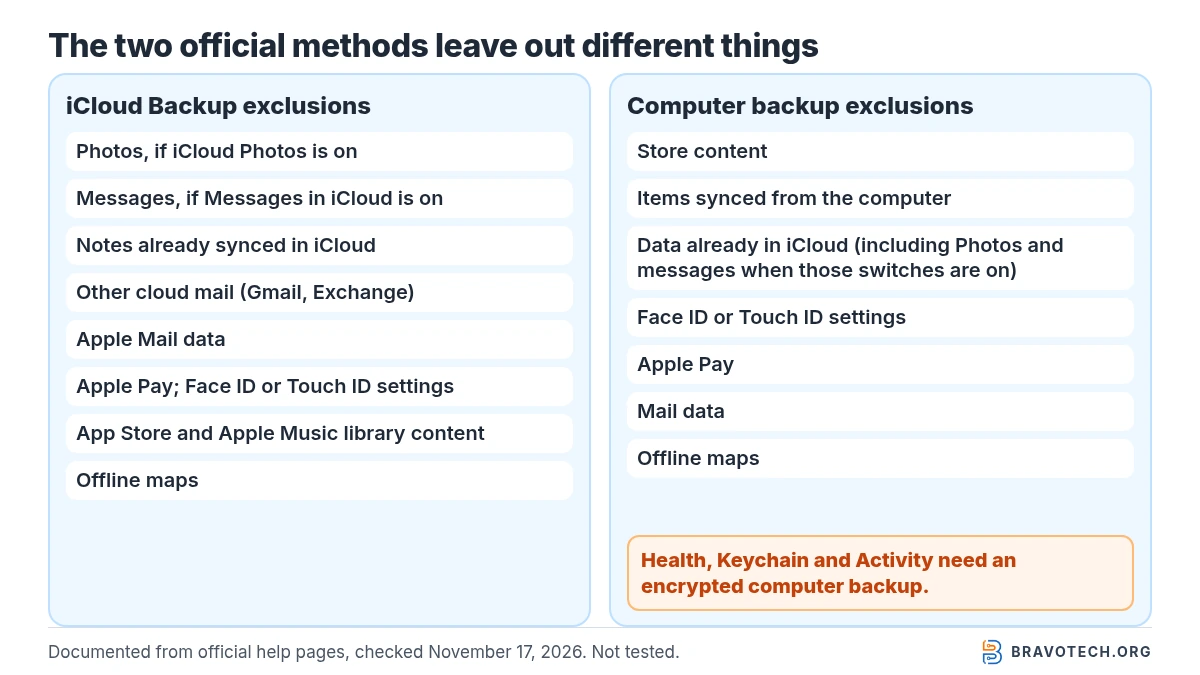
Apple’s backup-methods article lists several categories that an iCloud backup does not include. Among them: notes already synced in iCloud; photos if iCloud Photos is on; messages if Messages in iCloud is on; other cloud mail such as Gmail or Exchange; Apple Mail data; Apple Pay; Face ID or Touch ID settings; App Store and iCloud Music Library content; and offline maps. Anything that already syncs is kept in sync instead of in the daily snapshot.
| If this is on or already in iCloud | Is it in the daily iCloud Backup? | Source, checked |
|---|---|---|
| iCloud Photos | No — photos, videos and People & Pets face information sync instead | Apple 108770, Nov 17, 2026 |
| Messages in iCloud | No — iMessage, SMS and MMS sync instead | Apple 108770, Nov 17, 2026 |
| iCloud Drive | No — files already in iCloud Drive stay in Drive | Apple 102325, Nov 17, 2026 |
| Notes stored in iCloud | No — those notes sync after a restore; notes saved only on the device are in the backup | Apple 102325, Nov 17, 2026 |
| Mail already in iCloud | No — message content lives in iCloud; the backup holds account settings | Apple 102325, Nov 17, 2026 |
| Apple Pay, Face ID or Touch ID settings | No | Apple 108771, Nov 17, 2026 |
| App Store, Apple Music library and offline maps | No | Apple 108771, Nov 17, 2026 |
If iCloud Photos is on, are photos in the backup?
No. If iCloud Photos is on, photos, videos and face information sync to iCloud and are not included in the daily backup. If iCloud Photos is off, Apple says the backup may include photos and videos in Photos or Camera Roll, plus face information from the People & Pets album. After a restore, stay on Wi-Fi so a synced library can download.
Apple also notes that photos in iCloud Photos are not duplicated in the backup, so it tells you to keep separate copies of the library if you want a second copy. Sources: What does iCloud back up?, If you’re missing information after you restore, and Set up and use iCloud Photos (Published Date on the photos article: September 14, 2026). iCloud Photos still uses your iCloud storage, which is why it appears in guides to freeing iCloud storage even when it is not inside the backup file.
If Messages in iCloud is on, are texts in the backup?
No. If Messages in iCloud is on, iMessage, SMS and MMS messages sync and are not included in the daily backup. If it is off, they are saved in the next iCloud Backup and download in the background when you restore, as long as the iPhone stays on Wi-Fi. Voice Memos in iCloud follow the same pattern.
Sources: What does iCloud back up? and the missing-information article, both re-opened on November 17, 2026. Apple notes that in iOS 11 or earlier, or macOS High Sierra or earlier, Voice Memos were included in the backup rather than in iCloud. If you restore an iPhone from an iPad backup, or the other way around, Apple says messages, Voice Memos and some photos may not transfer unless the matching iCloud sync is on.
Are iCloud Drive files, Mail and Notes in the backup?
Files already in iCloud Drive are not in the iCloud Backup; they remain available because they sync. Mail already stored in iCloud is not in the backup either, though account settings are. Notes stored in iCloud sync after a restore; notes saved only on the device are in the backup; Exchange and other third-party notes are not, Apple says.
Source: If you’re missing information after you restore (Published Date on the page: December 2, 2025), checked again on November 17, 2026. This is another example of the same rule: if the data already lives in iCloud as a synced library, the daily backup does not make a second copy of it.
How does this compare with a computer backup?
A computer backup, Apple says, includes almost all of the device’s data and settings, which is different from syncing. It still excludes Store content, items synced from the computer, data already in iCloud (including Photos and messages when those switches are on), Face ID or Touch ID settings, Apple Pay, Mail data and offline maps. Activity, Health and Keychain data are included only if that computer backup is encrypted.
Source: Backup methods for iPhone or iPad (Published Date: October 20, 2026). BravoTech’s computer-backup how-to — Finder on a Mac, or the Apple Devices app on a Windows PC — was not a live URL when this draft was written (planned slug /back-up-iphone-to-computer/). How cloud storage differs from a backup sets out the same distinction in general terms. You can use an iPad backup to set up an iPhone, Apple says, but photos, messages, Voice Memos and incompatible apps may not transfer.
What about purchases, apps and third-party app data?
The backup stores information about your purchase history, not a second copy of every app, album or film as a file. After a restore, purchased media downloads again from Apple services where it is still available; some movies may not redownload, and availability can vary by country. Some third-party apps may need their data downloaded again from the provider. Apple’s lists do not state a WhatsApp-in-backup rule, so none is added here.
Source: If you’re missing information after you restore. If an app uses iCloud Drive to store its data, What does iCloud back up? says that information is stored in iCloud instead of in the iCloud Backup. Plan sizes and the 5 GB free allowance are covered on the iCloud+ plans page and in the iCloud backup how-to. This page is part of BravoTech’s cloud storage and backup guide.
FAQ
Is an iCloud Backup encrypted?
Yes. Apple’s backup-methods article says iCloud backups are always encrypted. A computer backup can be encrypted, but that option is off by default.
If I delete a photo, is it removed from my last iCloud Backup?
Apple’s iCloud Photos article says a deletion on one device is deleted everywhere you use iCloud Photos, and Recently Deleted holds it for 30 days. This article does not add a separate claim about what already sits inside a completed backup snapshot, because Apple’s pages do not spell that out as a distinct rule.
Why are my photos missing after a restore?
Often because iCloud Photos was on, so the photos were never in the backup and need time on Wi-Fi to download from the synced library. Apple also notes that restoring an iPhone from an iPad backup can leave some photos behind if iCloud Photos was off.
Where are the backup steps?
In the companion how-to: how to back up an iPhone to iCloud, including how to check the last backup and what to do if a backup fails.
How this article was made. We drafted this article with the help of AI tools, working from the official pages listed in Sources. Plan limits and steps were checked against those pages on November 17, 2026. It was prepared by the BravoTech team and published under our editorial standards. We did not test these products hands-on for this article. Spot an error? Email [email protected].
Sources
5 official Apple pages, each opened on November 17, 2026 (PKT).
Show all 5 sources
- Apple Support: What does iCloud back up? (Published Date on the page: May 1, 2025)
- Apple Support: Backup methods for iPhone or iPad (Published Date: October 20, 2026)
- Apple Support: If you’re missing information after you restore your iPhone or iPad with iCloud Backup (Published Date: December 2, 2025)
- Apple Support: Set up and use iCloud Photos (Published Date: September 14, 2026)
- Apple Support: How to back up your iPhone or iPad with iCloud (Published Date: September 24, 2026)
Changelog
- November 27, 2026: First published. All inclusions and exclusions checked on November 17, 2026.
Related reads