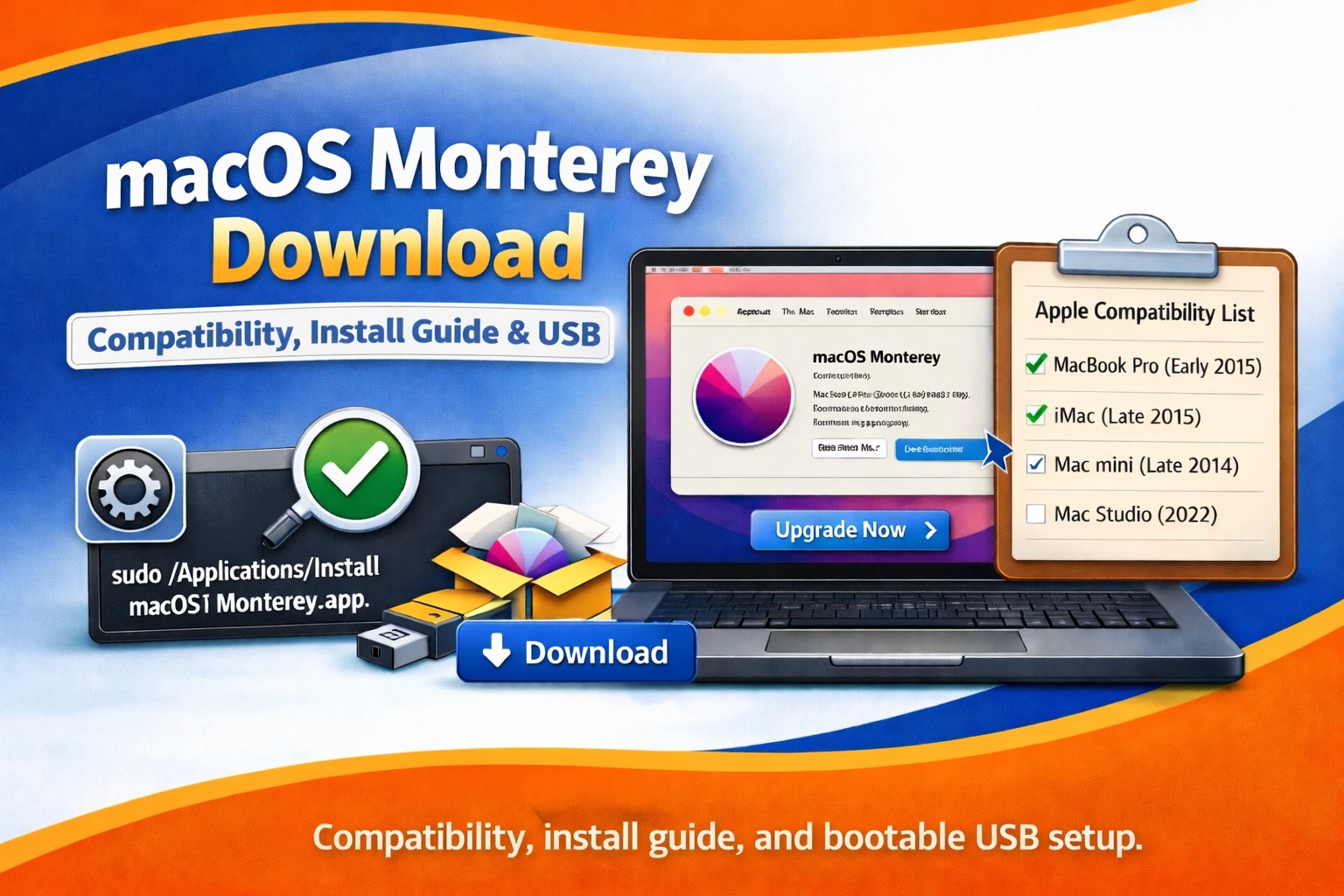
If you need a macOS Monterey download, the safest way is still the official Apple route. Apple lists macOS Monterey 12 in its macOS download guide and provides the App Store path for supported Macs.
That is the big difference between a clean install and a risky one. Many pages online mix official Apple files with third-party mirrors, but Apple’s own setup is simple: use the App Store on a compatible Mac, use Recovery if you need to reinstall, and use Apple’s Terminal and bootable installer steps only when you need advanced control.
This guide is built for real search intent. Maybe you want Monterey on an older Mac, maybe you need the full installer for a USB drive, or maybe Monterey is not showing and you want to know why. Let’s break it down in the cleanest way possible.
Where can you download macOS Monterey safely?
The best place to get macOS Monterey download files is Apple. Apple’s support page for downloading and installing macOS lists Monterey 12 and points users to the App Store for the installer.
Apple also says that if the link does not open as expected, try again in Safari. That small detail helps more than most people think, because some users assume the link is dead when it is really a browser handoff problem.
So the short answer is this:
Use Apple’s Monterey App Store page.
Do not rely on random ZIP, DMG, or ISO pages unless you fully know what you are doing. Apple’s official flow is built for this exact job.
Is macOS Monterey still available from Apple?
Yes, it is. Apple’s current support page for downloading and installing macOS still includes Monterey 12 among the versions you can get. The page was updated on March 4, 2026, which makes it a strong current source for this topic.
That matters because some people assume Monterey has been removed once they stop seeing it in Software Update. In most cases, the issue is not that Apple removed Monterey. The issue is usually compatibility, install method, or the fact that the Mac is being offered a different supported version instead. Apple says Software Update only shows software that is compatible with your Mac model.
Which Macs support macOS Monterey?
Before you try the macOS Monterey download, check your Mac model. Apple’s compatibility information says Monterey supports these Macbook families:
This is where many failed download attempts start. If your Mac is too old, the App Store may not offer Monterey in a usable way. Apple says the versions offered through Software Update are tied to Mac compatibility, so this check should always come first.
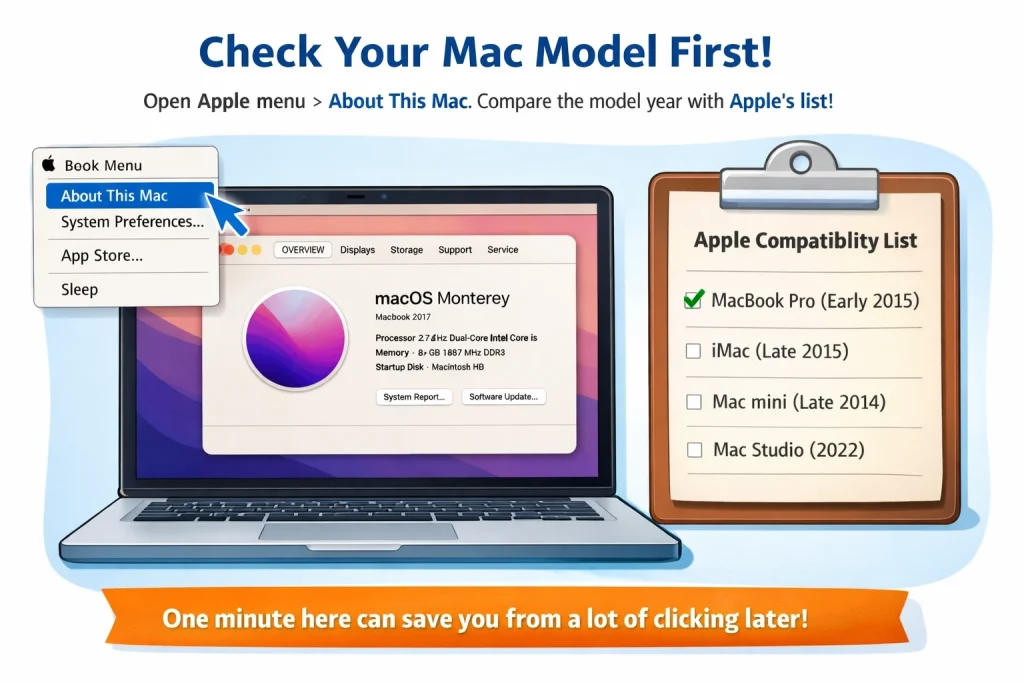
To confirm your model, open Apple menu > About This Mac. Then compare the model year with Apple’s compatibility list. One minute here can save you from a lot of clicking later.
How do you download macOS Monterey from the App Store?
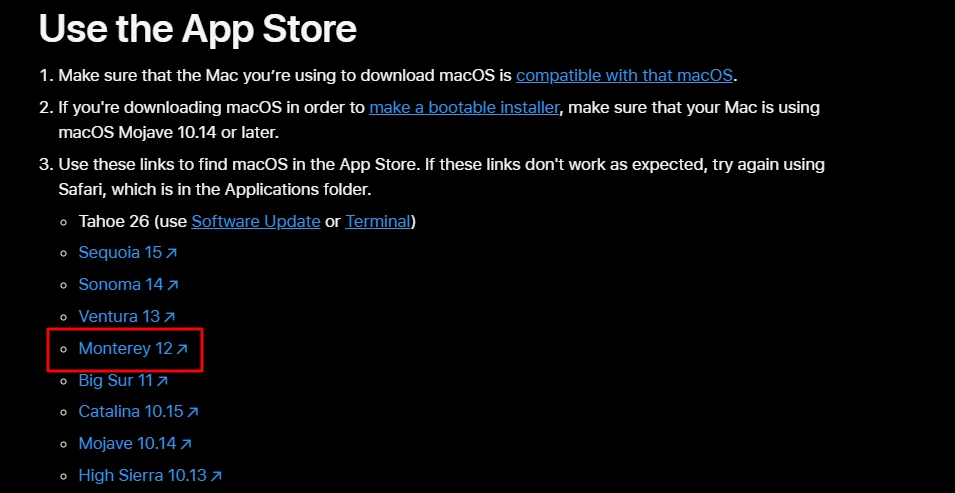
The App Store method is the easiest path for most users. Apple’s macOS download guide says to use the Monterey App Store link, click Get, and let the installer download. Once it finishes, the installer is placed in the Applications folder.
Here are the clean steps:
1. Make sure the Mac supports Monterey
Do the compatibility check first. If the Mac is not supported, the rest of the steps may not work as expected.
2. Open the official Monterey page
Use Apple’s official App Store link for Monterey 12 (as per user discussion at Apple Support). Apple lists this route directly in its support guide.
3. Click Get
The App Store should start the download. In some cases, it may switch over to Software Update for confirmation. Apple includes that behavior in its current install guide.
4. Let the installer save into Applications
After the download, the installer app appears in Applications. Apple says you can open it and install right away, or leave it there for later use.
That last part is useful if your real goal is a full macOS Monterey installer for a USB drive. You do not have to run the install right away. You can quit the installer and keep the file in Applications.
Can you get Monterey through Software Update?
Yes, in many cases you can. Apple says Software Update checks for updates and upgrades that are compatible with your Mac model. That means Monterey may appear there if it is the right version for your hardware and current setup.
To check, open System Settings > General > Software Update on newer macOS versions. On older versions, the route may still be through System Preferences. Apple’s support guidance points users there for normal upgrade flows.
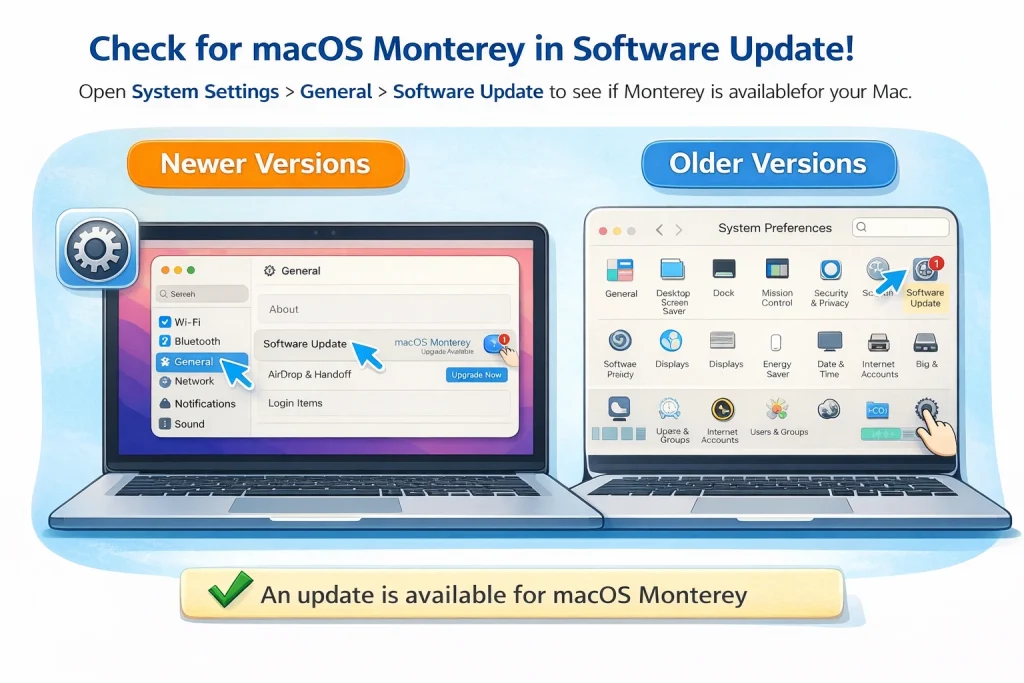
If Monterey does not appear, do not panic and assume Apple deleted it. Usually one of these is true:
- Your Mac supports a different newer version
- Your Mac is too old for Monterey
- The App Store path is the better route for your setup
That is why the compatibility check matters so much.
What should you do before installing Monterey?
Back up your Mac first. Apple says reinstalling macOS usually does not remove your apps or personal data, but it still recommends making a backup before reinstalling or upgrading.
A few smart prep steps can make the install much smoother:
Make a backup
Use Time Machine or your normal backup method before you start. Apple explicitly recommends a backup first.
Keep your Mac plugged in
Apple says to let the installation finish without putting the Mac to sleep or closing the lid. That is a small line in support docs, but it matters a lot during longer installs.
Make sure you have admin access
Apple notes that you may need an administrator password during installation. If you are using a work Mac or a shared machine, check that first.
Keep enough free space
Apple’s current Monterey download page does not list a single simple free-space number in the search result snippet, but a low-storage Mac is still one of the most common reasons installs turn messy. So, clear the room before you start. It is not exciting advice, but it works.
How do you reinstall macOS Monterey?
If you already have Monterey on the Mac and need to reinstall it, macOS Recovery is often the cleanest route. Apple says Recovery lets you install or reinstall macOS from a built-in recovery system.
The basic steps are:
- Back up the Mac if possible.
- Start up from macOS Recovery.
- Select the option to install or reinstall macOS.
- Follow the on-screen steps and let the installation complete.
Apple also points out something many users miss: the version installed from Recovery can depend on the type of Mac and startup method used. So if Recovery gives you a version you were not expecting, that is not always a bug. It can be normal behavior based on Apple’s reinstall rules.
How do you create a bootable macOS Monterey USB installer?
If you need more control, Apple supports creating a bootable installer. This is useful if you want to install Monterey on more than one Mac, fix a Mac that will not boot normally, or do a cleaner install process. Apple also says most users do not need a bootable installer for a normal upgrade.
Here is the Apple-approved method.
Step 1: Download the full Monterey installer
First, get the Monterey installer through Apple’s official route (as described above). Apple says the installer should end up in the Applications folder.
Step 2: Use a USB drive with enough space
Apple says a 32GB flash drive is more than enough for any macOS installer, and the drive will be erased during the process.
Step 3: Use Apple’s createinstallmedia command
Apple provides the Terminal command for Monterey in its bootable installer guide:
That command comes from Apple’s support page, not from a random forum post, which is exactly how it should be for a system-level task.
Step 4: Boot from the installer
Apple says Apple Silicon Macs should start with the power button held down until startup options appear. Intel Macs should be started while holding the Option key to choose the bootable volume.
That makes this path very useful for repair work, lab setups, and users who want a dependable offline installer.
Can you download a macOS Monterey DMG or ISO?
This is where a lot of articles get messy. Apple’s current macOS download guide lists Monterey under the App Store path, while some older macOS versions are available through browser-delivered files such as .dmg or .pkg installers. In other words, Monterey is not presented by Apple the same way those much older releases are.
So for most users, the right question is not “Where do I get a Monterey DMG?” The right question is “How do I get the official Monterey installer from Apple?” And the answer is still: App Store, Recovery, or Apple’s own Terminal and bootable installer steps.
Could advanced users later convert installers for special workflows? Yes, that happens in the real world. But for a normal user searching for macOS Monterey download, pushing DMG and ISO talk too early usually creates more confusion than help.
Why is the macOS Monterey download not working?
If Monterey is giving you trouble, the cause is usually one of a few simple things. Apple’s support pages point to these again and again.
Your Mac is not compatible
If the Mac does not support Monterey, the App Store or Software Update may not offer it in the way you expect. Apple’s compatibility info is the first thing to check.
The handoff from browser to App Store is failing
Apple says to try the link in Safari if the Monterey download page does not behave properly. That solves more cases than people expect.
You expected Software Update to show every macOS version
Apple does not work like that. Software Update is tied to Mac compatibility and current upgrade paths. It is not a menu of every version Apple ever shipped.
You need Recovery instead of a normal upgrade
If the system is damaged, the Mac is wiped, or the normal installer path is failing, Apple’s Recovery reinstall method is often the better route.
You need the full installer for a USB tool
If your real goal is repair work or clean installs on several Macs, use Apple’s bootable installer method instead of trying random download pages.
Is macOS Monterey still worth installing in 2026?
For the right Mac, yes. Monterey still makes sense for users who want a familiar setup, need support for certain older apps, or own Macs that fit better with Monterey than with newer releases. Apple still provides an official path to get it, which says a lot on its own.
That said, Apple also points users to the latest compatible macOS version through its install and compatibility guidance. So Monterey makes the most sense when you need Monterey on purpose, not just because an old blog told you it “feels better.”
What this really means is simple: if your workflow, hardware, or repair task needs Monterey, go with Monterey. If your Mac supports a newer release and your apps work there, the newer compatible version is usually the smarter long-term move.
Final thoughts
The best macOS Monterey download is the official one from Apple. Apple still lists Monterey 12 in its download guide, still supports Recovery reinstalls, and still provides a proper bootable installer method for advanced users.
So the safest plan looks like this:
- Check whether your Mac supports Monterey
- Use Apple’s App Store link
- Back up before installing
- Use Recovery if you are reinstalling
- Use Apple’s bootable installer steps only if you need that extra control
That gives you a cleaner install, better trust, and a much lower chance of ending up on one of those download pages that look helpful until they absolutely are not.
Frequently Asked Questions
Quick answers to the most common questions about macOS Monterey download, install, and reinstall.