Every menu path and limit here comes from Microsoft’s Windows and OneDrive support pages, read on November 9, 2026. We didn’t run backups or restores on a test PC for this guide, so we don’t quote backup times or sizes. Microsoft points people who want a full disk image to third-party software; we don’t recommend a specific product. No affiliate links; see our editorial policy.
Quick answer
Open Start, type backup, open Windows Backup, turn on the folders you want (Desktop, Documents, Pictures, Videos, Music), choose which settings to remember, and select Back up. That saves your files to OneDrive and your apps list and settings to your Microsoft account. For a copy you hold yourself, also turn on File History to an external drive from Control Panel. Windows 11’s old system image tool is deprecated.
Key takeaways
- Windows Backup needs a personal Microsoft account and saves folders to OneDrive (5 GB free), plus apps and settings to your account. Work or school accounts won’t work.
- File History copies your libraries and Desktop to an external drive or network location and keeps earlier versions you can restore.
- OneDrive folder backup syncs: delete a file on the PC and it goes from OneDrive too, though the recycle bin keeps it for 30 days on personal accounts.
- Recovery Drive, System Restore and point-in-time restore help fix Windows, but Microsoft says Recovery Drive and System Restore don’t protect your personal files.
- System image backup (Backup and Restore (Windows 7)) is deprecated; Microsoft suggests a third-party full-disk tool.
In this guide
- Back up with Windows Backup
- Which backup tool to use
- Back up to an external drive
- Restore files from File History
- Is OneDrive a real backup?
- What Windows Backup saves
- Restore on a new PC
- System image backups
- Before you reset Windows
- Recovery tools aren’t file backups
- A simple backup routine
- FAQ
- Sources
How do I back up Windows 11?
Use the built-in Windows Backup app while signed in with a personal Microsoft account. It syncs the folders you pick to OneDrive and saves your installed apps list, Wi-Fi networks, personalization and other settings to your account, so a new or reset PC can restore them when you sign in. Microsoft says work or school accounts won’t work with it (Microsoft Support).
- Check you’re using a Microsoft account: Settings > Accounts > Your info. If you see Sign in with a Microsoft account instead, you’re on a local account; select it to switch.
- Select Start, type backup, and open Windows Backup.
- Expand Folders and turn on the ones to back up to OneDrive: Desktop, Documents, Pictures, Videos and Music.
- Expand the other sections and turn on what you want remembered: installed apps, accessibility, accounts and Wi-Fi networks and passwords, personalization, language preferences, and other Windows settings.
- Select Back up. To check it later, reopen Windows Backup or go to Settings > Accounts > Windows backup.
Microsoft notes that personalization settings won’t back up if your OneDrive is out of space, and that OneDrive sign-in or storage problems are the usual cause of backup errors. A free Microsoft account includes 5 GB of OneDrive storage (Microsoft storage quotas), which fills quickly with photos; see our OneDrive storage full guide if you hit the limit.
Which Windows 11 backup tool should I use?
Windows 11 has several tools with “backup” or “restore” in the name, and they protect different things. Use this chart to match the tool to what you’re afraid of losing:
| If you want to… | Use | What it saves | Where it’s stored | Survives a dead drive? |
|---|---|---|---|---|
| Move to a new PC or recover after a reset with your files, apps list and settings | Windows Backup | Chosen folders, apps list, settings, Wi-Fi | OneDrive and your Microsoft account | Yes (it’s in the cloud) |
| Keep your own copy of files, with older versions | File History | Libraries (Documents, Pictures, Videos, Music), Desktop and folders you add | External drive or network location | Yes, if the drive is separate from the PC |
| Reach the same files on all your devices | OneDrive folder backup | Desktop, Documents, Pictures and other chosen folders | OneDrive | Yes, but deletions sync too |
| Reinstall Windows if the PC won’t start | Recovery Drive | Windows system files and maker customizations, not personal files | A USB drive (erased first) | Yes, for Windows only |
| Undo a bad driver, app or update | System Restore | System files, registry, installed programs; personal files untouched | On the PC | No |
| Roll the whole PC back a day or two | Point-in-time restore | Apps, settings and files as of an automatic snapshot | On the PC, kept up to 72 hours | No |
| Clone the entire disk | A third-party full-disk tool | Everything on the drive | Wherever the tool saves it | Depends on where you store it |
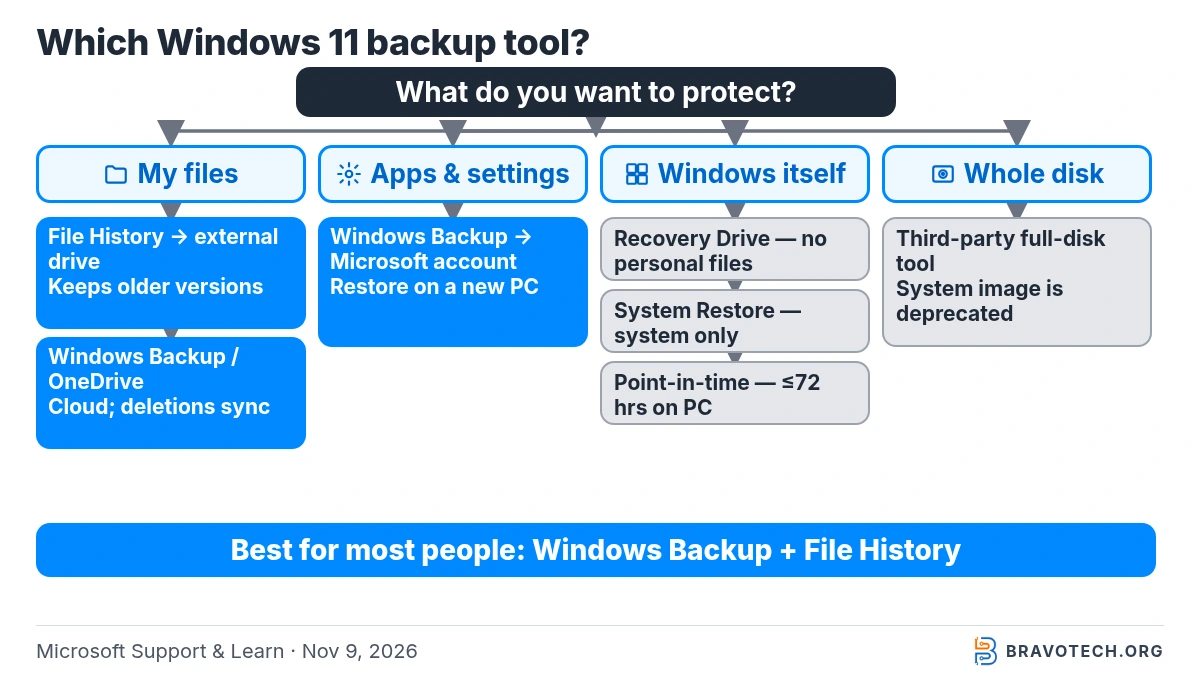
Microsoft’s own guidance is to prefer a cloud-based backup if you want easy access across devices, and an external hard drive or network drive when internet access isn’t available or you have very large files (Microsoft Support). Most people get the best protection from doing both: Windows Backup to OneDrive plus File History to a drive.
How do I back up Windows 11 to an external hard drive?
Use File History, the built-in tool that copies your personal files to an external drive or network location. Connect the drive, open Control Panel, select Save backup copies of your files with File History under System and Security, and select Turn on. Once it’s on, Microsoft says File History keeps watching your files and saves regular backups, so you can restore earlier versions later (Microsoft Support).
- Connect an external drive, or set up the network location you want to use.
- Open Control Panel and, under System and Security, select Save backup copies of your files with File History.
- Select Turn on.
- If the drive you want isn’t selected, choose Select drive, pick the external drive or network location, and select OK.
How do I add more folders to File History?
File History backs up all your libraries automatically, including Documents, Pictures, Videos and Music, plus your Desktop. To include another folder, right-click it in File Explorer and choose Show more options > Include in library, so it’s added to a library that File History already covers.
How do I restore files from a File History backup?
In File Explorer, right-click the folder that held the file, select Restore previous versions, pick a version from before the problem and select Restore. For a file deleted today, choose yesterday’s version of its folder. Restoring replaces the current version and can’t be undone, so use Restore to… if you want the old copy saved somewhere else instead (Microsoft Support).
Two details from Microsoft’s page: for a folder at the top of a drive, such as C:\, right-click the drive itself; and for something inside a library, right-click it in its real folder location rather than in the library view. To look before restoring, expand Open and select Open in File History.
Is OneDrive backup the same as a full backup?
Not quite. Windows Backup and OneDrive folder backup sync your folders to OneDrive, so a deletion or change on the PC is copied to the cloud too. That protects you from a lost or broken PC, but less well from mistakes. Personal accounts can restore deleted OneDrive files for 30 days, and Microsoft 365 subscribers can roll the whole OneDrive back to any point in the last 30 days (Microsoft Support).
You can manage the same folder backup from the OneDrive app: select the OneDrive cloud icon, open Settings, go to Sync and backup and select Manage backup (Microsoft Support). If you turn a folder’s backup off, OneDrive asks whether to keep the files only in OneDrive or only on your PC, so read that prompt carefully. The difference between syncing and backing up is explained in our cloud storage vs cloud backup guide, and how to stop OneDrive syncing covers turning it off safely.
Sync can copy mistakes
Ransomware or a bad sync can damage files on the PC and in OneDrive at the same time. Microsoft’s Restore your OneDrive feature, for Microsoft 365 subscribers, can undo all file activity back to any point in the last 30 days (Microsoft Support). Without a subscription, a File History drive you disconnect between backups is your safety net.
Does Windows Backup back up everything?
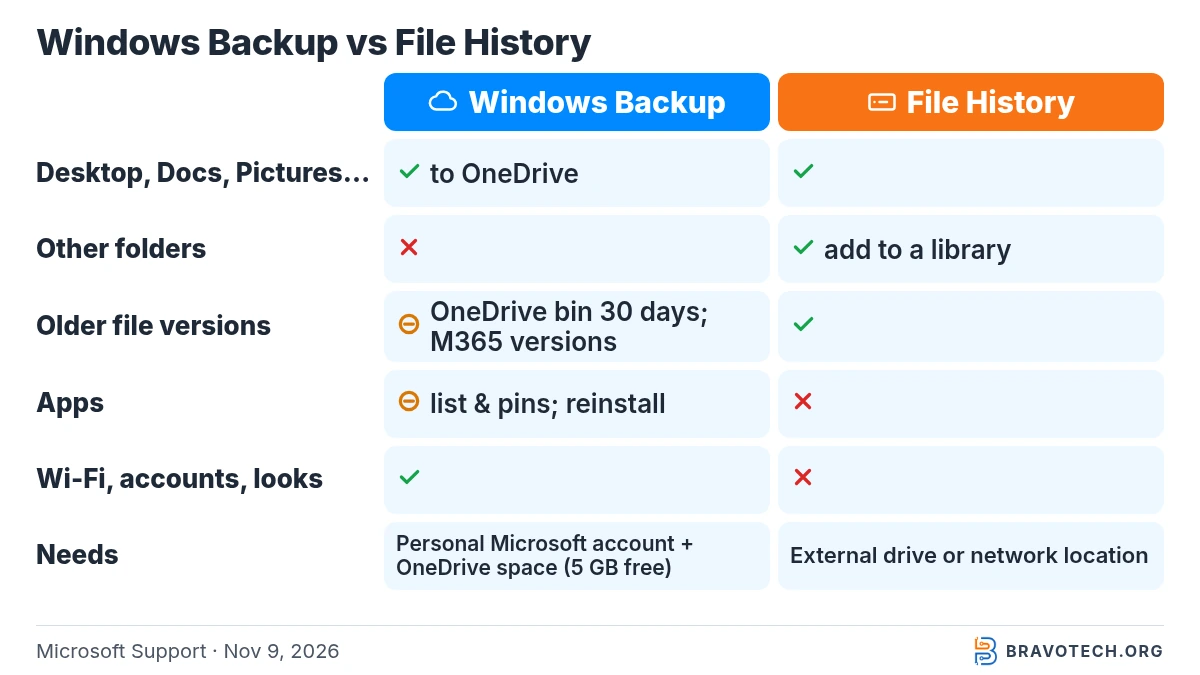
No. Windows Backup saves your chosen folders, a list of your installed apps and many Windows settings, but it isn’t a copy of the whole drive. On a new PC, Store apps come back by selecting their pins, and other apps send you to the web to download the installer again. Files outside the backed-up folders aren’t included, and Microsoft lists the exact settings in its settings catalog (Microsoft Support).
| Item | Windows Backup | File History |
|---|---|---|
| Desktop, Documents, Pictures, Videos, Music | Yes, folders you switch on (to OneDrive) | Yes (libraries and Desktop) |
| Other folders | No, unless they’re inside those folders | Yes, if you add them to a library |
| Earlier versions of a file | OneDrive recycle bin (30 days); version restore for Microsoft 365 subscribers | Yes, browse and restore previous versions |
| Installed apps | The list and pins; apps are reinstalled, not copied | No |
| Wi-Fi networks, accounts, personalization, language | Yes, if turned on | No |
| Windows itself | No | No |
| Where it’s stored | OneDrive and your Microsoft account | External drive or network location |
How do I restore a Windows Backup on a new PC?
During setup of the new or reinstalled PC, sign in with the same Microsoft account you used for the backup. Windows detects the backup and asks whether to restore it; if more than one PC is backed up, select More options and choose the right one. Your pins and supported settings return, and backed-up files reappear once you sign in to OneDrive (Microsoft Support).
Microsoft also describes a separate PC-to-PC transfer option for moving files, settings and preferences directly between two Windows devices without an external drive (Microsoft Support). If you’re replacing a PC, run Windows Backup on the old one first so the newest changes are included.
Can I make a system image backup in Windows 11?
Windows 11 still shows the old Backup and Restore (Windows 7) control panel, but Microsoft lists its System Image Backup as a deprecated feature. Microsoft’s advice for full-disk backups is to use a third-party product from another software publisher, and to use OneDrive for data files. Its backup guide also recommends modern options over legacy backups (Microsoft Learn; Microsoft Support).
Deprecated means Microsoft isn’t developing it further and may remove it later, so we don’t give image-creation steps here. If you want an exact copy of the drive, choose a full-disk backup tool from a reputable publisher, store the image on a separate drive, and check that it can create bootable rescue media before you need it.
Should I back up before resetting Windows 11?
Yes. Microsoft’s recovery guide says some recovery options can cause data loss and tells you to back up your important files and turn on Windows Backup first. Reset this PC lets you keep your personal files, but it removes apps and settings; reinstalling from a recovery drive or a cloud rebuild removes files too. If BitLocker is on, have your recovery key ready (Microsoft Support).
Recovery Drive, System Restore and point-in-time restore aren’t file backups
These tools repair Windows; they don’t keep your documents safe. Microsoft says a Recovery Drive doesn’t include your personal files and should be recreated yearly; it also erases the USB drive you use (Microsoft Support). System Restore rolls back system files, registry settings and installed programs without touching personal files (Microsoft Support).
Point-in-time restore, which Microsoft’s recovery guide says needs Windows 11 version 24H2 or later, rolls back everything, including files, to an automatic snapshot taken about every 24 hours and kept for up to 72 hours. The snapshots stay on the PC, and Microsoft says any changes after the restore point, including new files, are lost (Microsoft Support). You’ll find it under Settings > System > Recovery.
A simple backup routine for a Windows 11 PC
One copy in the cloud and one on a drive you control covers most home users. Turn on Windows Backup for your folders and settings, run File History to an external drive, and keep that drive unplugged between backups so a problem on the PC can’t reach it. That follows the 3-2-1 backup rule: three copies, on two kinds of storage, one kept elsewhere. Make a Recovery Drive once a year as well, so you can reinstall Windows if the PC stops booting.
FAQ
Can I back up Windows 11 without OneDrive?
Yes. File History saves your files to an external drive or network location and doesn’t use OneDrive at all. Windows Backup is the tool that always uses OneDrive and your Microsoft account.
Can I back up Windows 11 to a USB flash drive?
Microsoft’s File History page asks for an external drive or network location and doesn’t name a drive type, so connect the drive and check whether it appears under Select drive. Don’t reuse your Recovery Drive stick: creating one erases everything on it.
Can I back up Windows 11 to Google Drive?
Not with Windows Backup, which uses OneDrive only. Google’s Drive for desktop app can sync folders to Google Drive instead; our Google Drive for desktop guide explains the setup.
How much OneDrive storage do I need for Windows Backup?
Enough for the folders you switch on. A free Microsoft account has 5 GB; Microsoft 365 Basic gives 100 GB and Personal 1 TB, according to Microsoft’s storage quotas page.
Is Windows Backup free?
The app is built into Windows 11 and free to use. What can cost money is OneDrive storage beyond the 5 GB that comes with a free Microsoft account.
How this article was made. We drafted this article with the help of AI tools, working from the official pages listed in Sources. Plan limits and steps were checked against those pages on November 9, 2026. Syed Saud Ahsan is the credited author; the BravoTech team prepared it under our editorial standards. We did not test these products hands-on for this article. Spot an error? Email [email protected].
Sources
14 official Microsoft pages, each opened on November 9, 2026 (PKT). Microsoft moved its Windows backup articles to a new support address; the older links redirect to the pages listed here.
Show all 14 sources
- Microsoft Support: Back up and restore with Windows Backup
- Microsoft Support: Backup and restore with File History
- Microsoft Support: Choose a backup solution in Windows
- Microsoft Support: Backup, restore, and recovery in Windows
- Microsoft Support: Windows Backup Settings Catalog
- Microsoft Support: Recovery Drive
- Microsoft Support: System Restore
- Microsoft Support: Point-in-time restore for Windows
- Microsoft Support: Recovery options in Windows
- Microsoft Support: Back up your folders with OneDrive
- Microsoft Support: Restore files deleted from your OneDrive
- Microsoft Support: Restore your OneDrive
- Microsoft Support: Microsoft storage quotas
- Microsoft Learn: Deprecated features in the Windows client (System Image Backup)
Changelog
- November 11, 2026: First published. Windows Backup and File History steps, the backup-tool decision chart, OneDrive sync limits and recovery tools, checked against Microsoft’s pages on November 9, 2026.
Related reads