Reviewed by Syed Saud Ahsan, Editor · November 12, 2026
These steps follow Apple’s own support articles and user guides as they read on November 11, 2026. Menu names can change with app and OS updates. We describe Apple’s documented methods only; no third-party backup software, no affiliate links. How we work: editorial policy.
Quick answer
On Windows, use Apple’s Apple Devices app; on a Mac with macOS Catalina or later, use the Finder. Connect the iPhone with a cable, tap Trust on the phone, open General, choose to back up all data to this computer, tick Encrypt local backup if you want passwords and Health data included, then click Back Up Now. Apple only points to iTunes when the Apple Devices app isn’t available or the Mac runs Mojave or earlier.
Key takeaways
- No iTunes needed on current systems. Apple’s Windows article opens with the Apple Devices app; iTunes is the fallback.
- Encryption is off by default and is the only way a computer backup includes saved passwords, Wi-Fi settings, Health and call history.
- Lose the encryption password and old encrypted backups are unusable. Apple lets you reset it on the phone to make new ones.
- The backup lives on your computer’s disk, so its size is limited by free space there, not by your iCloud plan.
- Computer and iCloud backups leave out different things; the side-by-side table below shows which.
In this guide
- What you need
- iTunes vs Apple Devices vs Finder
- Back up on Windows
- Back up on a Mac
- Encrypted or not?
- What a computer backup leaves out
- Where the backup is saved
- Backing up over Wi-Fi
- Restoring from the backup
- If the iPhone doesn’t show up
- Forgot the backup password
- Computer vs iCloud backup
- FAQ
- Sources
What do you need to back up an iPhone to a computer?
You need the iPhone, a cable that carries data (not only charging), and the right Apple software for your computer. On a Windows PC that’s the Apple Devices app from the Microsoft Store; Apple’s restore article names Windows 10 or later. On a Mac it’s the Finder on macOS Catalina 10.15 or later, with iTunes only on Mojave or earlier. You also need enough free disk space for the backup.
| Your computer | Apple’s tool | Where to get it | Source |
|---|---|---|---|
| Windows 10 or later | Apple Devices app | Microsoft Store (install Apple Music and Apple TV too if you also sync media) | Apple Devices guide |
| Windows PC without the Apple Devices app | iTunes for Windows | Apple’s fallback only | Apple Support |
| Mac, macOS Catalina 10.15 or later | Finder | Built in | Apple Support |
| Mac, macOS Mojave or earlier | iTunes | Built in on those versions | Apple Support |
How do iTunes steps map to the Apple Devices app and Finder?
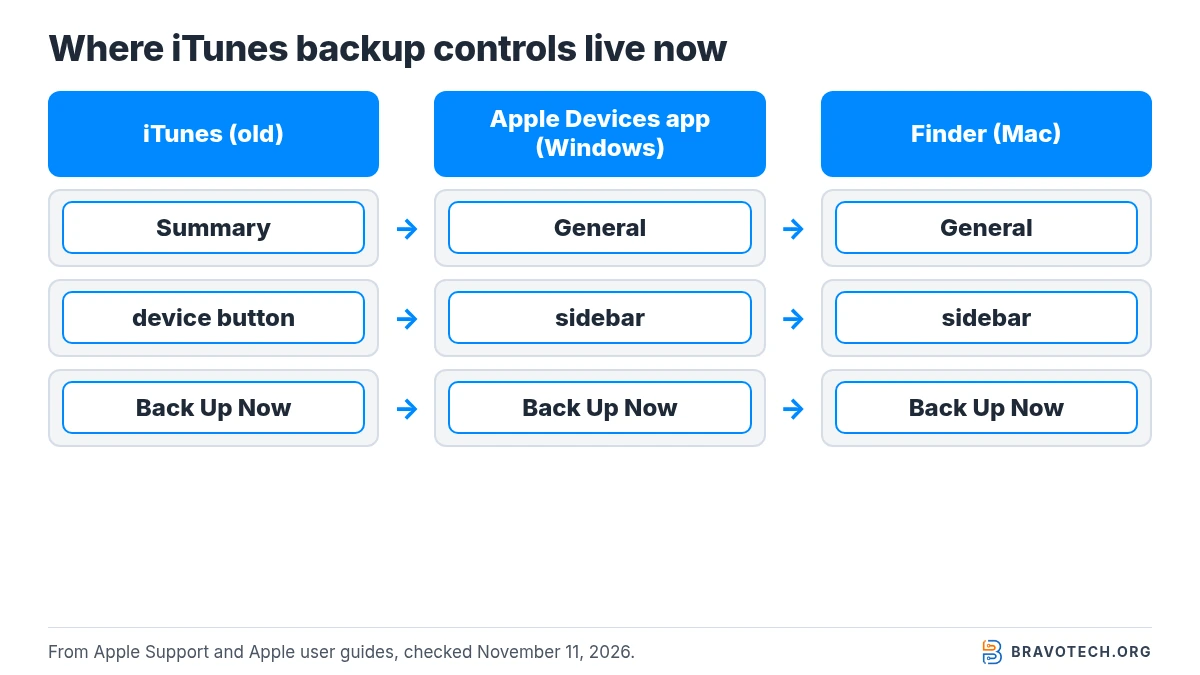
Most older guides still describe iTunes, so the main job is knowing where each iTunes control moved. The Summary page in iTunes became General in both the Apple Devices app and the Finder. The device icon in the iTunes toolbar became an entry in the sidebar, and the backup choice, encryption checkbox, Back Up Now and Restore Backup buttons sit on that General page.
| What you want | iTunes (old) | Apple Devices app (Windows) | Finder (Mac, Catalina+) |
|---|---|---|---|
| Pick the iPhone | Device button near the top of the window | Select the device in the sidebar | Select the device in the sidebar |
| Open backup options | Summary | General | General |
| Back up everything locally | “This computer” | “Back up all of the data on your iPhone to this computer” | “Back up all of the data on your iPhone to this Mac” |
| Encrypt | Encrypt local backup | Encrypt local backup | Encrypt local backup |
| Start now | Back Up Now | Back Up Now | Back Up Now |
| See, delete or archive backups | Not covered in Apple’s current articles | Manage Backups | Manage Backups |
| Restore | Restore Backup | Restore Backup | Restore Backup |
How do you back up an iPhone on Windows with the Apple Devices app?
Plug the iPhone in, select it in the Apple Devices app’s sidebar, open General and click Back Up Now. Before clicking, pick the option that stores the backup on this computer instead of iCloud, and decide on encryption. When it finishes, Apple’s article says the date and time of the last backup appear, which is your confirmation.
- Install the Apple Devices app from the Microsoft Store if it isn’t already there (Apple).
- Connect the iPhone with a USB or USB-C cable. Unlock it, and if it asks whether to trust this computer, tap Trust and enter the passcode.
- In the Apple Devices app, select the iPhone in the sidebar, then select General.
- Choose Back up all of the data on your iPhone to this computer.
- Optional but needed for passwords and Health data: tick Encrypt local backup and set a password you’ll keep safe.
- Click Back Up Now and keep the cable connected until the last-backup time updates.
Apple’s steps: Windows backup article and Apple Devices User Guide. If you also back up the PC itself, our Windows 11 backup guide covers the computer side.
How do you back up an iPhone to a Mac with the Finder?
On macOS Catalina 10.15 or later, the Finder does the job iTunes used to do. Connect the iPhone, allow the accessory if macOS asks, select the iPhone in the Finder sidebar and trust the computer on both screens. On the General tab, choose to back up all data to this Mac, set encryption if wanted, then click Back Up Now and wait.
- Connect the iPhone to the Mac with a cable. If the Mac asks to allow the accessory to connect, click Allow.
- Open a Finder window and select the iPhone in the sidebar.
- Click Trust on the Mac if asked, then Trust on the iPhone and enter its passcode.
- In General, choose Back up all of the data on your iPhone to this Mac.
- To include Health and Activity data, tick Encrypt local backup, enter the password twice and click Set Password.
- Click Back Up Now. The date and time of the last backup appear when it’s done.
Apple’s steps: Mac backup article. For backing up the Mac itself, see our guide to backing up a Mac with Time Machine.
Should you encrypt the backup?
Encrypt it if you want the backup to carry your saved passwords, Wi-Fi settings, website history, Health data and call history. Apple says those are only included in encrypted backups, and Activity, Health and Keychain data are left out of unencrypted ones. The trade-off is the password: without it, Apple says there’s no way to use the encrypted backups.
Encrypted vs unencrypted at a glance
| Unencrypted backup | Encrypted backup | |
|---|---|---|
| Default? | Yes | No; tick Encrypt local backup |
| Saved passwords, Wi-Fi settings, website history | Not included | Included |
| Health, Activity and call history | Not included | Included |
| Face ID, Touch ID, device passcode | Not included | Not included |
| Password needed to restore | No | Yes, and it can’t be recovered |
| Turning it on | — | Overwrites and encrypts your previous backups |
What doesn’t a computer backup include?
A computer backup takes almost all of the iPhone’s data and settings, but Apple lists several exceptions. It skips purchased iTunes Store, App Store and Apple Books content, media you synced from the computer, data already stored in iCloud such as iCloud Photos and synced Messages, Face ID or Touch ID settings, Apple Pay, Apple Mail data and offline maps.
| Data | Computer backup | iCloud backup |
|---|---|---|
| Purchased apps, books, iTunes Store content | Not included | Not included (App Store content) |
| Photos already in iCloud Photos | Not included | Not included |
| Messages synced with iCloud | Not included | Not included |
| Media synced from the computer (MP3s, videos) | Not included | — |
| Gmail, Exchange and other cloud mail data | — | Not included |
| Apple Mail data | Not included | Not included |
| Health, Activity, Keychain | Only if encrypted | Not on Apple’s exclusion list (iCloud backups are always encrypted) |
| Face ID / Touch ID settings, Apple Pay | Not included | Not included |
| Offline maps | Not included | Not included |
Where is the iPhone backup saved on a PC or Mac?
On a Mac, backups go in a MobileSync folder inside your user Library; on Windows, in an Apple\MobileSync\Backup folder under your user profile. Apple gives an alternative AppData path for Windows if the first doesn’t open. To keep a particular backup from being replaced by the next one, use Manage Backups and choose Archive.
| Computer | Backup folder | How to open it |
|---|---|---|
| Mac | ~/Library/Application Support/MobileSync/Backup/ | Finder → Go → Go to Folder, or Manage Backups → Show in Finder |
| Windows (Apple Devices app) | %USERPROFILE%\Apple\MobileSync\Backup | Windows key + R, paste the path, Enter |
| Windows (alternative) | %AppData%\Apple Computer\MobileSync\Backup | Use if the first path doesn’t open |
Deleting is permanent
Apple warns that a deleted backup can’t be recovered. If you want to keep a particular backup, Apple’s answer is Archive in Manage Backups, so later backups don’t replace it. Apple’s articles don’t cover editing or moving the files inside the folder, and we don’t either.
Can you back up an iPhone to a computer over Wi-Fi?
Yes. Apple’s Apple Devices and Mac guides list Wi-Fi as a connection option alongside USB and USB-C. The backup controls on the General page are the same whichever way the iPhone is connected. Apple’s step-by-step backup articles use a cable, and the guides send you to their Wi-Fi syncing section to set up the wireless connection first.
Apple covers Wi-Fi setup in its Apple Devices User Guide and Mac User Guide.
How do you restore an iPhone from a computer backup?
Connect the iPhone, open the Finder on a Mac with Catalina or later or the Apple Devices app on a PC with Windows 10 or later, then choose Restore Backup. Choose the backup by its date and size, enter the password if it’s encrypted, and click Restore. Apple says to keep the phone connected while it restarts and syncs, and to disconnect only after the sync finishes.
Apple’s full steps: restore from a computer backup. If you’re setting up a new phone directly from the old one instead, see how to transfer data from iPhone to iPhone; to wipe the old one afterwards, see how to reset an iPhone.
What if the computer doesn’t recognise the iPhone?
Start with the Trust prompt and the cable. Apple’s checklist: unlock the iPhone and tap Trust, use a cable that supports data as well as charging, try another USB port or computer, and update Windows or macOS and the Apple Devices app. If you tapped Don’t Trust by mistake, resetting location and privacy settings brings the prompt back.
Apple’s troubleshooting page: if your computer doesn’t recognise your iPhone.
What if you forgot the encrypted backup password?
Old encrypted backups can’t be opened without it, but on iOS 11 or later you can reset the password to make new ones. Apple’s route is Reset All Settings on the iPhone, which keeps your data and passwords but resets things like wallpaper and brightness and removes the backup password. Then make a fresh encrypted backup with a new password.
Apple’s article: if you can’t remember your encrypted backup password.
Computer backup or iCloud backup?
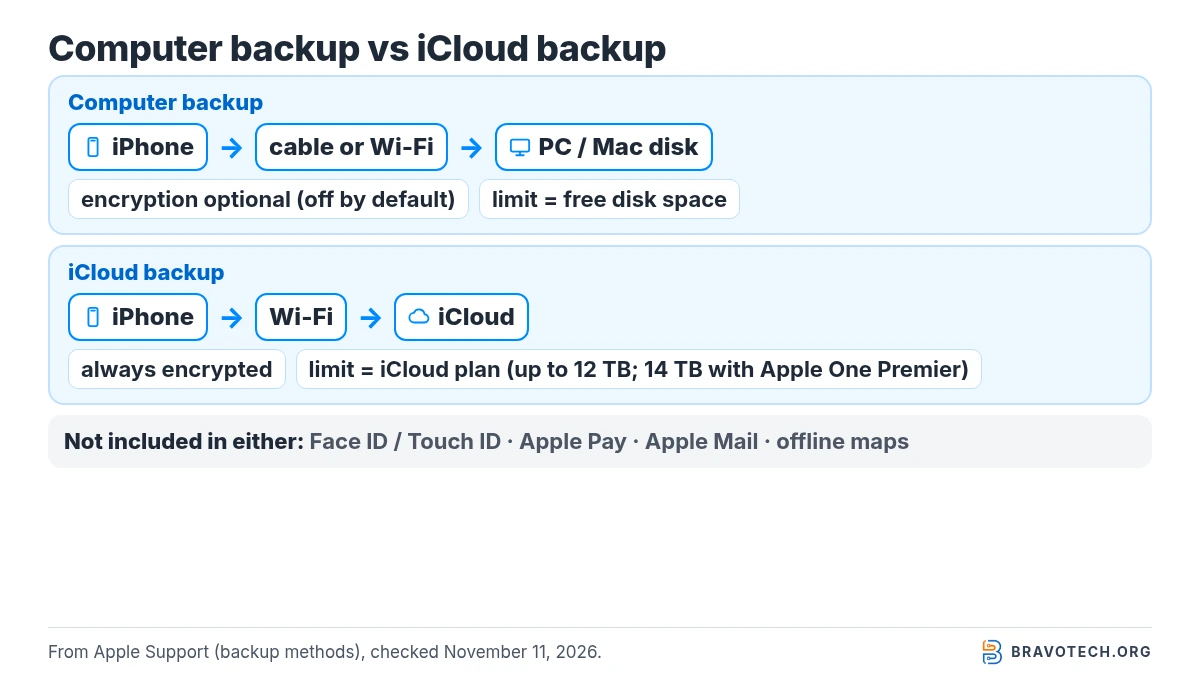
The two methods store different things in different places, and Apple says you can use either or both. A computer backup is limited by free disk space and is encrypted only if you choose. An iCloud backup is always encrypted, can run over Wi-Fi from anywhere, and counts toward your iCloud storage, which goes up to 12 TB, or 14 TB with Apple One Premier.
| Computer (Finder / Apple Devices) | iCloud Backup | |
|---|---|---|
| Where it’s stored | Your Mac or PC | iCloud |
| Space limit | Free space on the computer | Your iCloud plan (up to 12 TB; 14 TB with Apple One Premier) |
| Encryption | Optional, off by default | Always |
| Needs the computer | Yes, by cable or local Wi-Fi | No, any Wi-Fi |
| Extra cost | None beyond disk space | Depends on iCloud plan |
For iCloud plan sizes and US prices, see iCloud+ plans explained; if iCloud is already full, see iCloud storage full. The wider difference between syncing and backing up is covered in cloud storage vs cloud backup.
FAQ
Can I back up an iPhone to a PC without iTunes?
Yes. Apple’s Windows instructions start with the Apple Devices app from the Microsoft Store. iTunes is only Apple’s fallback when the Apple Devices app isn’t available.
Does an iPhone computer backup include my photos?
Apple says a computer backup holds almost all of the device’s data, and lists photos already in iCloud Photos and photos synced from the computer as not included. If iCloud Photos is on, those photos are covered by iCloud instead.
Can I save the backup to an external drive?
Apple’s articles don’t describe changing the backup location. The options Apple documents in Manage Backups are Delete, Archive and Show in Finder, so we don’t cover workarounds here.
Can I back up an iPhone with a broken screen to a computer?
Apple’s steps require unlocking the phone and tapping Trust on its screen for a computer it hasn’t trusted before. If the screen can’t do that, Apple’s documented method may not work; contact Apple Support.
Can I restore an iPad backup to an iPhone?
Yes, Apple says you can restore from a different device type, but some content won’t transfer: photos (unless you use iCloud Photos), Messages not synced with iCloud, Voice Memos, and apps that don’t run on the new device.
How this article was made. We drafted this article with the help of AI tools, working from the official pages listed in Sources. Steps were checked against those pages on November 11, 2026. Fawad Malik is the credited author; the BravoTech team prepared it under our editorial standards. We did not test these products hands-on for this article. Spot an error? Email [email protected].
Sources
12 Apple support articles and user guides, each opened on November 11, 2026 (PKT). Dates in titles are Apple’s published dates.
Show all 12 sources
- Apple Support: How to back up your iPhone, iPad, or iPod touch with Windows (September 15, 2026)
- Apple Support: How to back up your iPhone or iPad with your Mac (October 5, 2026)
- Apple Devices User Guide (Windows): Back up and restore your device
- Apple Devices User Guide (Windows): Install the Apple Devices app
- Apple Support: Apple Music, Apple TV, Apple Devices and iTunes for Windows (October 26, 2026)
- Mac User Guide: Update, back up, or restore your iPhone, iPad, or iPod touch
- Apple Support: How to back up your iPhone (iCloud vs computer, what’s included; October 20, 2026)
- Apple Support: About encrypted backups (September 21, 2026)
- Apple Support: If you can’t remember your encrypted backup password (September 14, 2026)
- Apple Support: Locate and manage backups (October 20, 2026)
- Apple Support: Restore your device from a computer backup (October 12, 2026)
- Apple Support: If your computer doesn’t recognize your iPhone or iPad (August 12, 2026)
Changelog
- November 12, 2026: First published. Steps checked against Apple’s articles on November 11, 2026.
Related reads